


What Is Virtualization in Computing? Save & Boost Uptime
If you're running a small business, there's a good chance your IT setup grew one urgent decision at a time. One server handles accounting. Another runs email. A third supports a line-of-business app that nobody wants to touch because "it still works." The result is familiar. Too many boxes, too much heat, too many failure points, and not enough clarity about what you need.
That mess is often what leads business owners to ask, what is virtualization in computing, and whether it's worth the disruption. The short answer is yes. Virtualization lets one physical machine act like several separate computers, so you can use hardware more efficiently, simplify management, and reduce the number of things that can break at the worst possible moment.
For small and midsize businesses, that matters because IT isn't just an internal function. It affects uptime, payroll, customer service, remote work, and security. When systems are easier to manage, your team spends less time dealing with IT friction and more time doing billable work.
Table of Contents
- From Cluttered Server Racks to Digital Efficiency
- How Virtualization Actually Works The Core Technology
- Exploring the Different Types of Virtualization
- Top Business Benefits of Adopting Virtualization
- Smart Virtualization Planning for Your Small Business
- Let IT Cloud Global Manage Your Virtual Infrastructure
- Common Virtualization Questions Answered
From Cluttered Server Racks to Digital Efficiency
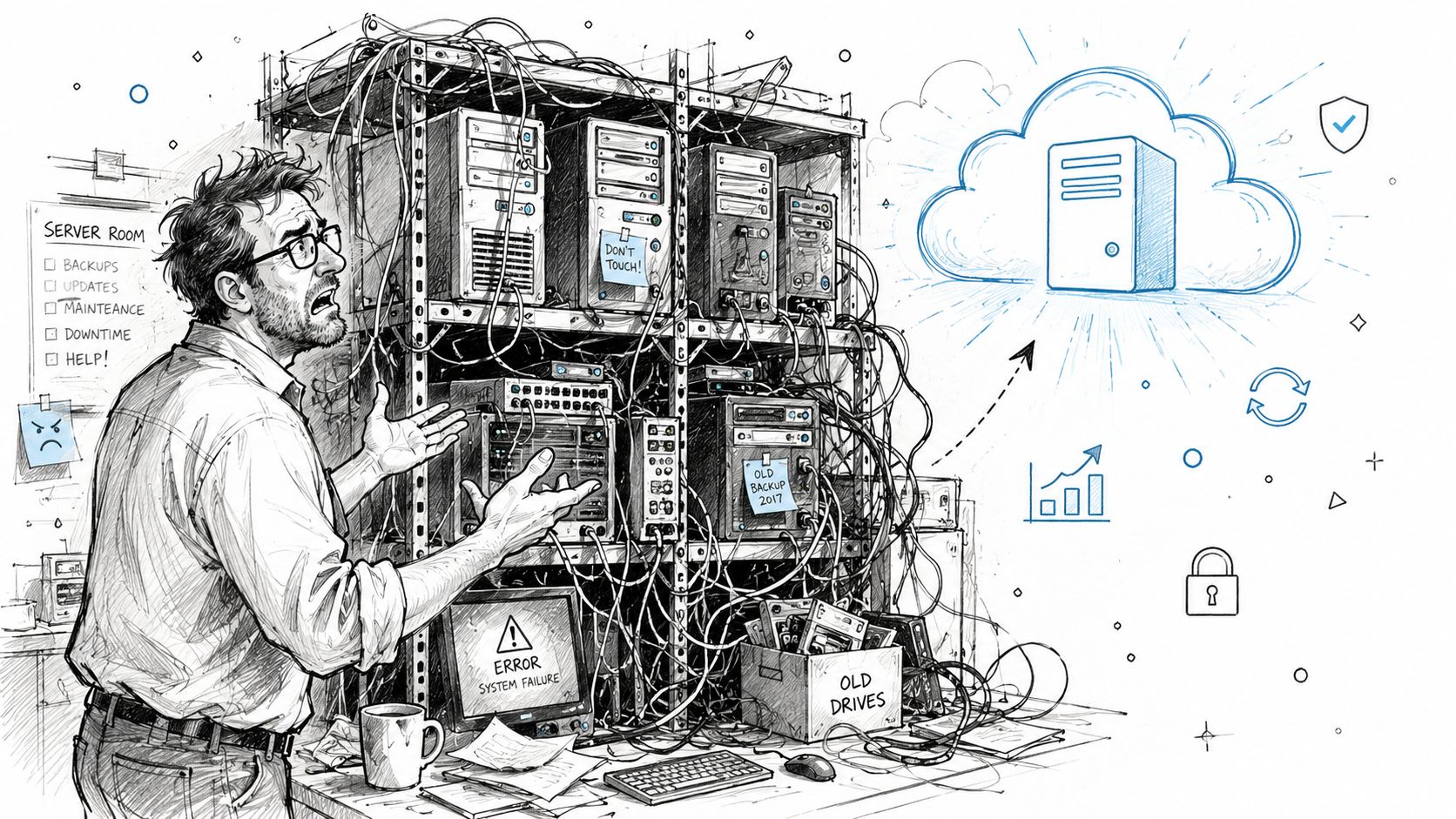
A lot of offices still run old-school server environments. One machine is dedicated to files. One handles a database. One is reserved for a legacy application. Each box takes up space, draws power, needs updates, and creates one more point of failure. Worse, many of those systems spend much of the day barely working at all.
That's the business problem virtualization solves. Instead of tying one workload to one physical machine, virtualization lets you run multiple isolated systems on a single server. Imagine turning a large single-family house into a well-managed apartment building. Each tenant has a separate space, but they share the same foundation, roof, and utilities.
Virtualization isn't new or experimental. Its roots go back to IBM's CP-40 research system, first demonstrated in 1967, which allowed mainframes to run multiple operating systems at the same time by isolating workloads and improving hardware use, as described in Wikipedia's history of virtualization. That early work laid the foundation for the flexible, shared computing model businesses now depend on.
For a small business, the practical takeaway is simple. You don't need a separate physical server for every task. You need a smart way to divide computing resources so each system gets what it needs without forcing you to buy and maintain extra hardware. That's one reason virtualization shows up in so many broader technology modernization strategies.
Virtualization turns hardware from a fixed asset into a flexible pool of computing power.
When people ask what virtualization in computing means in plain English, that's the clearest answer. It helps one strong server do the work of many smaller ones, while keeping those workloads separated enough to stay manageable and secure.
How Virtualization Actually Works The Core Technology
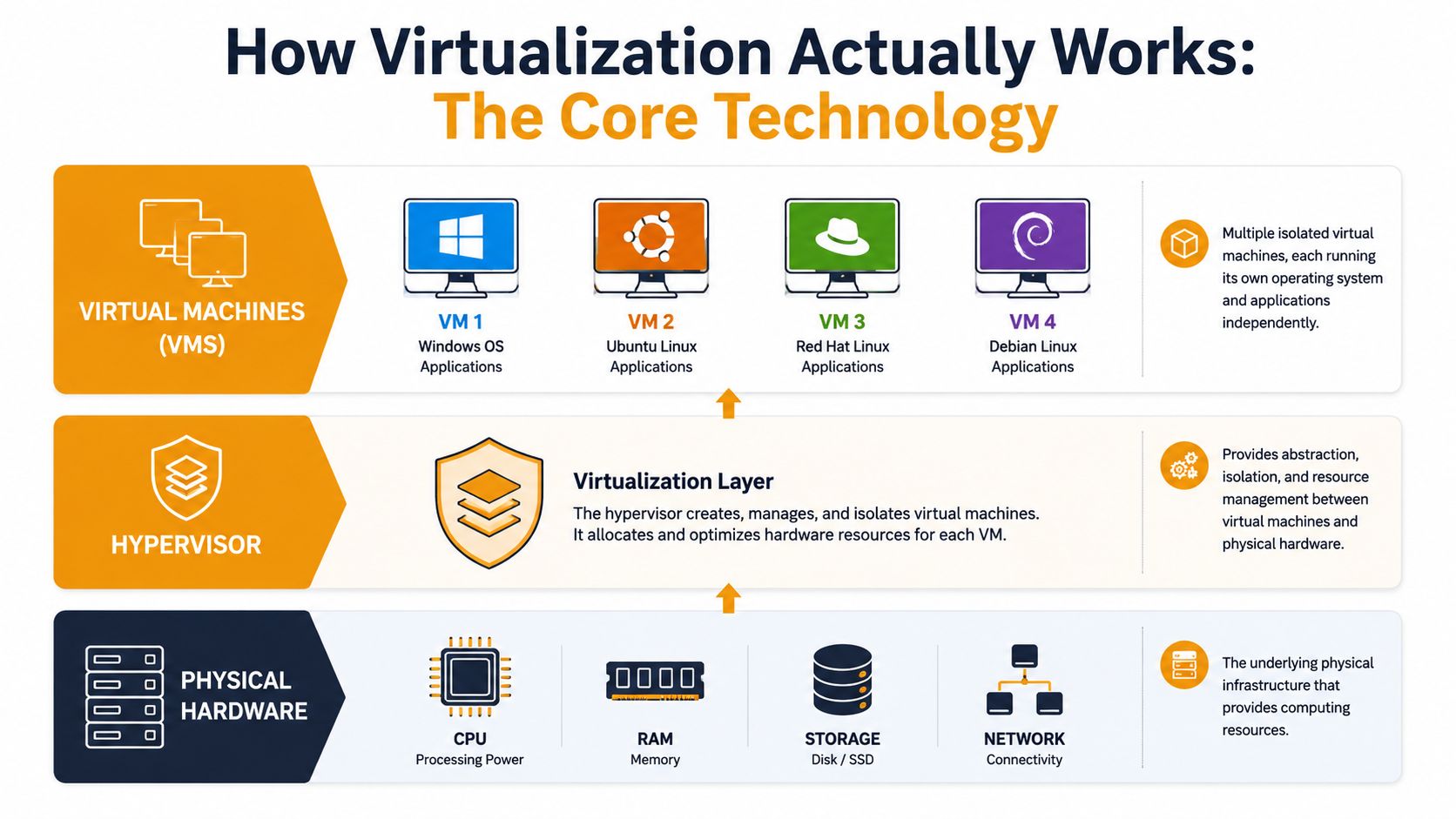
The technology sounds abstract until you break it into layers. At the bottom, you have the physical server. That's the actual machine with processor, memory, storage, and networking. On top of that sits the software that makes virtualization possible.
A visual helps:
The simple idea behind it
The key component is the hypervisor. It creates a layer between physical hardware and the virtual machines that run on it. According to Scale Computing's explanation of virtualization software, this setup lets organizations consolidate physical servers and can reduce hardware costs by up to 40%.
A good analogy is a building manager in an office tower. The building has one set of core resources: power, water, elevators, security, and physical structure. The manager decides how each tenant uses that shared environment. Tenants stay separate from each other, but they still live inside the same building.
In a virtualized server, the hypervisor plays that manager role. It allocates CPU, memory, storage, and networking to each virtual machine. One VM might run Windows Server for accounting software. Another might run Linux for a web app. A third might run a database. They share the same physical host, but each behaves like its own independent computer.
Type 1 and Type 2 hypervisors
Many business owners get tripped up, as there are two common hypervisor models.
- Type 1 hypervisors run directly on the hardware. VMware ESXi and Microsoft Hyper-V are common examples. They're usually the better fit for production business servers because they prioritize performance and control.
- Type 2 hypervisors run on top of an existing operating system. These are more common for testing, training, or desktop use. They're useful, but they're generally not the first choice for the core systems your company depends on every day.
If you're evaluating infrastructure vendors, this usually ties back to broader cloud infrastructure provider features like management, resilience, and compatibility with the tools your team already uses.
Practical rule: If the system runs payroll, files, line-of-business apps, or customer data, start by looking at a Type 1 platform.
Here is a short explainer for the core concept in motion:
What a virtual machine really is
A virtual machine, or VM, is a software-defined computer. It has its own operating system, applications, memory allocation, virtual disks, and network settings. To the person using it, it feels like a normal server.
That separation matters. If one VM has a software issue, it doesn't automatically take down the others. If you need to test a patch, deploy a new service, or isolate an aging application, a VM gives you a controlled place to do it.
For business owners, this is the important shift. You're no longer thinking in terms of "How many physical servers do I need?" You're thinking in terms of "How many workloads do I need, and how should they be separated?"
Exploring the Different Types of Virtualization
Virtualization doesn't only apply to servers. Server virtualization is the most common starting point for small businesses, but the same idea shows up in desktops, storage, and networks too. Once you understand the categories, conversations with IT providers become much easier.
Server virtualization
This is the version most companies mean when they ask what virtualization in computing is. A physical server gets divided into multiple virtual servers, each running its own operating system and application stack. That works well when a business has several workloads that don't each need their own dedicated machine.
Examples include a company that runs:
- a file server for shared documents
- a domain controller for user logins
- a database server for an accounting platform
- a line-of-business application for operations
Those can often live as separate virtual machines on a smaller number of physical hosts, which simplifies management without combining everything into one risky pile.
Virtual machines and containers
People often confuse VMs with containers. They aren't the same thing.
A VM is like a full house. It has its own structure, utilities, and operating environment. A container is more like an apartment. It has its own separated living space, but it shares more of the building underneath. That makes containers lighter and faster to spin up, while VMs give stronger separation at the full operating system level.
| Feature | Virtual Machines (VMs) | Containers |
|---|---|---|
| Operating system | Each VM has its own OS | Containers share the host OS kernel |
| Footprint | Heavier | Lighter |
| Isolation | Strong OS-level separation | Application-level separation |
| Best fit | Legacy apps, mixed OS needs, stricter separation | Modern apps, fast deployment, portability |
| Business example | Running Windows Server and Linux side by side | Packaging a web app and its dependencies |
If you need different operating systems on the same hardware, VMs are usually the cleaner answer. If you need speed and portability for modern app delivery, containers may be a better fit.
Other forms you may run into
Beyond servers, virtualization shows up in several useful ways:
- Desktop virtualization lets employees access a work desktop from another location or device. This can simplify remote work and centralize updates.
- Storage virtualization pools storage resources so they appear easier to manage as a unified resource.
- Network virtualization separates network functions from dedicated hardware, which can improve flexibility and segmentation.
Not every small business needs all of these. Many start with server virtualization because it's the clearest place to reduce clutter and improve resilience. Later, they may add virtual desktops for remote staff or use storage virtualization to support backup and recovery goals.
Top Business Benefits of Adopting Virtualization
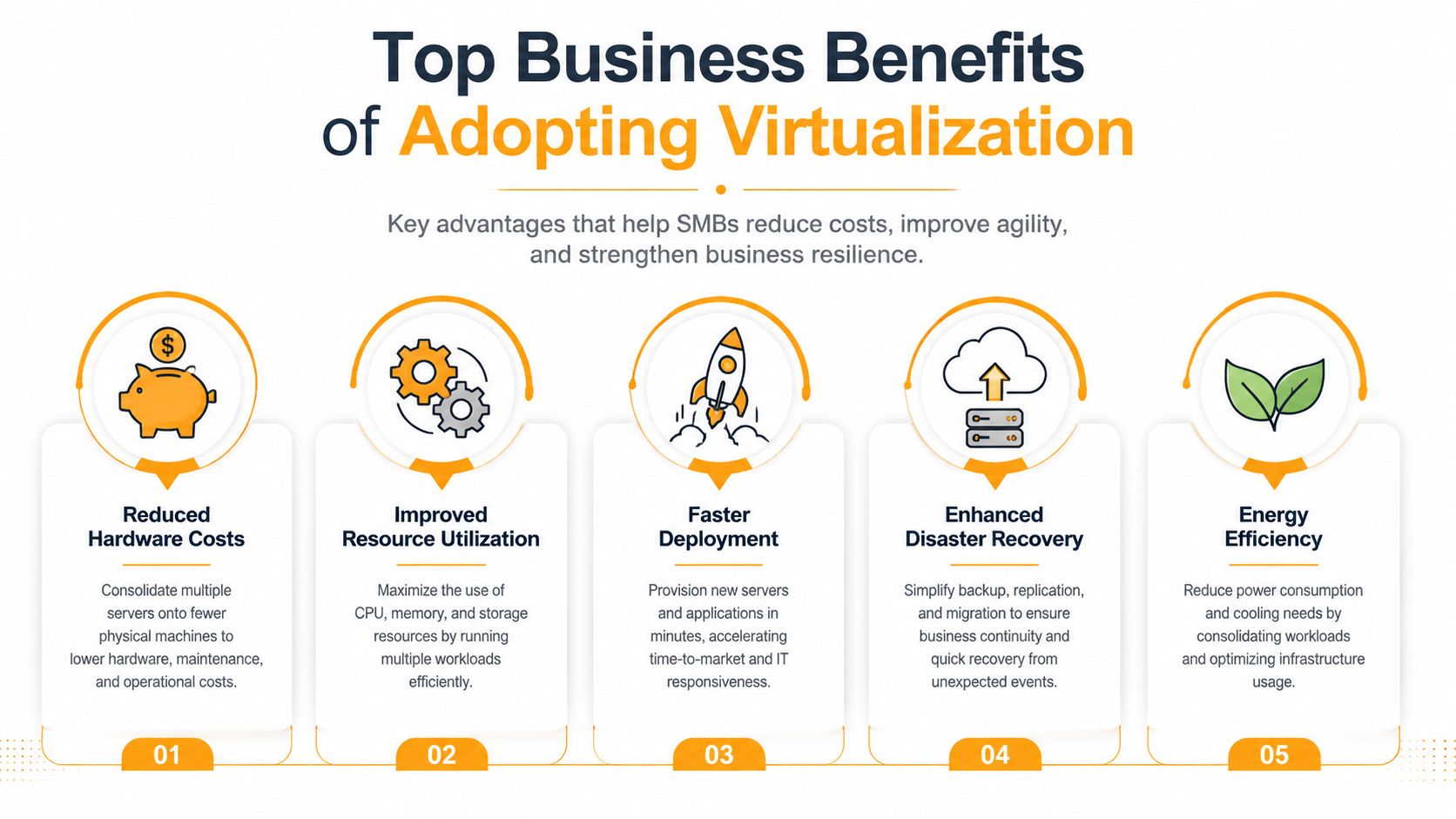
Virtualization only matters if it improves the day-to-day reality of running your business. For most SMBs, the appeal isn't technical elegance. It's lower costs, less waste, fewer outages, and simpler recovery when something goes wrong.
Lower hardware waste
Before virtualization, physical servers often ran at below 10% capacity, according to IBM's overview of virtualization. That's a painful amount of waste for any business buying, cooling, powering, and maintaining hardware.
When you consolidate workloads into virtual machines, you use more of the server you already paid for. You also reduce the number of physical systems sitting in a closet or server room doing one narrow job. IBM also notes the virtualization market is projected to grow from USD 85.83 billion in 2024 to USD 100.19 billion in 2025, which reflects how central this model has become to modern IT.
For a small business owner, the business case is straightforward:
- Fewer physical servers means less hardware to replace
- Less rack clutter makes troubleshooting easier
- Better utilization means stronger value from every IT dollar
If you're comparing options for ongoing support, these operational gains connect directly to the wider benefits of managed IT services, especially around maintenance, monitoring, and uptime.
Faster recovery and easier continuity
A virtual machine is easier to back up, move, and restore than a fragile one-off physical box. That doesn't mean recovery becomes automatic, but it does mean your IT team has more options when hardware fails or a server needs maintenance.
A practical example is a business running a critical app inside a VM instead of on an aging standalone server. If the host hardware has a problem, the VM can often be restored or moved much more cleanly than rebuilding a physical machine from scratch.
Businesses don't buy virtualization because they love infrastructure. They buy it because downtime is expensive and interruptions frustrate staff and customers.
Stronger isolation and less daily friction
Virtualization can also improve security and operational control when it's configured properly. Workloads live in isolated VMs rather than sharing one general-purpose operating system. That separation can reduce the blast radius of a problem and make patching, testing, and maintenance less disruptive.
It also helps with routine work. Need a new test environment? A virtual machine is easier to provision than ordering and preparing another physical server. Need to keep an older application alive while modernizing the rest of your stack? A VM can give it a contained home instead of forcing your whole environment to stay old.
The result is less friction. Your team gets a cleaner environment, and your business gets a more flexible platform to grow on.
Smart Virtualization Planning for Your Small Business
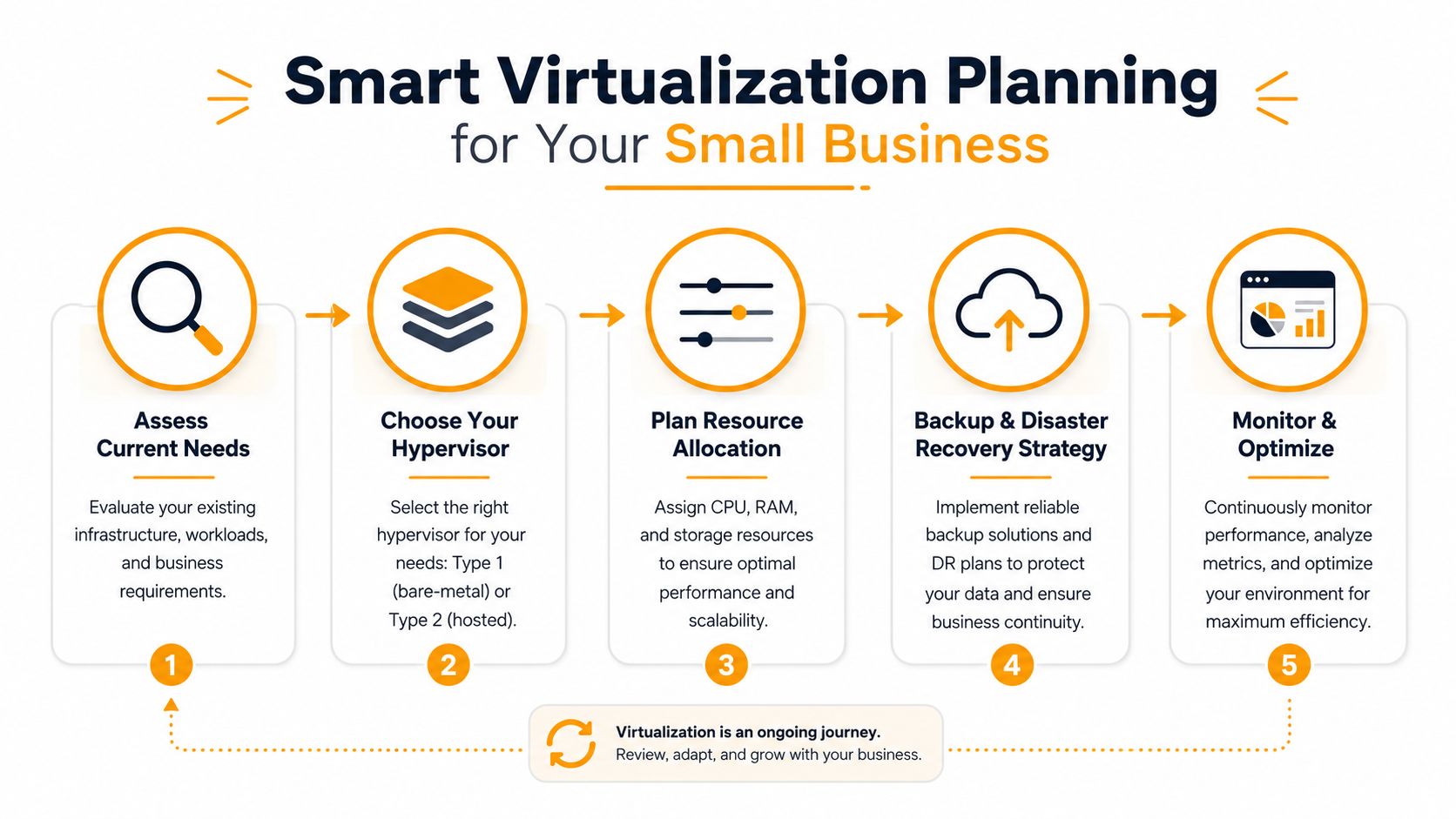
Virtualization can save money and reduce headaches, but only if you plan it around your business instead of treating it like a purely technical upgrade. Many SMB projects go sideways for simple reasons. Too many resources get assigned to the wrong workloads. Backup plans are vague. Licensing isn't reviewed early enough. Critical apps get moved without confirming how they behave in a virtual environment.
Start with business reality not product hype
Begin with what your company runs. List the applications that matter, who uses them, when they must be available, and what breaks if they're offline. A small CPA firm, medical office, retailer, and engineering company may all use virtualization, but their risk tolerance and workload patterns aren't the same.
Create a short inventory like this:
- Critical systems such as accounting, ERP, file storage, identity, and email-related services
- Legacy applications that still matter but may need special handling
- Growth needs like new hires, remote access, additional sites, or seasonal demand
- Recovery expectations for how quickly systems should come back after an outage
That list gives you a practical scope. It also helps you avoid overbuilding.
Choose the right platform and scope
For many SMBs, the platform decision often comes down to familiar names like VMware ESXi or Microsoft Hyper-V. A business already invested in Microsoft licensing and Windows Server may lean toward Hyper-V. A company that wants a virtualization-first stack with broad ecosystem familiarity may prefer VMware. The right answer depends on budget, internal skills, existing software, and support model.
You also don't have to virtualize everything on day one. A phased approach is usually safer:
- Start with stable workloads that are predictable and well understood
- Leave unusual or fragile systems for later validation
- Test backups early so recovery is proven, not assumed
- Document dependencies between apps, databases, and shared storage
The best virtualization project isn't the one with the most features. It's the one your team can support without constant guesswork.
Security planning belongs here too. Each VM should be treated like a real computer, because that's effectively what it is. It needs patching, access controls, monitoring, and backup coverage. Virtualization adds flexibility, but it doesn't erase security responsibilities.
Avoid the expensive mistakes
One of the most common mistakes is assigning far more CPU or RAM than a VM needs. According to Splunk's guide to virtualization, over-provisioning increases operational costs by 25 to 30% without improving performance. The same source notes virtualization can reduce physical maintenance costs by 50% and improve security through isolated VM systems when configured correctly.
That tells you two things. First, virtualization pays off when it's sized properly. Second, poor planning can eat into those savings.
Watch for these common pitfalls:
- Over-provisioning resources because "more feels safer" even when monitoring doesn't support it
- Ignoring software licensing for operating systems, databases, backup tools, and line-of-business apps
- Skipping storage planning and focusing only on CPU and RAM
- Treating backups as automatic just because workloads are virtual
- Moving too much at once without a rollback path
A sensible SMB rollout often looks boring on paper. That's a good sign. Stable projects beat dramatic ones.
Let IT Cloud Global Manage Your Virtual Infrastructure
Virtualization gives small businesses a smarter way to run IT, but the move isn't just about spinning up a few VMs. You still need the right platform, the right resource sizing, reliable backups, solid security settings, and ongoing monitoring so the environment stays efficient instead of drifting into the same old mess in a new format.
That's where experienced support matters. IT Cloud Global works with the platforms many SMBs already rely on, including VMware, Hyper-V, Azure, and AWS, and can help businesses plan, migrate, secure, and manage virtual environments without disrupting day-to-day operations. If you're also weighing where virtualized workloads belong, Bridge Global's guide to cloud types gives a helpful overview of public and private cloud models.
For Houston businesses, the biggest win is often simple. You get fewer infrastructure headaches, more predictable performance, and a team that can keep systems running while you focus on customers, staff, and growth.
Common Virtualization Questions Answered
| Question | Answer |
|---|---|
| Is virtualization the same as cloud computing? | No. Virtualization is the technology that lets one physical machine run multiple isolated systems. Cloud computing uses virtualization as a foundation for delivering shared resources more flexibly. |
| Can virtualization run on existing hardware? | Sometimes, yes. It depends on the age of the server, available memory and storage, workload demands, and whether the hardware is still reliable enough for business use. A proper assessment matters before migration. |
| Is virtualization worth it for a very small business? | Often, yes. Even a small company can benefit from simpler management, better separation between workloads, and easier backup and recovery. The right setup may be modest, but the operational benefits can still be meaningful. |
If you're considering virtualization and want clear guidance specific to your environment, contact IT Cloud Global, LLC. Their team helps Houston small and midsize businesses plan infrastructure upgrades, manage virtual servers, strengthen security, and reduce downtime with practical support that fits real business operations.
- Disaster Recovery vs Business Continuity for SMBs
- Remote Desktop IT Support Guide 2026
- How Long Does Data Recovery Take? Realistic Timelines
- What Is a Helpdesk Ticketing System? an SMB Guide
- Cloud Computing Solutions for Small Business: Houston 2026
- Network Maintenance Service: A Guide for Houston SMBs
- Remote IT Support Services: Boost Uptime & Cut Costs