


Microsoft 365 Backup Solutions Your Business Needs in 2026
If you're using Microsoft 365 right now, there's a good chance you assume your email, files, Teams data, and SharePoint sites are already “backed up.” That assumption causes trouble for small businesses all the time.
A common version looks like this. A staff member deletes the wrong folder in SharePoint. Nobody notices right away because the team is busy, projects keep moving, and people assume Microsoft can bring it back whenever needed. Months later, that missing folder turns into a legal issue, an accounting issue, or a client delivery problem. By then, the built-in recovery window may already be gone.
That gap between what business owners think Microsoft 365 protects and what it does protect is where most backup problems start. The deeper risk isn't just losing files. It's losing the ability to fully recover your working environment, your security setup, and your confidence that a restore won't reintroduce infected data.
Table of Contents
- The Critical Misconception About Your Microsoft 365 Data
- Why Your M365 Data Is at Risk Without a Dedicated Backup
- Native Microsoft Backup vs Third-Party Solutions
- Must-Have Features in a Microsoft 365 Backup Solution
- How to Choose and Implement Your Backup Solution
- The Benefits of a Managed Backup Service
- Frequently Asked Questions About M365 Backup
The Critical Misconception About Your Microsoft 365 Data
The biggest mistake business owners make is simple. They confuse service availability with data recoverability.
Microsoft does a lot well inside Microsoft 365. It runs the platform, maintains the infrastructure, and keeps core services available. But that doesn't mean every deleted mailbox, overwritten document, changed permission set, or compromised tenant can be rolled back the way your business needs.
Here's where that misunderstanding hurts. A company moves its file shares into SharePoint and OneDrive, migrates mail into Exchange Online, and starts collaborating in Teams. The move feels modern and safe. Then someone leaves the company, another employee makes an admin mistake, or a sync issue wipes out a library structure. Suddenly the question isn't whether Microsoft 365 is “up.” The question is whether your business can restore the right data, from the right time, in the right way.
Microsoft is responsible for the service. Your business is responsible for making sure your own data can be recovered when something goes wrong.
That distinction is the practical version of the shared responsibility model. For a small business owner, it means this: Microsoft protects the building. You still need to protect what's inside your office.
A lot of standard guidance stops at email and file recovery. That's too narrow. In real incidents, businesses also struggle with tenant-level damage. Security roles, policies, and configuration settings can be just as important as documents and messages. If those pieces aren't recoverable, the business may still be down even after the files come back.
This is why Microsoft 365 backup solutions matter. They aren't just insurance for deleted files. They're part of business continuity.
Why Your M365 Data Is at Risk Without a Dedicated Backup
Microsoft protects the platform, not every recovery scenario
Think of Microsoft 365 like an apartment building. Microsoft owns the structure, maintains the elevators, secures the front entrance, and keeps the utilities running. Your business still has to lock its own unit, protect its own records, and keep copies of anything it can't afford to lose.
That's the operational reality behind Microsoft 365. Native retention isn't the same thing as a full backup strategy.
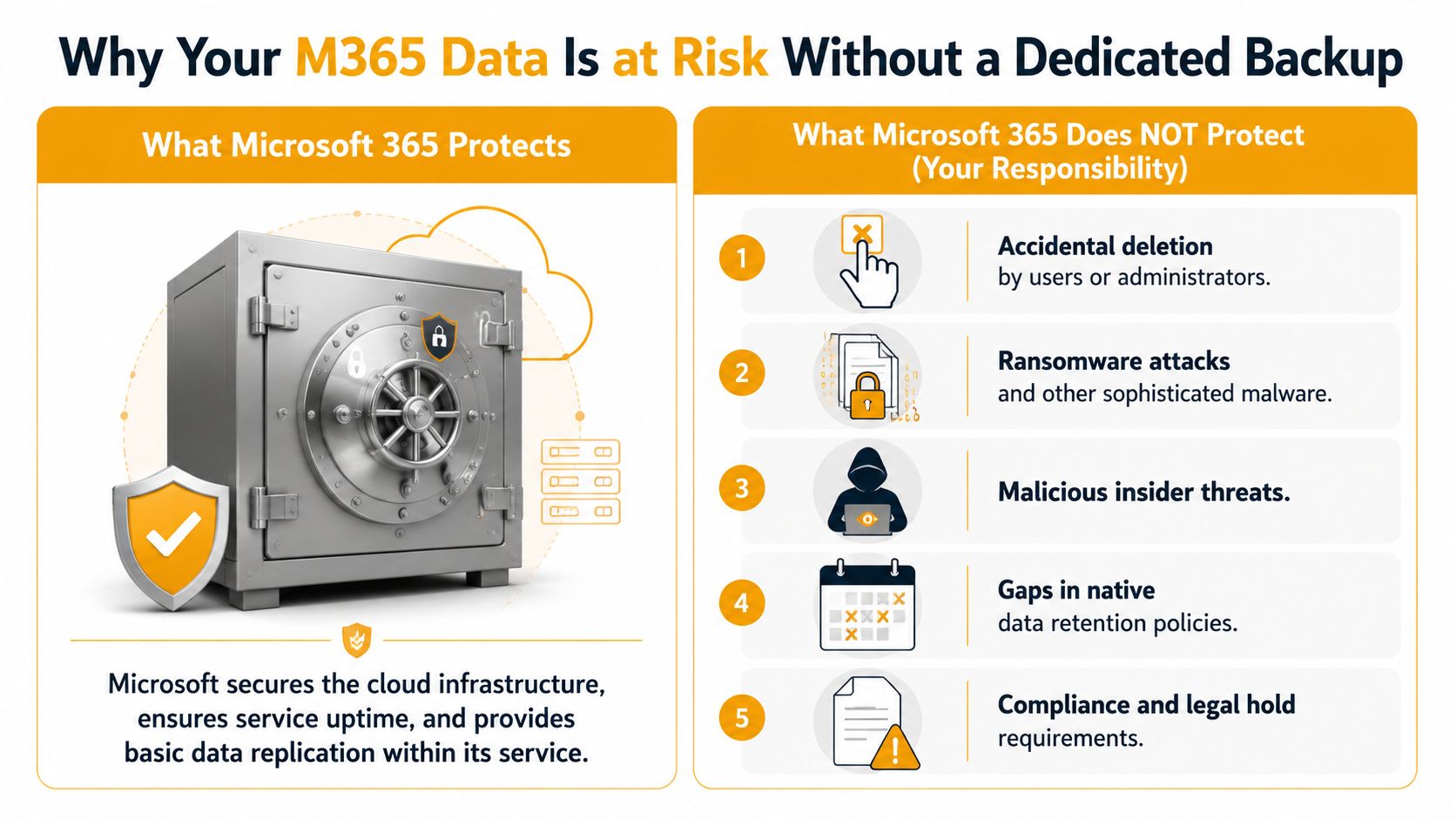
One of the clearest examples is retention. Exchange Online retains deleted mailboxes for only 30 days, while SharePoint Online and OneDrive support deleted item-level recovery up to 93 days, which makes native recovery weak for anything beyond accidental deletion or a short-lived ransomware event, as explained in Cohesity's overview of Microsoft 365 backup.
If your team discovers a problem late, those windows can disappear faster than most owners expect. That creates business risk even when nobody hacked you. Normal human error is enough.
The risks that catch small businesses off guard
The day-to-day threats are usually familiar, but people underestimate their impact in Microsoft 365:
- Accidental deletion: An employee removes a mailbox item, folder, team file, or SharePoint content and nobody notices until later.
- Admin mistakes: A rushed change to permissions, retention, or account access can break access or remove content.
- Insider activity: A departing employee can delete or alter data before anyone realizes what's happening.
- Ransomware in cloud workflows: If compromised credentials or synced activity touch cloud data, recovery gets messy.
- Compliance pressure: A business may need older records than native retention can realistically provide.
The other problem is confidence. Many small businesses think, “It must still be in the cloud somewhere.” Sometimes it is. Sometimes it isn't recoverable in the way the business expects.
A short video can help make that gap easier to understand:
Practical rule: If losing a mailbox, SharePoint site, or OneDrive folder would disrupt payroll, operations, legal response, or customer service, it needs a real backup plan, not just native retention.
A dedicated backup solution gives you a separate recovery path. That's what changes backup from a hopeful assumption into a controlled process.
Native Microsoft Backup vs Third-Party Solutions
A small business usually discovers the difference the hard way. Someone needs an email thread from nine months ago, a departed admin changed retention settings without documenting it, or a SharePoint restore brings back the infected file version that started the problem. At that point, the question is no longer “Do we have backup?” It is “Can we restore the right data, in the right state, without recreating the same risk?”
Microsoft now has its own backup product, and that gives businesses a native option inside the platform they already use. That option can be useful. But it helps to judge it by recovery outcomes, not by the comfort of staying inside one vendor.
Where the native service fits
Microsoft 365 Backup is attractive for teams that want a Microsoft-built tool with fast recovery and minimal platform sprawl. It is close to the source data, familiar to Microsoft admins, and simpler to approve than adding another vendor.
That said, native backup is still a narrower safety net than many business owners expect. Retention is shorter than what many legal, HR, and finance scenarios call for. Backup copies also remain within the Microsoft ecosystem, which matters if your goal is true separation from the platform you are protecting. If you are reviewing your wider offsite strategy, this guide to offsite backup practices for business data is a useful benchmark.
Where third-party tools usually justify the cost
Third-party platforms tend to win on control.
The first gap is retention and storage design. Many third-party products give you longer retention options and more choice about where backup data lives. That matters if you need to recover old records, prove what existed at a specific point in time, or keep backup copies away from the same administrative boundary as production Microsoft 365.
The second gap is scope. Standard comparisons focus on email, files, and Teams data. In practice, recovery problems often go beyond user content. After an incident, businesses may also need to reconstruct tenant settings, permissions, group structures, and other configuration details that affect how the environment works. Losing a file is painful. Losing the configuration that controls access, sharing, and policy enforcement can stop the business from operating normally even after the files come back.
There is also a security trade-off that many buying guides skip. A backup is not automatically safe just because it is recoverable. If ransomware, malicious scripts, or compromised files sat dormant in the tenant before anyone detected them, an unplanned restore can put the same threat back into production. Better third-party platforms usually give you more control over point-in-time recovery, longer history, and cleaner restore options so you can avoid rolling the business back to an infected state.
Pricing is another practical difference. Microsoft uses storage-based pricing, while many third-party vendors charge per user. Storage pricing can work well for smaller or tightly managed tenants. It becomes harder to predict in environments with heavy SharePoint, OneDrive, or Teams growth. User-based pricing is often easier for a small business to budget, even if the monthly line item looks higher at first glance.
| Feature | Native Microsoft 365 Backup | Typical Third-Party Solution |
|---|---|---|
| Retention | Shorter retention options | Often longer and more flexible |
| Pricing model | Storage-based | Often per-user |
| Storage location | Inside the Microsoft ecosystem | Often supports separate storage targets |
| Offsite separation | Limited | Usually stronger |
| Recovery scope | Focused on core M365 data | Often broader restore and export options |
| Security recovery control | More limited restore flexibility | Usually better point-in-time choice and isolation options |
The native option makes sense for businesses that want fast, simple recovery for recent Microsoft 365 data and are comfortable with Microsoft's boundaries.
Third-party backup usually makes more sense when you need longer retention, cleaner offsite separation, more predictable budgeting, or a recovery plan that covers more than files and mail. In my experience, that last point is often the deciding one. After a serious incident, businesses do not just need data back. They need the tenant back in a trusted, usable state.
Must-Have Features in a Microsoft 365 Backup Solution
A backup product can look impressive in a demo and still fail you in a real incident. The shortlist should focus on recovery outcomes, not just dashboard features.
Core recovery features you should expect
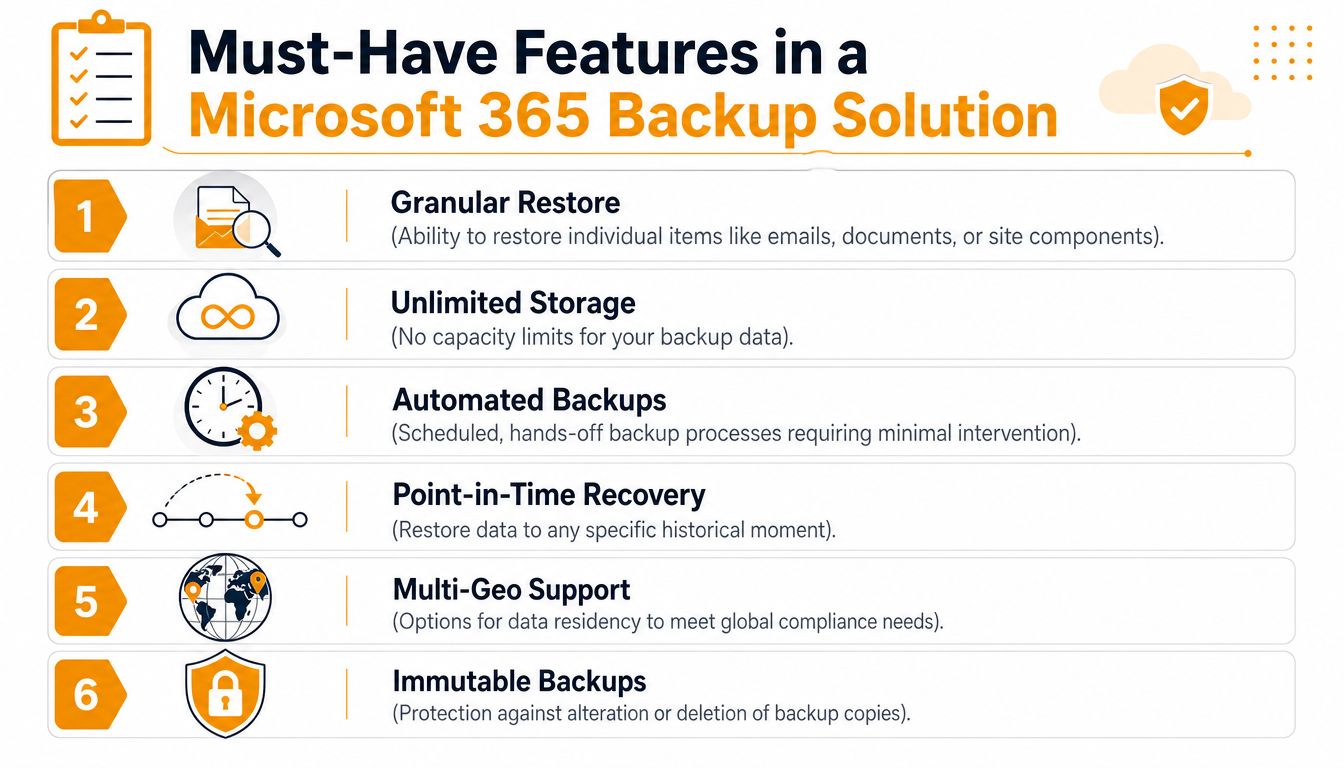
Start with the basics that affect daily operations:
- Granular restore: You should be able to recover a single email, file, folder, or site component without rolling back everything around it.
- Automated backup scheduling: If the process depends on manual effort, it will eventually be missed.
- Point-in-time recovery: You need options tied to specific moments, especially after accidental changes or ransomware events.
- Immutable backup design: If backup data can be altered or deleted too easily, it won't help much during an attack.
- Clear storage and retention options: Businesses need policies that match legal, operational, and historical needs.
- Multi-geo support when required: If your business has location-specific requirements, residency matters.
If you're also reviewing broader offsite strategy, this guide to offsite backup practices for business data is useful because Microsoft 365 backup shouldn't sit in isolation from the rest of your continuity planning.
The hidden features that matter during a real incident
The two most overlooked requirements are the ones many standard buying guides barely mention.
First is tenant configuration backup. Native M365 backup tools exclude configuration settings, roles, and policies, and the only native path for backing up that architecture is the Microsoft 365 DSC PowerShell module, which isn't a practical answer for many small businesses. Without a recoverable copy of that tenant configuration, recovery from a tenant-level incident can take weeks instead of hours, as discussed in CoreView's tenant backup analysis.
That matters more than people realize. If you restore files but can't reliably restore role assignments, security settings, conditional access decisions, or policy structure, your environment may still be unsafe or unusable.
Second is malware scanning inside backup sets. If a backup platform can't help you identify dormant malware before restore, you risk putting bad data right back into production.
When evaluating Microsoft 365 backup solutions, ask direct questions such as:
- Can it restore individual content quickly? A whole-mailbox restore is not the same as recovering one critical message.
- Can it protect tenant configuration, not just user data? Many products sound better than they are.
- Does it support immutable storage or equivalent protection? Ransomware response depends on backup integrity.
- Can it help you avoid restoring infected data? If the answer is vague, push harder.
- Is reporting understandable to a business owner? If backup success or failure is buried in technical noise, you'll miss warning signs.
Backing up files without backing up tenant settings is like saving the contents of an office while throwing away the keys, alarm codes, and access list.
A strong solution covers both the data and the business context around that data.
How to Choose and Implement Your Backup Solution
Choose based on recovery goals and restore reality
A backup product looks good right up until the day you need to restore a terminated employee's mailbox, a corrupted SharePoint library, and the access settings around it, all before staff arrive Monday morning.
Start there. Define what the business needs back first, how quickly it needs to come back, and what would cause real operational pain if it stayed down. For some firms, that is email and current files. For others, it is Teams conversations tied to active projects, SharePoint permissions, or the Microsoft 365 settings that control who can access what.
Speed still matters, but restore scope matters just as much. As noted earlier, some recovery options are fine for straightforward file or mailbox recovery but become slower or more manual as the environment grows. Small businesses feel this too. A 20-person company can be hit just as hard by a slow restore if the missing data sits at the center of billing, client communication, or daily approvals.
A buying process that usually holds up under pressure looks like this:
- List what must be recoverable: Exchange, OneDrive, SharePoint, Teams, and any settings or configurations your business depends on.
- Define acceptable downtime in plain terms: How long can sales, support, finance, or leadership work without that data?
- Set retention and audit requirements before purchase: Compliance problems usually show up after an incident, not before.
- Walk through the actual restore process: Find out who can restore data, what approvals are needed, and whether recovery is granular or all-or-nothing.
- Fit it into your wider continuity plan: Your Microsoft 365 backup should support the rest of your small business cloud backup strategy, not sit off to the side as a separate tool nobody owns.
One more point gets missed during product demos. Ask what happens if you restore data that was already compromised. If the platform cannot help you identify suspicious content before recovery, you may solve the deletion problem and reintroduce the security problem.
Implementation is where backup plans usually break down
Buying the license is the easy part. Coverage gaps, weak permissions, skipped testing, and undocumented restores are what turn a backup tool into a false sense of security.
Set the schedule, lock down who can change retention or remove protected data, and document the restore process in language a business owner can follow. During an outage, nobody wants to decode admin jargon or guess which vendor owns the problem.
Then test with intent.
A useful test plan includes:
- Single-item restores: Recover one email, file, or Teams-related record that matters to daily work.
- User-level restores: Confirm a mailbox or OneDrive account can be brought back cleanly and accessed by the right person.
- SharePoint recovery checks: Verify site structure, permissions, and version history, not just the documents.
- Configuration recovery review: Confirm how you would rebuild critical tenant settings, access controls, and policies if those were changed, deleted, or damaged.
- Security review before restore: Check whether the backup set could contain dormant malware or unwanted changes before putting data back into production.
If you've never tested a restore, you don't know whether you have recovery. You know only that backups have been running.
That difference shows up fast during a real incident. The businesses that recover cleanly are usually the ones that chose for real-world restores, documented the process, and practiced it before they were forced to.
The Benefits of a Managed Backup Service
Backup software still needs people behind it
Many owners buy a backup tool expecting it to become one less thing to worry about. In practice, backup needs oversight. Jobs fail. Licenses change. Users get added without protection. Retention settings drift. Restore requests come in at the worst possible moment.
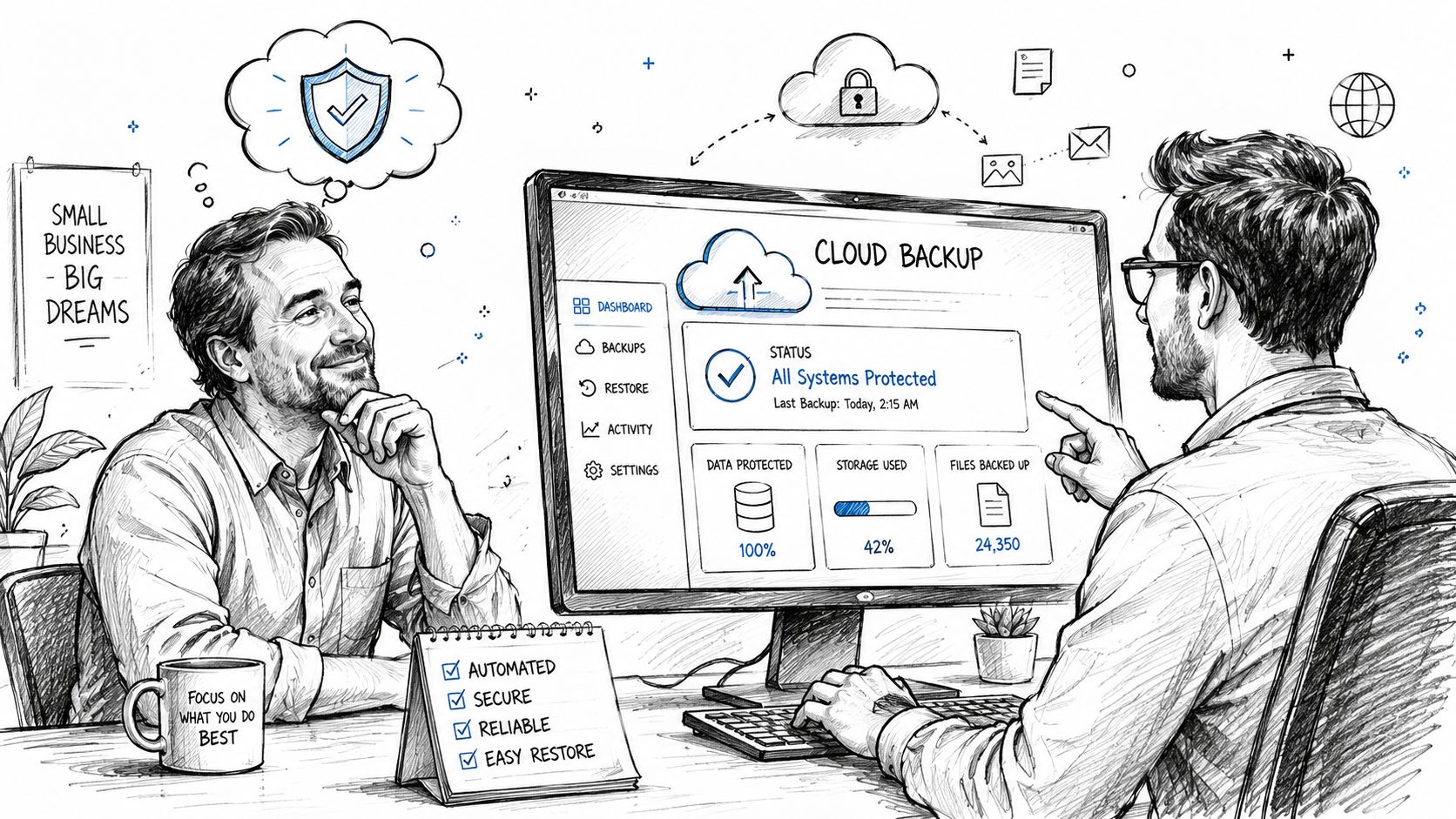
A managed backup service puts discipline around that process. Someone monitors job health, checks alerts, confirms coverage for new users and workloads, and handles restores when your internal team is already overloaded.
For small and midsize businesses, that's often the difference between having a backup product and having an actual recovery capability.
Why small businesses often outsource this work
Most SMBs don't have a dedicated backup engineer. They have an office manager, an outsourced IT contact, or one internal person juggling support, security, onboarding, vendors, devices, and Microsoft 365 administration. Backup doesn't get ignored because it's unimportant. It gets ignored because everything else feels urgent.
A managed partner helps by handling tasks such as:
- Monitoring backup health: Failed jobs and coverage gaps get noticed sooner.
- Running restore tests: Recovery is verified before an emergency.
- Protecting policy consistency: Retention and backup scope stay aligned with business needs.
- Coordinating incident response: When something goes wrong, the restore process is already organized.
- Reducing internal load: Your staff can focus on operations instead of backup troubleshooting.
If you're weighing whether to keep backup management in-house or outsource it, this page on managed IT backup solutions for Houston businesses outlines what ongoing support typically looks like.
The business value is simple. You get fewer surprises, clearer accountability, and faster action when recovery matters most.
Frequently Asked Questions About M365 Backup
Is the recycle bin the same as a backup
No. A recycle bin is a short-term convenience feature. A backup is a separate recovery system designed for controlled restore points, longer retention, and incident response. If a file sits unnoticed past the native recovery window, the recycle bin won't solve that problem.
How long should a business keep Microsoft 365 backups
It depends on legal, operational, and client obligations. Some businesses can work with shorter retention for routine operations. Others need multi-year retention because of contracts, audits, HR records, or regulated data. The important point is to decide retention based on business risk, not default settings.
Can you use more than one backup approach
Yes. Some organizations use native Microsoft capabilities for quick in-platform recovery and pair that with a third-party platform for longer retention, stronger separation, or additional restore flexibility. The key is to avoid overlap that creates confusion during an incident.
Are M365 backups scanned for malware
Not by default in the native service. Native Microsoft 365 Backup does not include built-in malware scanning within backup sets, which means an organization can restore infected data without realizing it. If you need malware scanning in backups, you need a third-party product that provides it, as explained in MSP360's review of third-party Microsoft 365 backup software.
For healthcare, finance, legal, and other compliance-sensitive environments, that question shouldn't be treated as optional. It should be part of the buying checklist.
If your business uses Microsoft 365 and you're not fully sure how you'd recover mail, files, SharePoint data, Teams content, and tenant settings after a real incident, it's time to fix that gap. IT Cloud Global, LLC helps Houston businesses plan, implement, and manage practical backup and recovery strategies that hold up when something goes wrong.
- IT Security Assessment: A Practical Guide for Houston SMBs
- How to Prevent Data Breaches: A Practical Playbook for SMBs
- Remote Desktop IT Support Guide 2026
- Endpoint Protection vs Antivirus: A Houston Guide
- Houston IT Support: A 2026 Guide for SMBs
- What Is Network Access Control: Why Your Business Needs It
- Hybrid Cloud Management: A Practical Guide for SMBs