


Remote Desktop IT Support Guide 2026
A Houston business owner usually discovers the limits of remote support at the worst possible moment. An employee is working from home, another is at a client site, and someone in the office can't open a critical application. None of them can spare half a day to drive a laptop across town, yet the work still needs to continue.
That's where remote desktop IT support earns its place. A technician can connect to an approved endpoint, observe the problem, guide the employee, apply a fix, review logs, or perform maintenance without waiting for an on-site visit. The practical challenge in 2026 isn't finding software that can control a screen. It's choosing an architecture that performs well, protects distributed endpoints, and fits the way your business operates.
Table of Contents
- What Remote Desktop IT Support Actually Means for Your Business
- How Remote Desktop Technology Evolved Into a Business Essential
- Real Benefits Remote Desktop Support Delivers for SMBs
- Security Risks Most Remote Desktop Guides Ignore
- Comparing Remote Access Architectures for Different Needs
- Your Remote Desktop Deployment Checklist
- How to Choose the Right Managed IT Provider for Remote Support
- Making Remote Desktop Support Work for Your Business
What Remote Desktop IT Support Actually Means for Your Business
Remote desktop IT support is a service model, not a single application. It gives an IT team a controlled way to access, diagnose, maintain, and sometimes operate a user's computer or another managed system from a different location. A support session may involve screen sharing, remote control, secure file transfer, chat, command-line work, software installation, patching, or a simple walkthrough while the employee remains at the keyboard.
For a Houston professional services firm, that could mean helping an attorney resolve a Microsoft 365 sign-in issue from a home office. For a retailer, it could mean checking a workstation at another location without sending a technician across the city. For a consulting company, it might involve supporting a traveling employee whose laptop is connected to an unfamiliar network.
What a provider can support
A mature remote support program usually covers more than employee laptops:
- Endpoints: Windows PCs, Macs, mobile devices, and other approved user equipment.
- Servers and virtual machines: Remote Desktop Services, application servers, file servers, and infrastructure hosted on-site or in the cloud.
- Business applications: Microsoft 365, line-of-business software, browsers, printers, and collaboration tools.
- Networks: Wi-Fi troubleshooting, connectivity checks, firewall review, and endpoint communication problems.
- Routine maintenance: Updates, configuration changes, health checks, and remediation outside normal office hours.
Some sessions are attended, meaning the employee approves the connection and can explain what happened. Others are unattended, using an installed management agent so a technician can maintain a device when nobody is present. Screen-viewing support is useful when a platform limits remote control, because the technician can still guide the user through the fix.
What a quality session should feel like
The user should know who's connecting, why access is needed, what the technician will do, and when the session has ended. The provider should control permissions by role and device, record meaningful session activity, and avoid broad network access when the task only requires access to one endpoint.
Practical rule: Remote access should be granted for a defined support purpose, not treated as a permanent substitute for access governance.
Remote support works best when it's paired with a helpdesk process. The technician needs ticket context, asset information, escalation rules, and a way to determine whether the issue is local, application-related, network-related, or security-related. Without that structure, remote access merely allows people to troubleshoot faster in an inconsistent way.
How Remote Desktop Technology Evolved Into a Business Essential
Remote desktop technology has moved through several important stages. Microsoft's Remote Desktop Protocol era began in the late 1990s, followed by Windows Server 2000 introducing Terminal Services in Remote Administration Mode. Windows Server 2003 added the first RD Web Access, then called Terminal Services Web Access, and Windows Server 2012 R2 brought an HTML5-based Remote Desktop Web Client.
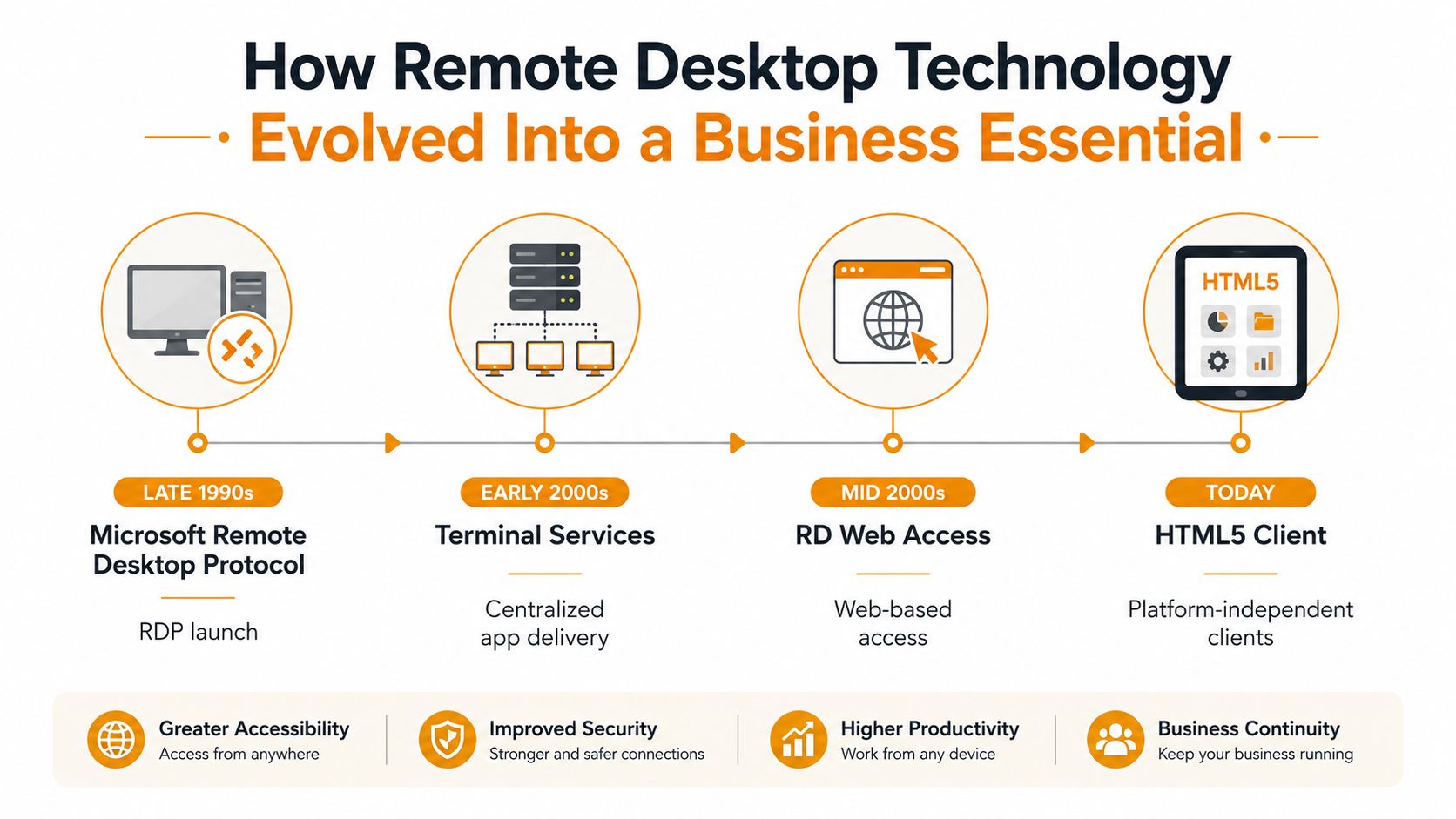
That progression changed the role of remote access. Early deployments focused on server administration and centralized control. Web access reduced dependence on a traditional desktop client, while HTML5 access made browser-based sessions more practical across varied devices. For a support team, the result is a broader set of options for reaching systems without requiring every employee to work from a corporate office.
Why maturity matters to SMBs
A small or midsize business doesn't need to build an experimental platform to benefit from remote support. The underlying model has been refined through server administration, application delivery, remote work, helpdesk operations, and business continuity planning. The important question is now less about whether remote desktop is legitimate technology and more about how to deploy it safely.
Market forecasts reinforce that shift. One estimate places the global remote desktop software market at USD 3.11 billion in 2025, rising to USD 3.66 billion in 2026 and USD 7.24 billion by 2030. Another estimates USD 5.08 billion in 2026 and USD 12.02 billion by 2033. These figures come from different forecast models, so they shouldn't be treated as a single precise market measurement, but both point to a multi-billion-dollar category with continued projected growth. See the remote desktop software market forecast for the underlying estimates.
North America is identified as the largest region in some 2025 and 2026 forecasts, which fits what many Houston businesses already experience. Distributed work, cloud applications, outsourced IT, and multiple office locations have made remote administration part of ordinary operations.
The evolution also explains why browser access alone isn't enough. A modern deployment still needs identity controls, device management, session oversight, transport optimization, and a support process that can distinguish convenience from unnecessary exposure.
Real Benefits Remote Desktop Support Delivers for SMBs
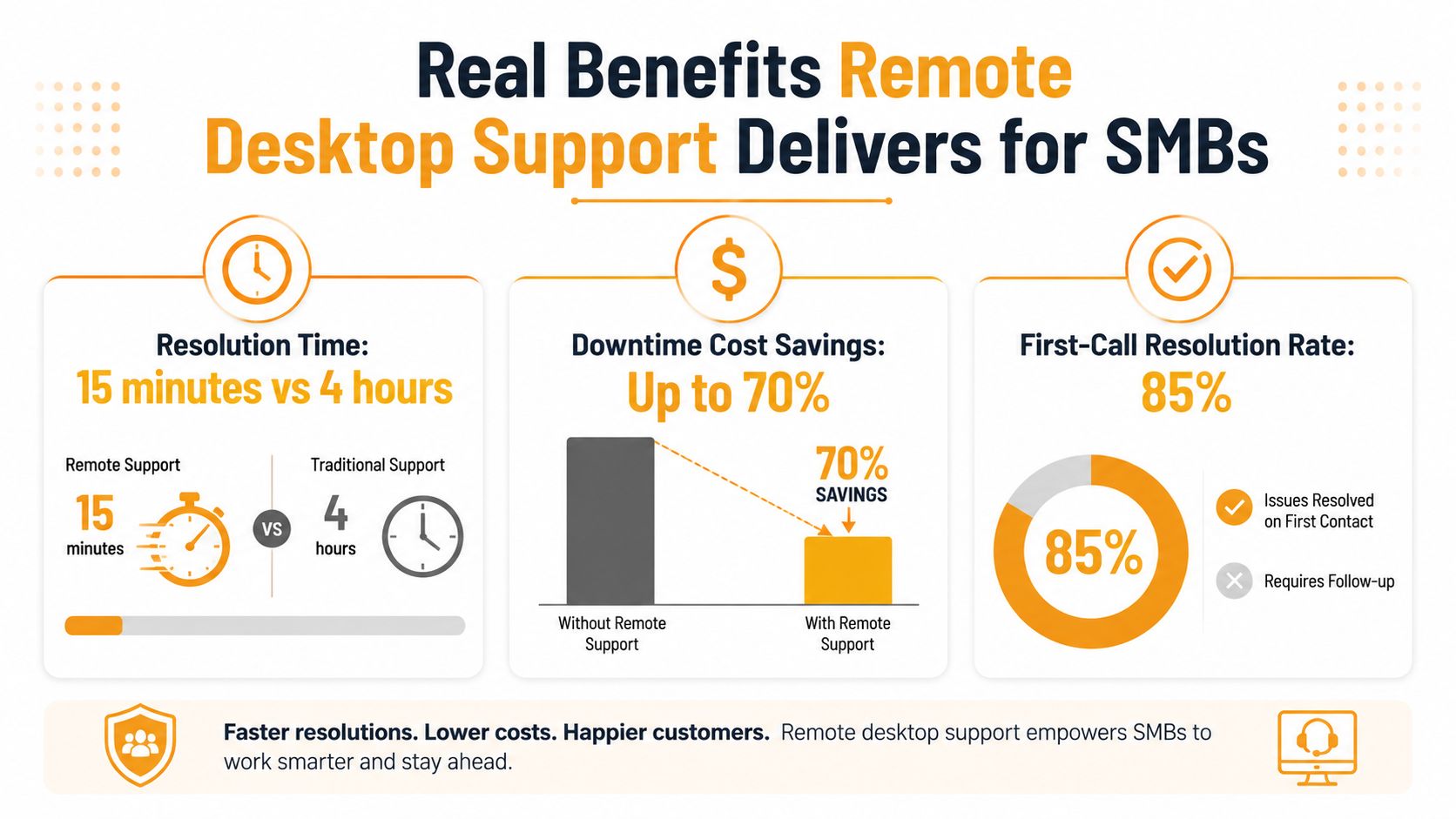
The most useful benefit is not the word “remote.” It's the ability to remove avoidable waiting from routine support. A technician who can see the endpoint, reproduce the issue, and apply a controlled fix doesn't need to schedule travel for every application error or configuration problem.
A law firm with attorneys working from home can receive help with document software, secure access, or Microsoft Teams without asking an attorney to bring a device into the office. A retail business with several locations can centralize troubleshooting for back-office computers and reduce the number of issues that require a local manager to diagnose. A professional services company can support consultants on the road while preserving a consistent configuration across company-managed devices.
Where the operational value appears
- Faster diagnosis: The technician can inspect the user's actual screen and configuration instead of relying on a long description.
- Less travel dependency: On-site work remains valuable for hardware, cabling, power, and physical network problems, but many software issues can be handled remotely.
- More consistent maintenance: Teams can schedule updates, review alerts, and correct recurring configuration problems across managed endpoints.
- Better coverage for distributed staff: Remote workers and satellite locations can use the same support channel as office-based employees.
- Stronger continuity: If a storm, facility problem, or local disruption affects an office, the helpdesk can continue supporting users elsewhere.
The financial benefit comes from preventing disruption, not from pretending every issue has the same impact. A short application problem may be inconvenient. A failure affecting a billing system, production workflow, or customer-facing operation can interrupt revenue-generating work. Remote support gives the provider a faster path to investigate and contain the problem.
For teams planning broader distributed operations, a guide to distributed workforce management can help connect remote IT support with staffing, process, communication, and operational responsibilities. That connection matters because technology support fails when nobody owns the user experience outside the office.
What remote support doesn't replace
Remote access won't repair a failed power supply, replace damaged cabling, recover every physically failing drive, or resolve a dead home router by itself. A practical provider combines remote diagnostics with local dispatch, depot repair, vendor coordination, and clear escalation rules. Businesses evaluating remote IT support services should ask how those remote and on-site capabilities work together.
Security Risks Most Remote Desktop Guides Ignore
Encryption and multifactor authentication matter, but they don't cover the whole attack surface. The employee's home router, personal laptop, Wi-Fi configuration, browser extensions, and family-shared devices can influence the security of a remote session even when the company's remote access platform is well configured.
The available threat data makes the gap difficult to dismiss. Phishing accounted for 43% of initial breach attempts in 2025, while 38% of cyberattacks targeted remote infrastructure such as home routers and VPNs, according to the cited 2026 cybersecurity report. The same source says 54% of CISOs saw more credential theft tied to remote access tools. Review the remote work cybersecurity threat analysis for that reported data.
The home network problem
A company may patch its managed endpoints while having no practical visibility into an employee's consumer router. The router may use outdated firmware, weak administrative credentials, or an overly broad home network that places work devices beside unmanaged personal equipment and smart devices.
BYOD and contractor access create another layer of uncertainty. A personal device may lack the company's endpoint protection, encryption settings, patch controls, or separation between business and personal data. Contractors may need access to one application, yet a poorly designed VPN can place them inside a wider network segment than their role requires.
Security principle: Don't ask only whether a connection is encrypted. Ask what the user can reach, what the device proves about its condition, and how quickly access can be removed.
This is why many organizations are moving from traditional VPN and RDP access toward zero-trust network access, or ZTNA. A zero-trust design evaluates identity, device posture, application entitlement, and session context instead of assuming that a validated VPN user should see an entire internal network. It's a different control model, not merely a new VPN brand.
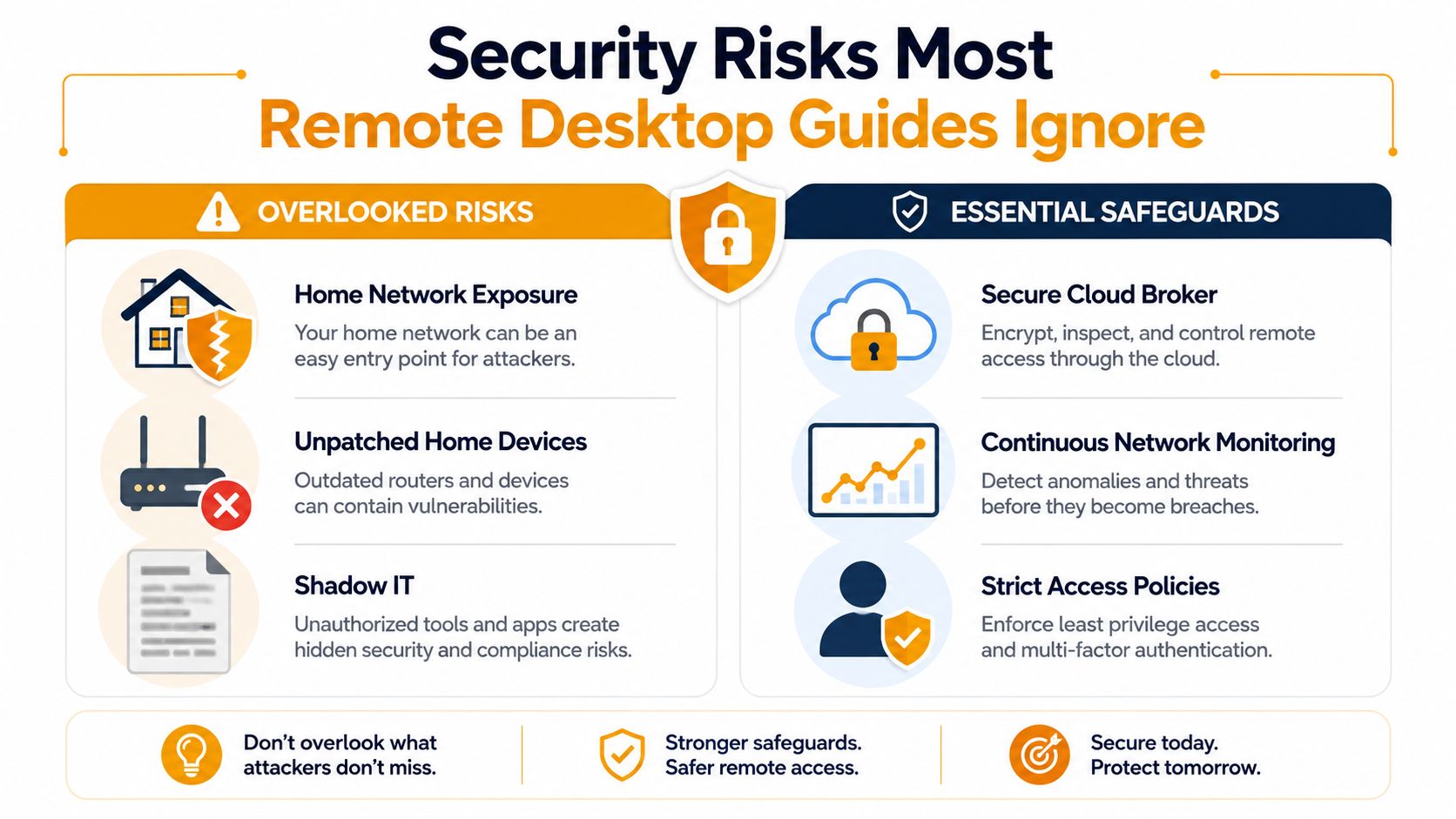
A provider should explain how it handles privileged accounts, contractor offboarding, session recording, endpoint compliance, personal devices, and home-network guidance. Businesses needing a deeper framework can review these comprehensive permission management strategies, then ask their provider to map permissions to actual job responsibilities.
The following video provides another perspective on remote access security and support practices.
For Houston SMBs, the practical target isn't perfect control over every home network. It's layered risk reduction: managed endpoints where possible, strong identity verification, least-privilege access, device posture checks, segmented access, user training, and a response process for compromised credentials.
Comparing Remote Access Architectures for Different Needs
There isn't one correct remote access architecture. The right choice depends on whether users need complete desktops, individual applications, support-only access, or a controlled path to specific internal services.
| Architecture | Best For | Security Level | Typical Cost | Setup Complexity |
|---|---|---|---|---|
| RDP over VPN | Small teams with existing Windows infrastructure and straightforward administrative needs | Moderate when tightly controlled, weaker when broadly exposed | Lower existing-infrastructure cost, with ongoing administration | Moderate |
| Remote Desktop Services | Centralized Windows desktops and applications | Moderate to strong with layered identity and access controls | Infrastructure and licensing costs vary | Moderate to high |
| Desktop as a Service | Organizations wanting hosted desktops without maintaining as much desktop infrastructure | Strong when the provider and configuration are well managed | Subscription-based and usage-dependent | Moderate |
| Zero Trust Network Access | Application-specific access for distributed users, contractors, and mixed environments | Strong when identity and device posture policies are enforced | Subscription and integration costs vary | Moderate to high |
Traditional RDP over VPN can still work for a controlled environment. It becomes problematic when the VPN grants broad network visibility, privileged accounts are shared, or internet-facing RDP is treated as a shortcut. RDS makes sense when an organization benefits from centralized Windows applications and desktop administration, but it requires careful capacity planning and identity design.
DaaS can reduce the burden of maintaining desktop infrastructure, especially for organizations with changing locations or standardized application needs. Public industry coverage cited in the brief reports that DaaS is deployed in most organizations and cites projections that virtual desktops could be cost-effective for 95% of workers by 2027, with DaaS spending projected to rise from USD 4.3 billion in 2025 to USD 6.0 billion by 2029. Those are projections and should be evaluated against your licensing, application, storage, support, and network costs. The same coverage also frames the shift from remote access VPNs toward ZTNA. See the remote work security trends report.
Performance depends on workload
Bandwidth planning by seat count alone is a mistake. Microsoft's Azure Virtual Desktop guidance indicates that idle sessions can use about 0.3 Kbps, Word-based office work often uses 100 to 150 Kbps, Excel commonly uses 150 to 200 Kbps, and full-screen video playback can reach roughly 7.5 to 9.5 Mbps, depending on encoding mode. The NIST remote access guidance contains the cited workload guidance.
RDP transport also affects the experience. Microsoft's RDP-UDP2 extension was designed to use more available bandwidth, reduce packet delay variation, and share network resources fairly with competing flows, as described in NIST guidance on remote access technologies. For interactive support over a variable WAN, UDP negotiation can reduce cursor lag, repaint delays, and audio or video stutter.
Your Remote Desktop Deployment Checklist
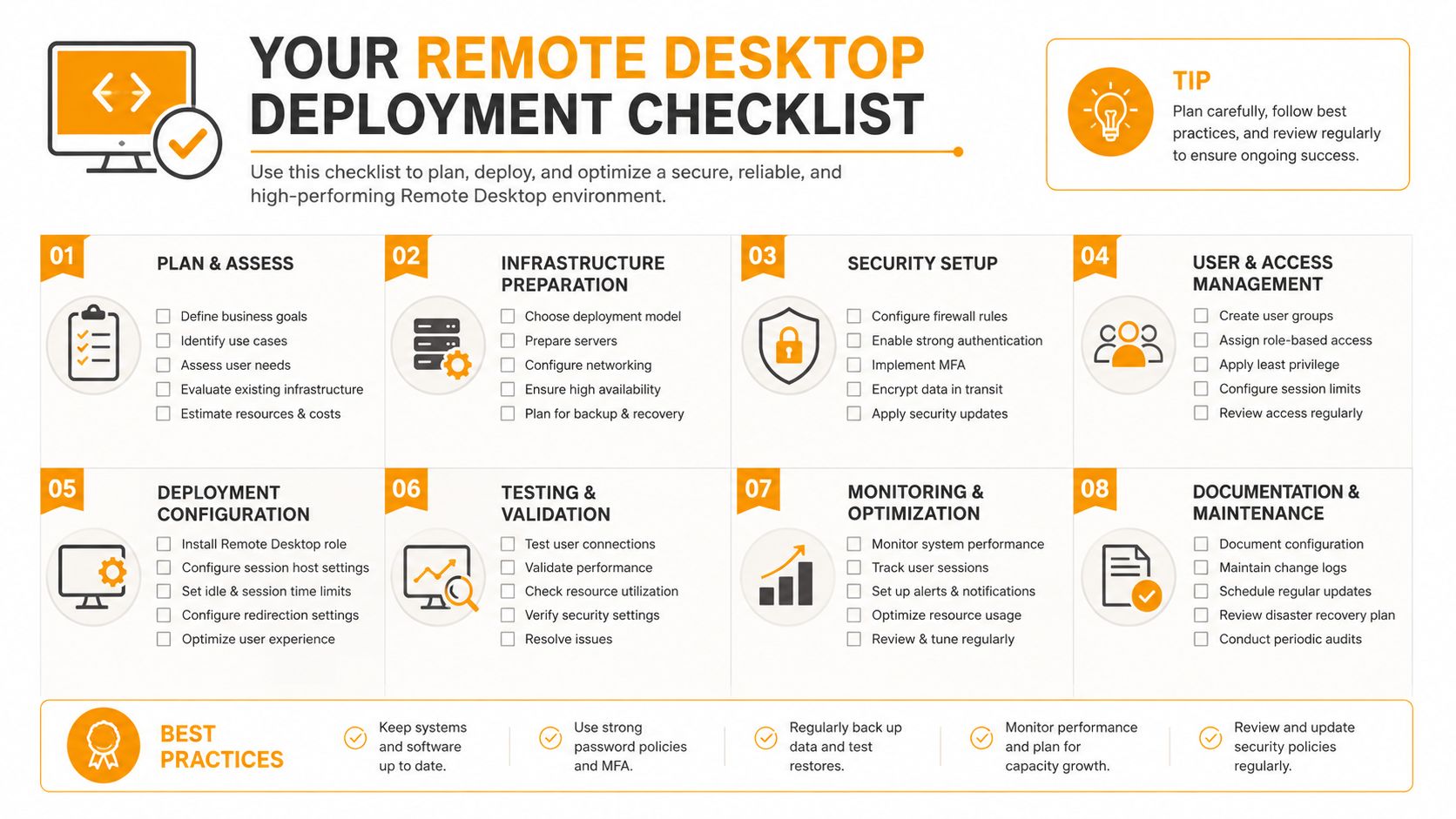
A reliable deployment starts with discovery, not software installation. Before selecting a platform, inventory endpoints, operating systems, applications, server dependencies, user locations, and the support tasks your team performs most often.
Build the design around actual work
- Map the workloads. Separate basic office work from graphics-heavy applications, video, engineering tools, and latency-sensitive services. Record where users connect from and which locations have unreliable links.
- Choose the access boundary. Decide whether users need a full desktop, a published application, technician-only support, or access to a narrowly defined service. Don't give a full network path when an application-specific connection will do.
- Select the architecture. Compare RDP over VPN, RDS, DaaS, and ZTNA against your identity system, device management, application compatibility, and budget.
- Configure identity controls. Require MFA, define role-based permissions, set session timeouts, and establish an immediate process for disabling departing employees, contractors, and compromised accounts.
- Enable transport options. Test UDP-based transport for interactive sessions, especially across lossy or variable connections. A TCP-only design may function while still producing frustrating lag during real support work.
- Pilot with representative users. Include an office employee, a home worker, a traveling user, and anyone who relies on a demanding application. Test printing, multiple monitors, file transfer, audio, authentication, and reconnection behavior.
- Document the session workflow. Tell employees how support requests begin, how consent is shown, what technicians can see, and how users can end a session.
- Monitor after launch. Review failed connections, latency complaints, repeated tickets, bandwidth saturation, authentication events, and access-policy exceptions. Tune the service based on evidence rather than assumptions.
A pilot should also test the support process itself. Can the helpdesk identify the correct device quickly? Can a senior technician take over without restarting the session? Does the provider preserve enough logs for investigation? Can the team support an employee whose personal network is unstable without weakening access controls?
Deployment standard: A remote desktop platform isn't ready for production until the technical path and the human support process have both passed testing.
How to Choose the Right Managed IT Provider for Remote Support
A provider's remote access tool is only one part of the service. The stronger differentiator is how the provider designs permissions, documents sessions, monitors endpoints, communicates with users, and handles the cases that remote tools can't solve.
Start with response commitments. A vague promise of “fast support” doesn't tell you whether a critical issue receives immediate attention or waits in a general queue. Ask for the actual service levels, escalation path, after-hours coverage, and definitions for urgent and routine tickets.
Questions worth asking before signing
- Who responds after hours? Confirm whether the provider uses its own engineers, an outsourced queue, or an on-call rotation.
- How does the architecture work? Ask whether the solution uses RDP over VPN, RDS, DaaS, ZTNA, or a combination, and why.
- How are permissions managed? Look for least privilege, role separation, MFA, session logging, and prompt offboarding.
- How are home and BYOD risks addressed? The provider should discuss endpoint posture, router guidance, personal-device limitations, and contractor access.
- What happens when remote support fails? Houston businesses may still need depot repair, on-site troubleshooting, cabling work, or hardware replacement.
- How is performance measured? The provider should monitor connection quality, recurring incidents, application behavior, and user-impacting patterns.
- How is pricing explained? You should understand what's included, what triggers additional charges, and how project work differs from managed support.
Local knowledge can matter when a business has multiple Houston-area offices, on-site equipment, physical network problems, or compliance obligations tied to its industry. A provider that understands your environment can decide when remote troubleshooting is appropriate and when dispatch is the safer, faster option.
Red flags include unclear SLAs, no explanation of the remote access path, weak documentation, no meaningful security process, and reluctance to explain how technicians are supervised. For a broader evaluation framework, use this guide to choosing a managed service provider.
IT Cloud Global, LLC offers on-site and remote support, with familiarity across Remote Desktop Services, Microsoft 365, cloud infrastructure, endpoint management, network security, and related managed IT requirements. That combination is relevant for businesses that need remote helpdesk coverage but still require local hands-on capability.
Making Remote Desktop Support Work for Your Business
Remote desktop IT support has matured from a server administration feature into a core operating capability. The technology can help a distributed team resolve issues quickly, maintain endpoints consistently, and continue working when employees can't reach a central office.
The deployment still needs discipline. Choose the architecture according to workload and access requirements, not habit. Treat home routers, BYOD, contractor accounts, and endpoint posture as part of the security design. Use UDP transport where it improves interactive performance, and test demanding workloads before users depend on them.
Start with a pilot that represents your real workforce. Measure practical outcomes such as connection reliability, recurring incidents, escalation frequency, user disruption, and time spent by technicians. Then refine permissions, workflows, and capacity before expanding to every device.
IT Cloud Global, LLC provides managed remote and on-site IT support for Houston businesses, including helpdesk assistance, endpoint and server management, network troubleshooting, Microsoft 365 administration, and Remote Desktop Services expertise. Visit IT Cloud Global, LLC to discuss a secure remote support design that fits your users, applications, and operating environment.
- Endpoint Protection vs Antivirus: A Houston Guide
- How to Choose a Texas Outsource IT Service
- Houston IT Support: A 2026 Guide for SMBs
- What Is Network Access Control: Why Your Business Needs It
- Hybrid Cloud Management: A Practical Guide for SMBs
- Computer Service Near Me: A Houston Buyer’s Guide
- 7 Best Managed IT Services Houston TX Reviews (2026)