


Wireless Network Setup Guide
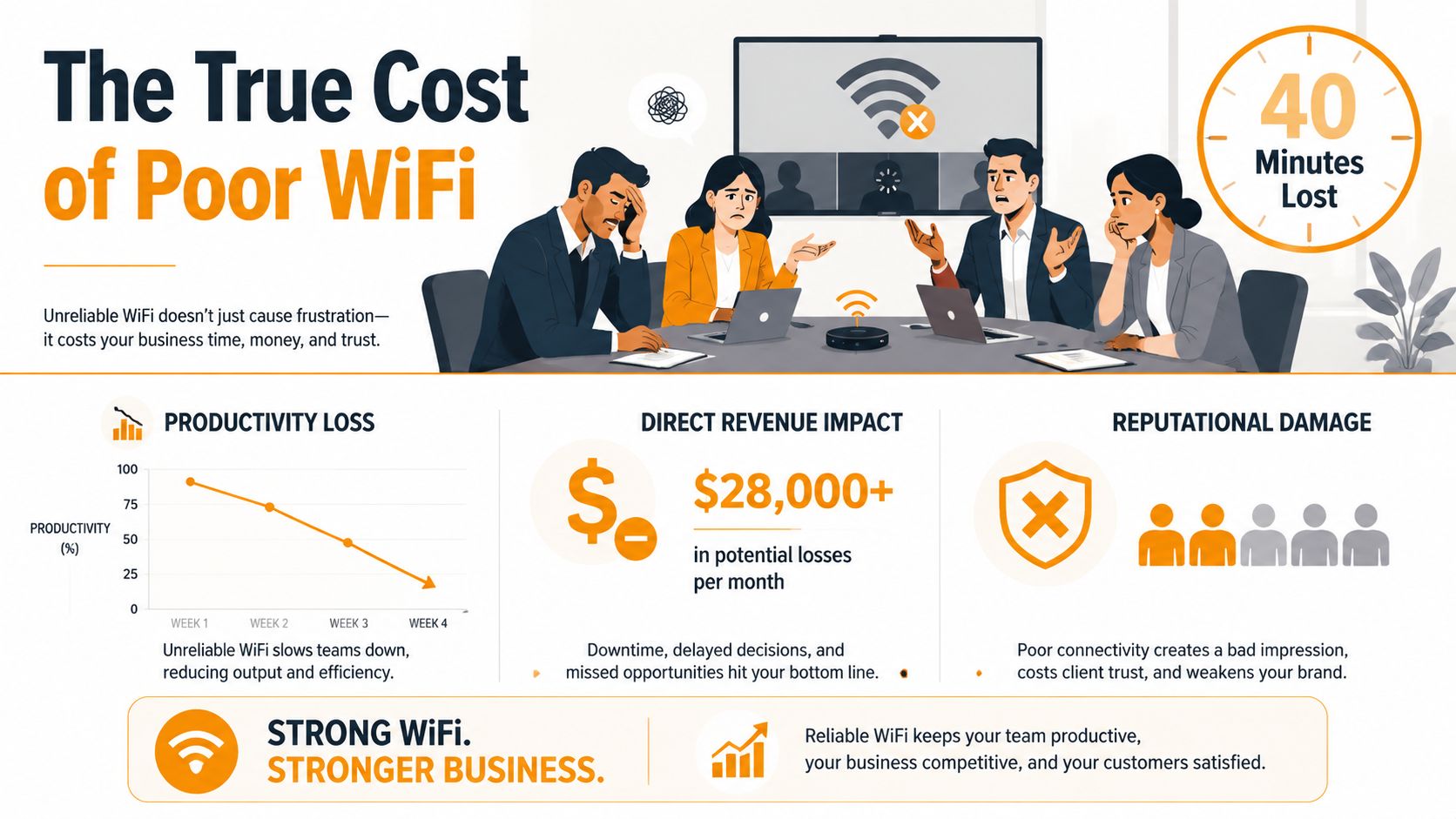
A Houston operations manager watches a client demo collapse as video calls drop, reconnect, and drop again. Her team spends forty minutes troubleshooting instead of presenting, while the customer waits. The wireless network looked fine on the day it was installed, but the business has since added devices, moved desks, adopted cloud applications, and accumulated neighboring networks that the original design never accounted for.
That situation is common because wireless network setup isn't a one-time hardware purchase. It's an operating environment that must support older clients, current applications, changing occupancy, security controls, and newer Wi-Fi standards at the same time. The practical question isn't “Which access point has the highest advertised speed?” It's “Which design gives this business reliable capacity today without making tomorrow's upgrade unnecessarily expensive?”
Table of Contents
- Why Your Business Can't Afford a Bad Wireless Network Setup
- Planning the Right Wireless Network Setup Before You Buy Anything
- Installing Access Points and Configuring Your Network
- Securing Your Wireless Network Setup With Modern Standards
- Tuning Performance and Validating Coverage
- Troubleshooting Common Wireless Network Setup Problems
- Your Wireless Network Setup Checklist and Next Steps
Why Your Business Can't Afford a Bad Wireless Network Setup
Unreliable Wi-Fi creates costs long before anyone replaces an access point. A dropped VoIP call interrupts a sales conversation. A delayed point-of-sale transaction frustrates a customer. A guest device on the wrong network can expose systems that should never be reachable from the lobby.
The failures that appear repeatedly
The first failure is usually radio saturation. Teams keep too many clients on the 2.4 GHz band because it reaches farther, then wonder why performance collapses during busy periods. Older devices, printers, inexpensive IoT hardware, and neighboring networks all compete for the same airtime. More transmit power doesn't create more airtime, and it can make contention worse.
The second is placement driven by appearance instead of engineering. An AP installed in a ceiling corner, behind a structural obstruction, or above a ceiling tile without the right enclosure may broadcast a strong signal toward a hallway while providing poor capacity where people work. A coverage map can look acceptable while users experience slow applications because signal strength isn't the same as usable performance.
The third is inadequate segmentation. Putting employee devices, guest traffic, payment terminals, cameras, and voice clients on one SSID makes policy enforcement difficult and increases the impact of a compromised device. A guest network should have an internet-only policy, not implicit access to internal services.
Operational rule: Treat every SSID, VLAN, and access point as part of a business service, not as an isolated device setting.
IEEE's standards history explains why today's planning practices look the way they do. Wireless networking became commercially practical in 1997, when IEEE published the first 802.11 WLAN standard, supporting transmission of up to 2 Mbit/s over the unlicensed 2.4 GHz band. In 1999, 802.11a and 802.11b expanded deployments to 5 GHz and 11 Mbps, establishing the foundation for band selection, interference management, and access point design, as documented by the IEEE history of Wi-Fi standards.
The central lesson is straightforward. A reliable wireless network setup balances legacy compatibility, present capacity, security, and future readiness. That approach prevents two expensive mistakes, buying the newest equipment before the client fleet or building can use it, and saving on infrastructure until the network becomes the bottleneck for daily operations.
Planning the Right Wireless Network Setup Before You Buy Anything
Start with requirements, not product pages. Mark every work area on the floor plan and record the device types, applications, expected occupancy, and busiest operating periods. A warehouse with metal racking, a medical office with imaging rooms, and an open-plan professional office may occupy similar floor space but need very different radio designs.
Build the survey around real use
A useful planning worksheet should identify:
- Device mix: Record laptops, phones, scanners, printers, cameras, payment devices, and IoT endpoints by zone.
- Application behavior: Separate ordinary web use from voice, video, point-of-sale, warehouse scanning, and latency-sensitive systems.
- Physical conditions: Mark elevator shafts, concrete walls, mechanical rooms, glass, metal shelving, and areas with dense equipment.
- Mobility needs: Identify where users move between APs and which devices must roam without an application interruption.
- Backhaul constraints: Confirm switch locations, cable paths, PoE availability, and uplink capacity before choosing AP density.
A predictive survey uses floor plans and building materials to model likely propagation. It's useful early, especially when an SMB needs a budgetary design before installation or when the building is still being renovated. An active survey measures a functioning network with a real AP and client adapter. Use it after installation, or during a staged deployment, because it reveals interference, attenuation, and client behavior that a drawing can't predict.
Survey discipline matters as much as survey software. The recommended method includes calibration, a consistent walk path, a steady pace, constant device height, and room-by-room sampling. Teams should walk both sides of obstacles and site edges, enter as many rooms as practical, and avoid changing equipment or methodology midway. The site survey guidance for standardized WLAN data collection warns that hallway-only paths, skipped edge areas, and inconsistent sampling can distort coverage and attenuation results.
Choose capacity before headline speed
Plan AP placement around client density, airtime efficiency, interference margins, and uplink capacity. A specification sheet's maximum throughput assumes conditions that rarely exist in a busy office. Ask how many clients each radio must serve, what they're doing concurrently, and how much capacity remains when neighboring networks occupy channels.
For platform selection, consider the people who will operate the system:
| Platform Type | Examples | Best Fit | Trade-off |
|---|---|---|---|
| Cloud-managed | Meraki, Aruba Instant On, Ubiquiti | Small teams that need centralized visibility and simple remote administration | Recurring cloud licensing or service costs can exceed the original hardware cost over the platform lifecycle |
| Controller-based | Cisco, Aruba, Ruckus, Fortinet | Organizations with established network skills, local policy requirements, or larger multi-site designs | Local controllers require availability planning, maintenance, and staff who can operate them |
| Hybrid or controllerless enterprise | Vendor-dependent architectures | Businesses that need enterprise controls without maintaining a large controller footprint | Feature depth, subscription terms, and troubleshooting workflows vary by vendor |
Cloud management simplifies deployment, firmware coordination, and remote support. It also creates a dependency on licensing, internet access, and the vendor's management service. Local control offers more direct ownership, but the business must maintain the controller, backups, upgrades, and operational expertise.
Before ordering, document a channel plan, power budget, switch-port count, cable route, and acceptance criteria. A practical business network setup plan should connect those wireless decisions to routing, switching, identity, and firewall policy rather than treating Wi-Fi as a separate appliance purchase.
Installing Access Points and Configuring Your Network
Installation works best as one controlled workflow. Mounting, cabling, switching, SSIDs, VLANs, and validation must reflect the same design intent. If the installer changes AP locations to avoid a difficult cable pull, the engineer needs to update the map and reassess coverage instead of accepting the change without question.
Mount for propagation and serviceability
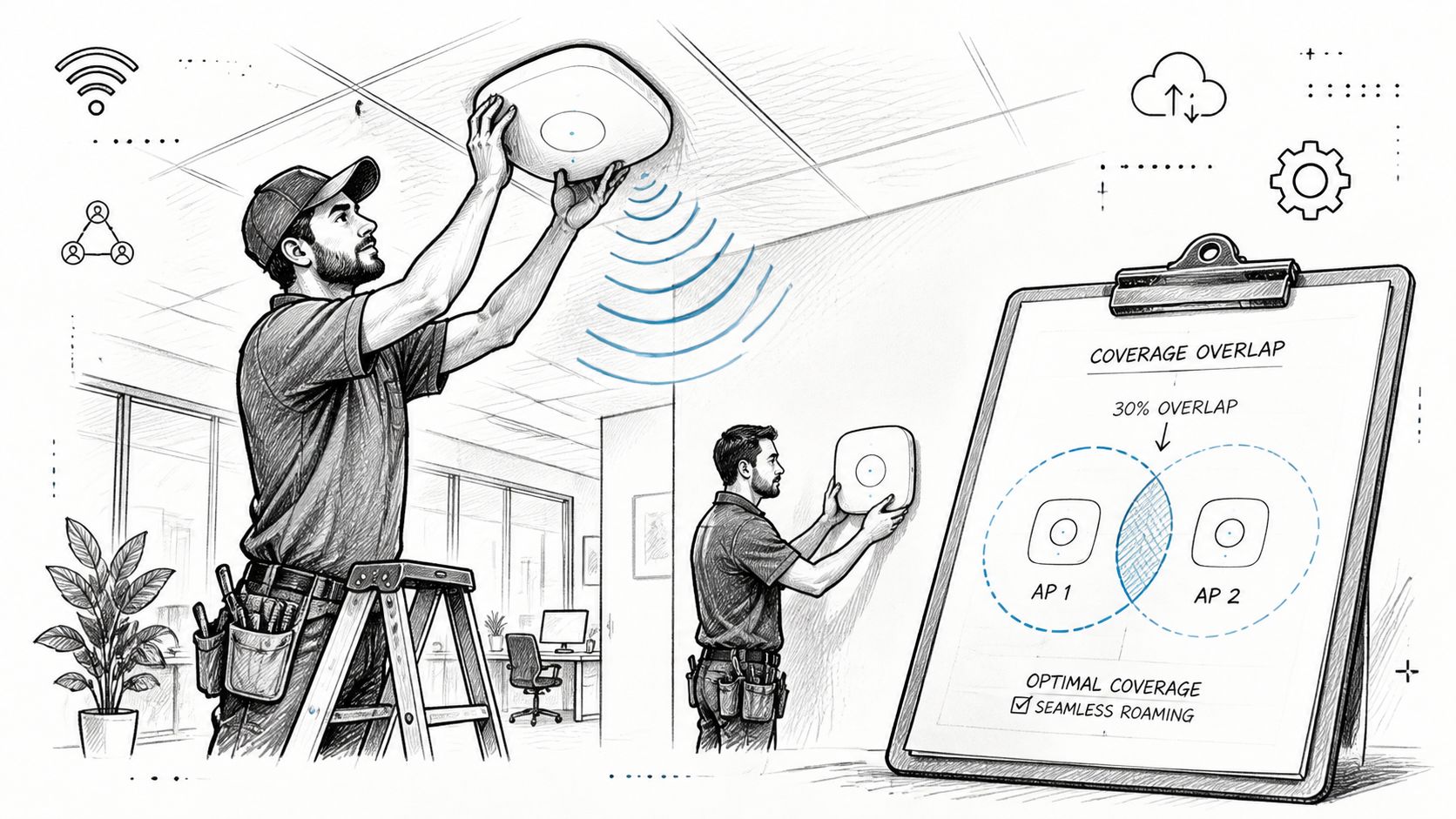
Ceiling mounting usually gives a more even pattern in open offices, while wall mounting can work in corridors, rooms, and locations where ceiling access is limited. Avoid placing APs in hallway centers when users work inside rooms, and don't hide equipment above ceiling tiles unless the model and enclosure are approved for that environment.
Use the 30 percent overlap rule for roaming as a planning starting point, not a substitute for measurement. Overlap should support handoff while preventing excessive co-channel contention. Final placement belongs to the survey results, application requirements, wall construction, and client behavior.
Treat cabling as part of the radio design
Label every cable before termination, and record the AP name, switch, port, jack, and cable path. Cat6 is often sufficient for current access points, while Cat6A can provide more headroom for higher-capacity deployments and demanding uplinks. The choice should follow the AP's negotiated link requirements, cable distance, installation environment, and the cost of reopening finished spaces.
Check the switch's PoE+ or PoE++ budget against the AP model, radio configuration, USB features, and any integrated sensors. A switch can have enough ports but insufficient power, leaving APs in reduced-feature mode or causing intermittent failures under load.
Configure identity, segmentation, and traffic priority
Use a consistent naming convention and map each SSID to a defined policy. A practical example might include:
- Corporate SSID: Map to VLAN 10, authenticate through RADIUS and 802.1X, and apply the employee access policy.
- Guest SSID: Map to VLAN 99, apply an internet-only firewall rule, enable client isolation, and prevent access to internal subnets.
- Voice SSID: Use only where the voice design requires it, apply DSCP EF handling, and enable WMM admission control after validating handset compatibility.
The exact menu names differ by platform, but the workflow is consistent: create the VLAN on the switching and gateway infrastructure, define DHCP and firewall policy, create the SSID, assign its VLAN, bind authentication, then apply QoS rules. On a Cisco-style CLI, a junior engineer would typically verify the trunk with commands such as show interfaces trunk, confirm the VLAN with show vlan brief, and inspect PoE using show power inline. In a cloud controller, the equivalent path is usually Networks or WLANs, SSID, VLAN assignment, security, QoS, and save.
Don't terminate cables and configure SSIDs in isolation. Test one AP end to end first, including DHCP, DNS, authentication, internet access, internal restrictions, roaming, and switch power. Then use that validated configuration as the deployment template.
A short visual walkthrough can help junior staff recognize mounting and cabling decisions before they work in the ceiling or communications room.
Securing Your Wireless Network Setup With Modern Standards
Security begins with identity and segmentation, not a longer shared password. Use WPA3-Enterprise where the device fleet supports it, with WPA3-Personal reserved for situations where older hardware makes enterprise authentication impractical. A mixed environment may require a carefully controlled transition mode, but that decision should be documented and temporary where possible.
Connect wireless identity to business identity
Deploy RADIUS through an option such as FreeRADIUS on Linux, Windows NPS, or a cloud identity provider. Bind 802.1X authentication to existing Active Directory or Entra ID groups so access follows the user's role. When an employee leaves, disabling the account can remove wireless access without changing a shared password across every device.
Keep authentication logs available to the service desk. A failed connection may result from a certificate problem, a group mismatch, an expired credential, or a RADIUS reachability issue. Without logs, staff often misdiagnose an identity failure as an RF problem.
A minimum SMB policy should separate business users, unmanaged devices, and visitors:
| SSID | Authentication | Encryption | VLAN | Client Access | Use Case |
|---|---|---|---|---|---|
| Corporate | RADIUS with 802.1X | WPA3-Enterprise where supported | Data VLAN | Approved business resources | Employees and managed endpoints |
| IoT | Device-specific method supported by the platform | Strongest compatible protection | IoT VLAN | Only required services | Printers, sensors, and specialized devices |
| Guest | Temporary controlled credential or captive portal | WPA3-Personal where supported | Guest VLAN | Internet only, with isolation | Visitors and personal devices |
Remove weak defaults
Disable WPS, TKIP, and obsolete management behavior that your client fleet doesn't require. Enable management frame protection, also known as 802.11w, to reduce exposure to forged deauthentication traffic. Test protected management frames with older scanners, printers, handhelds, and building systems before enforcing a strict mode across every SSID.
The guest policy needs more than a different network name. Apply client isolation, deny access to internal address space at the firewall, restrict administrative interfaces, and use bandwidth controls where guest traffic could affect business applications. A separate subnet and policy keep guest access distinct from corporate services, a pattern also reflected in practical network access control guidance.
Treat pre-shared keys as temporary exceptions. If a printer or sensor can't use 802.1X, place it on the IoT segment, limit its destinations, document the credential owner, and schedule a replacement or migration path. Never let convenience turn a shared corporate password into the primary access control.
Tuning Performance and Validating Coverage
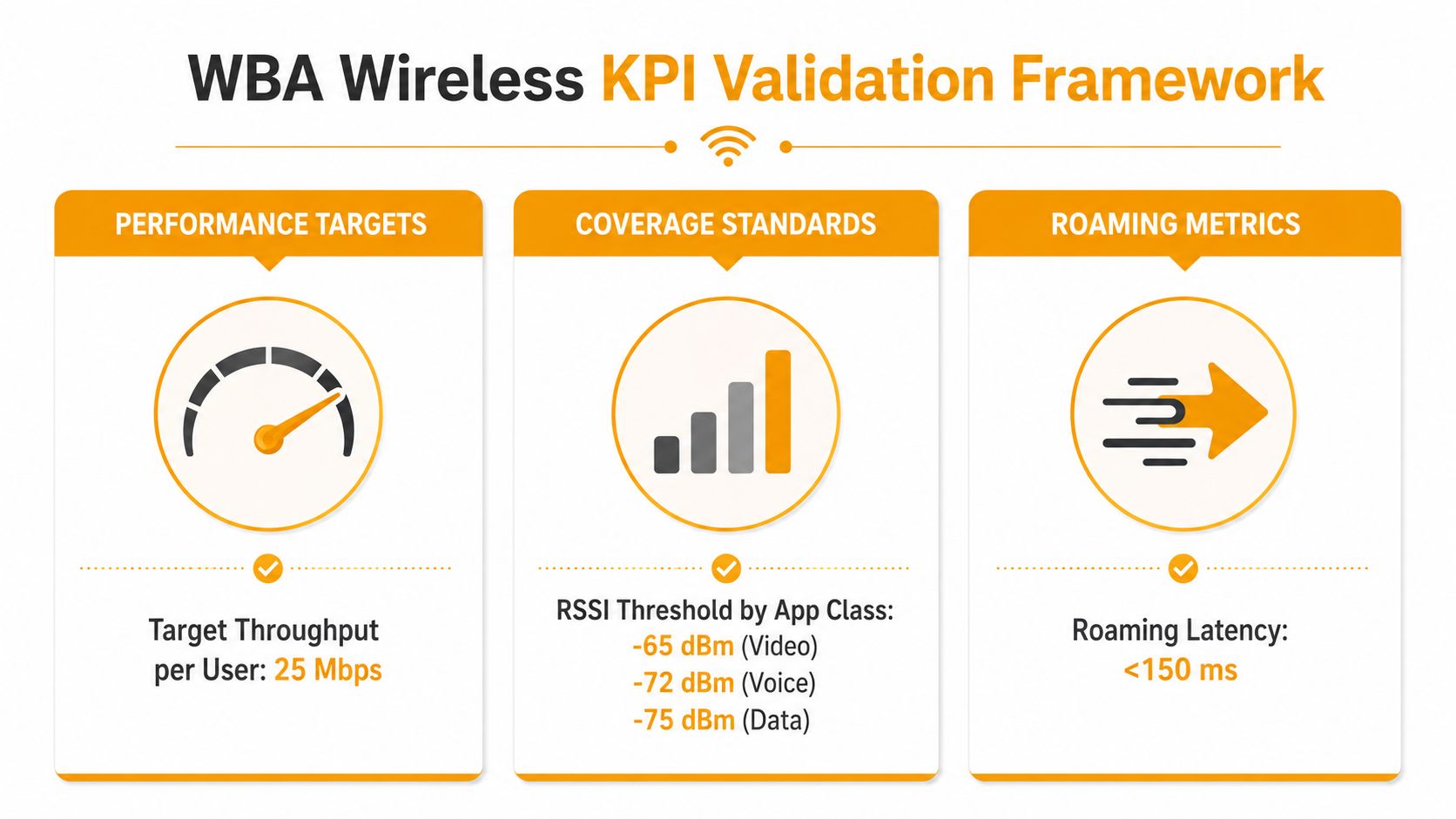
A wireless network is ready when it meets documented acceptance criteria, not when every AP shows a green status light. Enterprise guidance emphasizes AP downlink, client uplink, neighboring AP relationships, signal-to-noise ratio, and airtime efficiency. The WBA Wi-Fi Design Standard also identifies latency, jitter, throughput, roaming, and backhaul capacity as useful deployment KPIs, as summarized in this Ookla overview of Wi-Fi design validation.
Convert requirements into tests
For each application class, define what the tester will measure and where. A voice user may need reliable roaming and low jitter, while a warehouse scanner may prioritize consistent reachability and predictable response. A video meeting needs sustained throughput and low packet loss, but a printer may need only dependable association.
The supplied WBA framework visual uses explicit acceptance targets, including 25 Mbps target throughput per user, RSSI thresholds of -65 dBm for video, -72 dBm for voice, and -75 dBm for data, and roaming latency below 150 ms. These figures appear in the required validation infographic and should be treated as design targets only when they match the business's applications and client capabilities.
Run active and passive surveys during representative business activity. Tools such as Ekahau and NetSpot can help identify interference from neighboring APs, microwaves, Bluetooth devices, and other emitters. Validate both directions of traffic, because a client may receive a strong downlink while its uplink struggles due to client transmit limitations.
Tune airtime instead of chasing bars
Use 80 MHz channels only where the spectrum is clean and the client density supports them. In dense floors with overlapping coverage, 40 MHz may provide better airtime reuse and more predictable behavior. Wider channels increase peak potential but consume more spectrum, so they aren't automatically an upgrade.
Band steering can move dual-band clients toward 5 GHz, but monitor the result instead of assuming it works for every endpoint. Enable 802.11k, 802.11v, and 802.11r only after testing the actual client fleet. Older laptops, scanners, and specialized devices may stall or fail during fast-transition changes.
Don't add an extender to compensate for a design problem without measuring first. A Wi-Fi extender installation assessment can determine whether an additional AP, a wired backhaul, a channel change, or a physical relocation addresses the actual constraint.
Record the baseline, including channel use, client counts, throughput, latency, jitter, roaming behavior, and backhaul utilization. Re-survey after major construction, layout changes, or application changes, because a wireless environment keeps moving even when the hardware stays in place.
Troubleshooting Common Wireless Network Setup Problems
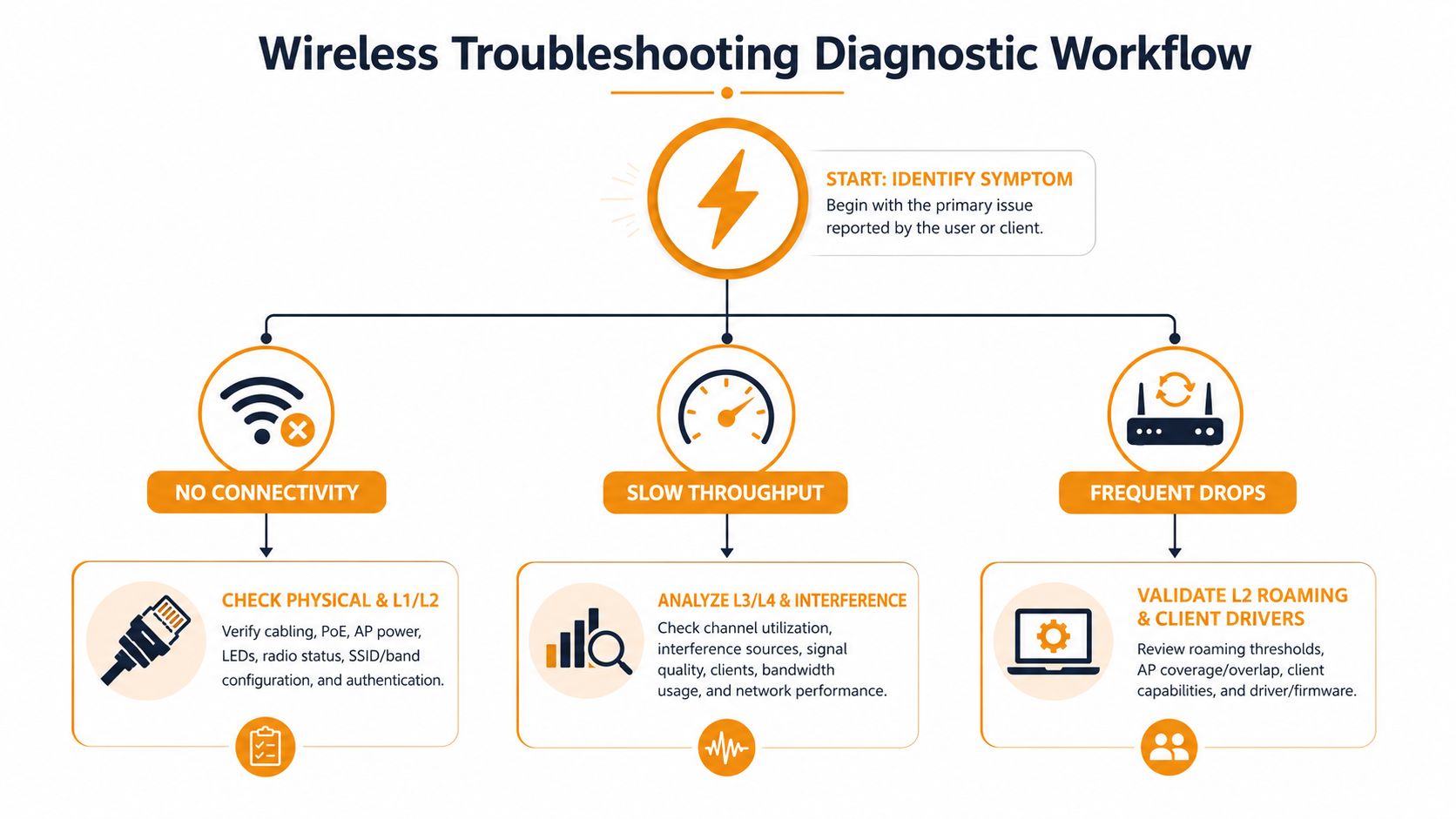
Start with the symptom, not the reboot button. Classify the ticket as no connectivity, slow throughput, or frequent drops, then work from the physical layer upward. This prevents a DNS issue from becoming an unnecessary RF redesign.
Use a fixed diagnostic order
For no connectivity, confirm the AP has power and an active switch uplink. Check that the client joined the intended SSID, received DHCP service, resolved DNS, and landed on the correct VLAN. If authentication fails, inspect RADIUS logs before changing channels or moving APs.
For slow throughput, establish a wired baseline first. If the wired test is already poor, Wi-Fi isn't the primary fault. If wired performance is healthy, inspect channel utilization, retries, client capabilities, AP load, uplink negotiation, and interference.
For frequent drops, compare the event timestamps with controller logs. Look for sticky clients, weak coverage at cell edges, incompatible client drivers, failed authentication renewals, and APs placed too far apart for the intended roaming path.
Troubleshooting rule: Increase capacity before increasing transmit power. More power can create larger cells without improving airtime or client uplink performance.
Turn recurring tickets into a runbook
Controller dashboards can reveal overloaded APs, excessive retries, uneven client distribution, and neighboring channel overlap. If one AP is carrying more than 25 clients, treat that as an investigation trigger rather than an automatic failure threshold. The right response may be a placement change, channel adjustment, band policy, or additional wired AP capacity.
Document error codes, authentication causes, switch-port checks, and approved remediation steps. Junior staff should know which tests they can perform, what evidence to capture, and when to escalate. For teams supporting distributed properties, the same diagnostic discipline used in remote troubleshooting for Airbnb hosts can help organize symptom classification, evidence collection, and remote resolution without guesswork.
Your Wireless Network Setup Checklist and Next Steps
A deployment is complete only when another engineer can verify it. Give the IT lead or operations manager a package of specific deliverables:
- Survey record: Floor plans, calibrated equipment, walking paths, obstacles, channel observations, and final coverage results are stored together.
- Placement map: Every AP has a documented name, mount location, switch, port, cable label, power requirement, and approved channel policy.
- Network standard: SSID names, VLAN assignments, DHCP scopes, firewall rules, and QoS markings follow a written convention.
- Identity service: RADIUS health, certificate status, group mappings, and authentication logs have been tested.
- Security baseline: WPA3 capability, management frame protection, disabled legacy protocols, guest isolation, and IoT restrictions are documented.
- Acceptance report: Throughput, RSSI, latency, jitter, roaming, interference, and backhaul results are compared with the design criteria.
- Support runbook: Common failures include clear checks, controller locations, escalation evidence, and approved fixes.
By 2026, the installed base already spans several Wi-Fi generations. The 5 GHz band serves just under 60% of Wi-Fi users worldwide, while global samples include 26.7% Wi-Fi 6, 38.3% Wi-Fi 5, 33.2% Wi-Fi 4, and 1.8% Wi-Fi 7, according to Ookla's global state of Wi-Fi report. A projection in that same source expects consumer Wi-Fi 7 CPE to grow from 3.6% of the global installed base in 2025 to 13.8% by 2030, at a 35.2% CAGR, so future planning matters, but immediate value still depends on clients, building conditions, and backhaul.
Ongoing managed Wi-Fi support gives SMBs a practical way to monitor capacity, govern firmware, review security, and re-plan as staff and devices change. IT Cloud Global, LLC is one option for businesses that need network design, Wi-Fi implementation, monitoring, and help with dropping or intermittent connectivity without hiring a dedicated wireless engineer.
Schedule a site survey or deployment review before ordering replacement hardware. That single step can show whether the need is new APs, better cabling, cleaner channel planning, stronger segmentation, or a security and capacity plan that supports both current devices and future standards.
IT Cloud Global, LLC can assess your Houston business's wireless design, perform site surveys, implement secure segmented Wi-Fi, and resolve dropping or intermittent connections. Visit IT Cloud Global, LLC to request a deployment review or discuss managed wireless network support.