


Cloud Backup Solutions for Small Business: A 2026 Guide
Monday starts like any other day. The first employee logs in, opens the shared folder, and nothing loads. The accounting file is missing. The customer proposals won't open. Someone notices a ransom note on the server. Someone else says, “I thought this was all in the cloud.”
That's the moment small business owners find out whether they had storage or a real recovery plan.
A lot of Houston businesses are in that exact gray area right now. They have Microsoft 365. They use OneDrive or Google Drive. Maybe someone plugs in an external drive now and then. Maybe the office server backs up somewhere, but nobody has tested it in months. It feels safe until one bad click, one failed update, one dead hard drive, or one stolen laptop forces the critical question: How fast can we get back to work?
Cloud backup matters because downtime isn't just an IT problem. It stops billing, customer service, scheduling, payroll, and sales. If customer or employee data is involved, you may also have legal reporting duties, which is why it helps to understand resources on navigating state data breach regulations before you're dealing with a crisis in real time.
Cloud backup transforms from a technical purchase into a business continuity decision. If you want a practical overview of the bigger continuity picture, this guide on how cloud backup IT solutions can ensure business continuity during disasters is worth reading alongside this one.
Table of Contents
- Why Your Business Is One Click Away From Disaster
- What Are Cloud Backup Solutions Really
- The Four Essential Types of Cloud Backup for Business
- Key Features to Evaluate Beyond Storage Space
- Demystifying Cloud Backup Costs and ROI
- How to Choose Your Backup Partner Vendor vs MSP
- Your Backup Is Only Half The Job Test Your Recovery
- Let IT Cloud Global Handle Your Data Protection
Why Your Business Is One Click Away From Disaster
A small business owner walks into the office on Monday, coffee in hand, expecting a normal start. Instead, the server won't boot. Shared files are unavailable. The receptionist can't pull customer records. The bookkeeper can't access invoices. By 9 a.m., the whole office is standing still.
That scenario doesn't require a movie-level cyberattack. It can come from an employee clicking the wrong email attachment, a failing drive, a bad software patch, or a laptop that never made it back from a weekend trip. Small businesses often assume disaster means a flood or fire. In practice, disaster is usually something much more ordinary and much more likely.
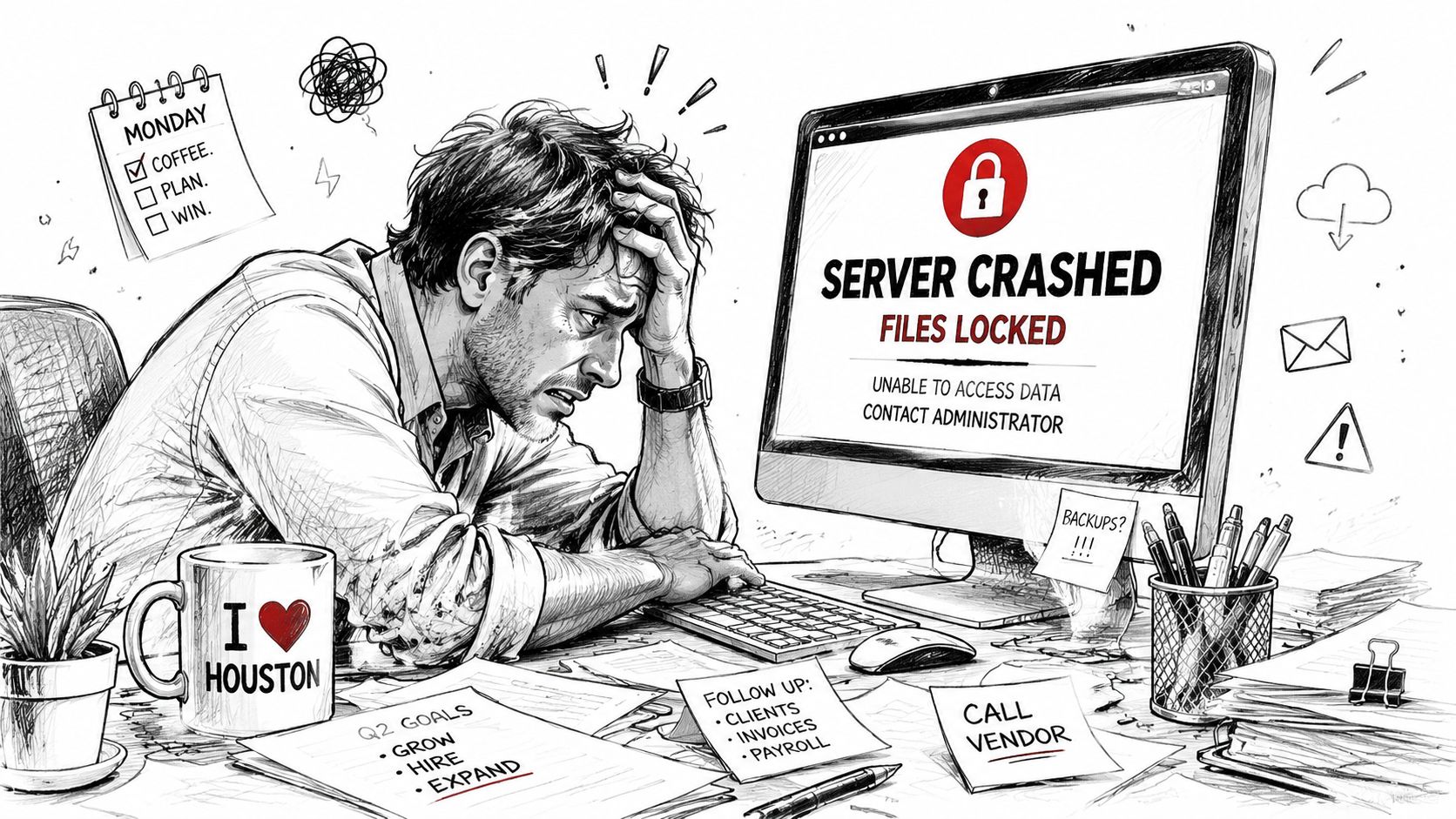
The business impact shows up fast:
- Sales stall: Your team can't access quotes, contracts, or customer history.
- Operations freeze: Scheduling, inventory, and internal files become unavailable.
- Support suffers: Staff spend their day answering “we're working on it” instead of solving customer problems.
- Risk grows: If sensitive data is exposed, cleanup goes beyond restoring files.
Practical rule: If losing access to data for one business day would hurt revenue or customer trust, backup is already a business-critical system.
Cloud backup is the seatbelt most companies don't think about until the impact is immediate. It gives you an off-site copy of the data and, depending on the platform, a path to restore files, systems, or cloud app data without rebuilding everything from scratch. The point isn't to avoid every incident. You won't. The point is to avoid turning a normal IT failure into a business shutdown.
That's why the rest of this topic has to be judged by one standard only. Not “Does it store data?” but “Can it get your business working again?”
What Are Cloud Backup Solutions Really
Cloud backup solutions for small business are best understood as a secure off-site copy of your business data that runs automatically and is built for recovery. It resembles a digital safety deposit box, yet it doesn't just hold one copy of your files. Instead, it keeps updating as your business changes.
That sounds similar to cloud storage, but the two aren't the same thing. OneDrive, Google Drive, and Dropbox help people store files, sync folders, and collaborate. A backup platform is designed for accidental deletion, corruption, ransomware, device loss, and system recovery. Collaboration tools are useful. They are not a complete disaster recovery plan by themselves.
The difference between storage and backup
A simple way to separate them is this:
| Tool type | Main job | Business question it answers |
|---|---|---|
| Cloud storage | File access and sharing | “Can my team work from anywhere?” |
| Cloud backup | Protected copies and recovery | “Can we get our data back after something goes wrong?” |
If a user deletes a file and that deletion syncs everywhere, storage may faithfully copy the mistake. Backup exists so you can roll back to a clean version or restore from a protected copy.
How backup evolved for small businesses
Cloud backup used to be a clumsy setup for smaller firms. You bought drives, rotated media, hoped someone remembered the schedule, and crossed your fingers that the hardware would still work when you needed it. That model favored bigger companies with dedicated IT staff.
A major milestone came when Microsoft launched OneDrive for Business as part of Office 365 in 2014, which helped normalize cloud-based business data protection and remote access. From there, backup vendors built much broader protection around business workloads. Veeam now describes small business backup across on-premises, cloud, and SaaS environments, including Microsoft 365 and Salesforce on its small business backup solutions page.
That shift matters because it changed backup from “protect a local file server” to “protect the systems your company runs on.” For a small business, that can mean one platform covering a physical server in the office, virtual machines, employee endpoints, and SaaS data that lives outside your building.
Backup stopped being a room full of hardware and started becoming a service small firms could actually manage.
Why this matters to an owner
The best cloud backup solutions for small business reduce complexity. Instead of juggling one tool for endpoints, another for servers, and hoping your SaaS apps are covered by their own native safeguards, you can evaluate backup around business outcomes:
- Can it protect the systems we rely on every day
- Can it restore quickly enough for our downtime tolerance
- Can we manage it without building our own backup infrastructure
Those are the questions that separate a modern backup strategy from a pile of disconnected tools.
The Four Essential Types of Cloud Backup for Business
Most small businesses don't need every backup type. They do need the right one for the way they work. Buying the wrong category creates a false sense of safety. Buying the right mix makes recovery much easier.
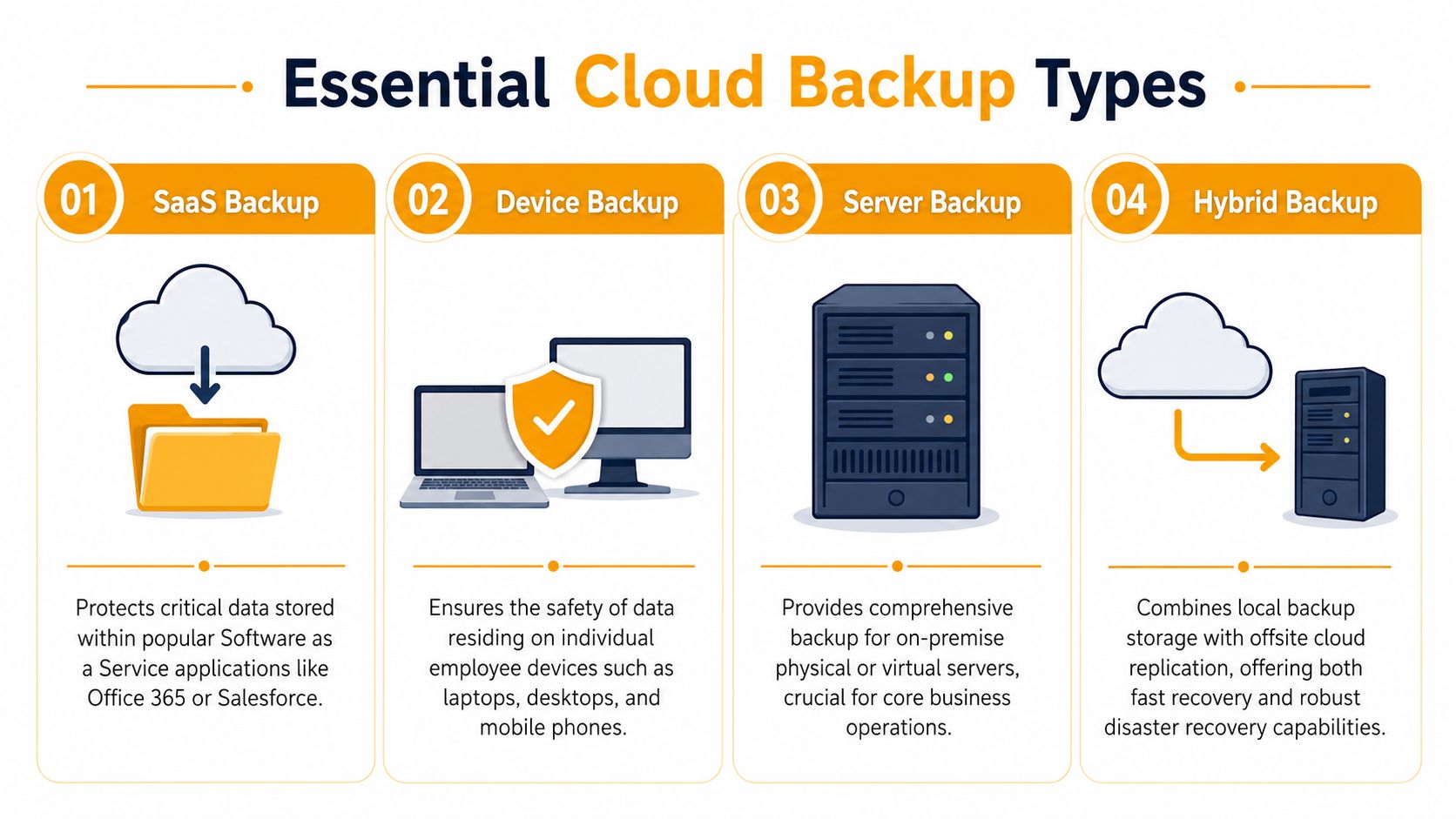
This visual gives a quick comparison before we break them down.
File-level backup
File-level backup protects selected folders, documents, spreadsheets, photos, and other individual files. It's the easiest model to understand because it focuses on the data people touch directly.
This fits businesses that mainly need to protect working documents on laptops, desktops, or shared folders. Law offices, accounting firms, consultants, and design teams often start here because losing a proposal, workbook, or client file hurts immediately.
What works:
- Simple recovery: You can restore one missing folder without touching the whole machine.
- Lower complexity: It's usually easier to deploy and manage than full-system backup.
- Good for everyday mistakes: Deleted files and overwritten documents are common problems.
What doesn't:
- Weak for full machine failures: If a device dies, reinstalling apps and rebuilding settings still takes time.
- Limited for server recovery: It protects data, not the complete operating environment.
Image-based backup
Image-based backup creates a full snapshot of a system. That includes the operating system, installed applications, settings, and data. If a server crashes, this is the category that can save you from rebuilding everything by hand.
This is the right fit for businesses running line-of-business software on local servers, virtual machines, or critical office workstations. If your accounting system, file server, or industry software lives on one machine, image backup matters.
When a server is central to operations, restoring files alone isn't enough. You need a way to restore the machine as a working system.
A few practical trade-offs:
| Backup type | Best use | Limitation |
|---|---|---|
| File-level | Recover documents fast | Doesn't rebuild the whole machine |
| Image-based | Recover the full system | Uses more storage and planning |
Later in the section, many businesses decide this is the layer that protects revenue, not just documents.
To see a vendor overview of these categories in action, this short explainer is helpful:
SaaS and cloud-to-cloud backup
A lot of owners assume Microsoft 365, Salesforce, or similar apps automatically cover every backup need. That's risky thinking. SaaS vendors provide the application, but many businesses still need separate protection for retention, accidental deletion, or broader recovery requirements.
SaaS backup copies data from cloud apps into a separate protected environment. This matters when email, Teams files, SharePoint documents, or CRM records are operationally critical.
Good fit:
- Microsoft 365-heavy offices
- Remote teams working mostly in browser-based apps
- Companies that need independent copies outside the SaaS platform
Weak fit:
- Businesses that also rely on local servers but only buy SaaS backup
- Companies that assume cloud apps remove the need for backup planning
Hybrid backup
Hybrid backup combines local backup for fast restores with cloud replication for off-site protection. For many small businesses, this is the most practical model because it handles both common and serious incidents.
If someone deletes a file, a local copy may restore it quickly. If the office is hit by ransomware, theft, or a site-wide outage, the cloud copy is your second line of defense.
Hybrid usually makes sense for businesses that:
- Need faster restore options than cloud alone may provide
- Still run on-premises systems
- Want both operational convenience and disaster recovery
It also forces better planning. You have to decide what gets restored locally, what gets restored from cloud, and who is responsible for making that call during an outage.
Key Features to Evaluate Beyond Storage Space
A lot of backup shopping goes wrong because owners compare plans like they're buying online storage. More gigabytes don't automatically mean better protection. In a real outage, recovery design matters more than raw storage.
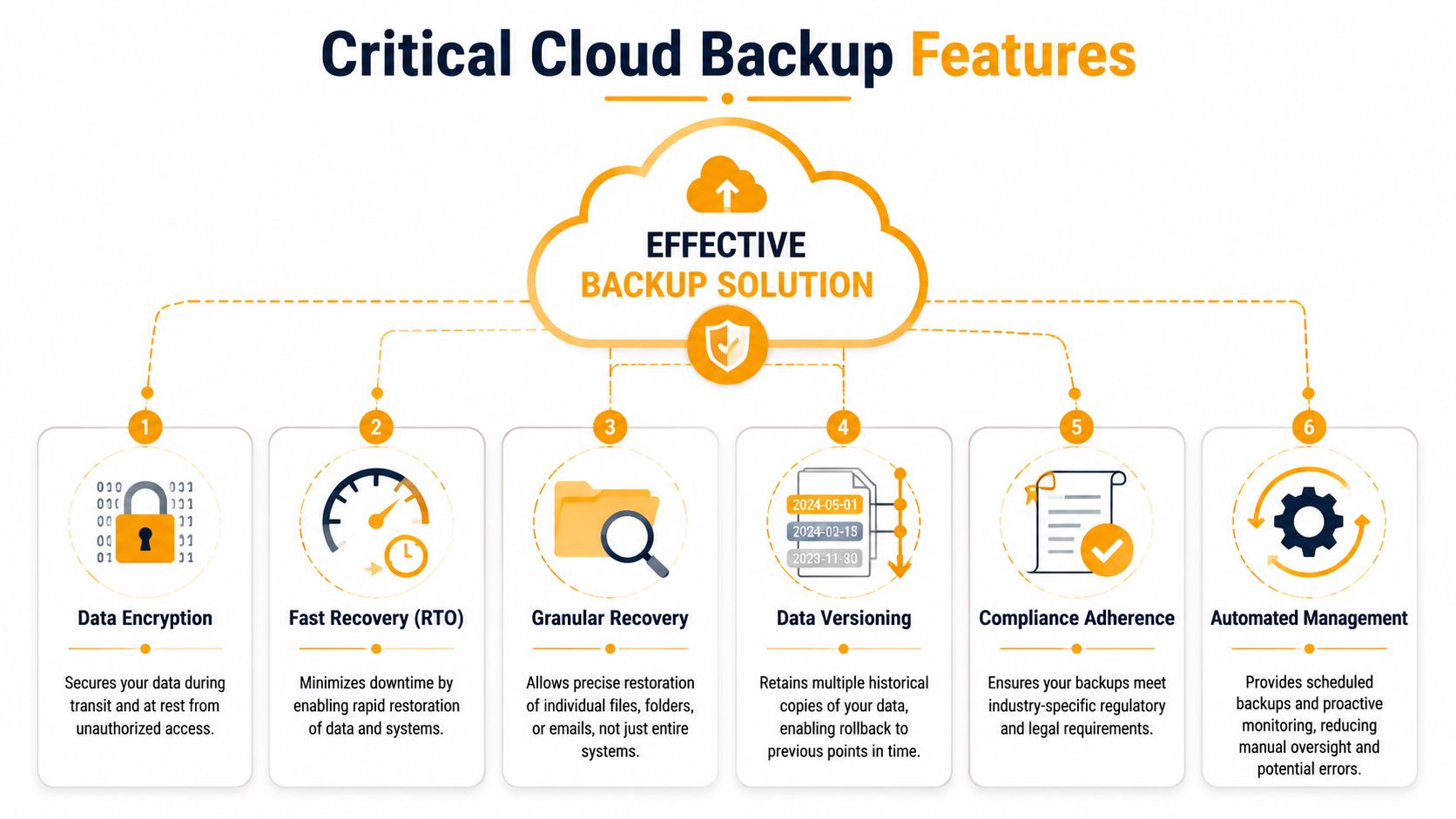
Start with recovery questions
Two terms matter more than most feature lists.
RTO, or Recovery Time Objective, means how fast you need systems back.
RPO, or Recovery Point Objective, means how much recent data you can afford to lose.
That sounds technical, but the business version is simple:
- RTO: “If this system goes down, how long can we be offline?”
- RPO: “If we restore from backup, how much missing work can we tolerate?”
A company that can function for a while with spreadsheets and email has a different recovery need than a business that can't process orders without a server. Don't let a vendor skip this conversation. If they do, they're selling storage, not resilience.
Security and retention matter in real incidents
Encryption is another feature people gloss over until they shouldn't. Your backup data should be protected while it travels and while it sits in storage. If backup copies are easy to access by the wrong person, you've just created another risk point.
Retention policy matters too. Some businesses only need short-term operational recovery. Others need longer retention for legal, regulatory, or historical reasons. The wrong policy can leave you without the version you need when a problem is discovered late.
This is also where backup frequency comes into play. Many businesses either back up too rarely or assume default schedules are fine. This article on how often you should back up your business data gets into that mistake in practical terms.
A solid feature review should include:
- Granular recovery: Can you restore one email, one file, or one mailbox instead of the whole system?
- Versioning: Can you go back to an earlier clean copy after corruption or ransomware?
- Automation: Are backups scheduled and monitored, or do they depend on someone remembering?
- Alerts and reporting: Will someone know when a backup fails?
- Compliance fit: Can the tool support your recordkeeping and security obligations?
The best backup feature is the one that reduces downtime during a bad day, not the one that looks impressive in a dashboard.
One more practical point. If you're in healthcare, legal, finance, or any regulated field, don't assume the word “secure” means compliant enough for your situation. Ask exactly how data is stored, how access is controlled, and how restore activity is logged. A backup system should support your governance requirements, not create new audit headaches.
Demystifying Cloud Backup Costs and ROI
Cloud backup pricing feels confusing because vendors package it in different ways, but the economics are usually easier to understand than buying and maintaining your own backup hardware. The main shift is from capital expense to operating expense. Instead of purchasing backup servers and storage upfront, you subscribe to a service and scale as needed.
That's one reason cloud backup has become so common in the small business market. Box notes that online backup reduces the need for physical storage infrastructure and maintenance, avoids upfront hardware costs, and charges based on the storage you use in its overview of cloud backup for small business. That same source also points to entry-level small business offerings advertised from $4.58 per month in comparison coverage, which shows how low the starting point can be for some plans.
How pricing usually works
Most offers fall into one of these buckets:
| Pricing model | Best for | What to watch |
|---|---|---|
| Per user | Microsoft 365 and email-heavy teams | Costs rise as headcount grows |
| Per device | Laptop and desktop protection | Can miss shared systems or SaaS data |
| Per GB or storage-based | Server and mixed environments | Growth in retention can raise spend |
| Bundled platform pricing | Broader coverage under one tool | Check what workloads are actually included |
The right model depends on what you're protecting. A business with ten employees and no server may prefer a per-user approach. A business with a local file server, virtual machines, and Microsoft 365 may want broader platform pricing so costs stay easier to forecast.
What ROI actually looks like
Owners sometimes ask whether backup produces ROI because it doesn't generate revenue by itself. That's the wrong lens. Backup pays for itself when it prevents a long outage, a messy rebuild, or a permanent data loss event.
What usually makes cloud backup attractive isn't just the monthly fee. It's the avoided burden of:
- Buying and replacing hardware
- Maintaining backup infrastructure
- Managing separate tools for different workloads
- Taking on more downtime risk than the business can afford
A cheap plan isn't always the best value. If the restore process is slow, manual, or incomplete, you'll pay for it during an incident. Good backup economics come from predictable cost, coverage that matches your environment, and recovery that works when you need it.
How to Choose Your Backup Partner Vendor vs MSP
Choosing backup software and choosing who manages it are two different decisions. Small businesses often focus on the tool first, then realize later that setup, monitoring, failed jobs, retention decisions, and restore testing are where the actual work lives.
That's why the partner question matters. You can buy directly from a vendor and manage everything yourself, or you can work with a managed services provider that handles deployment and ongoing oversight.
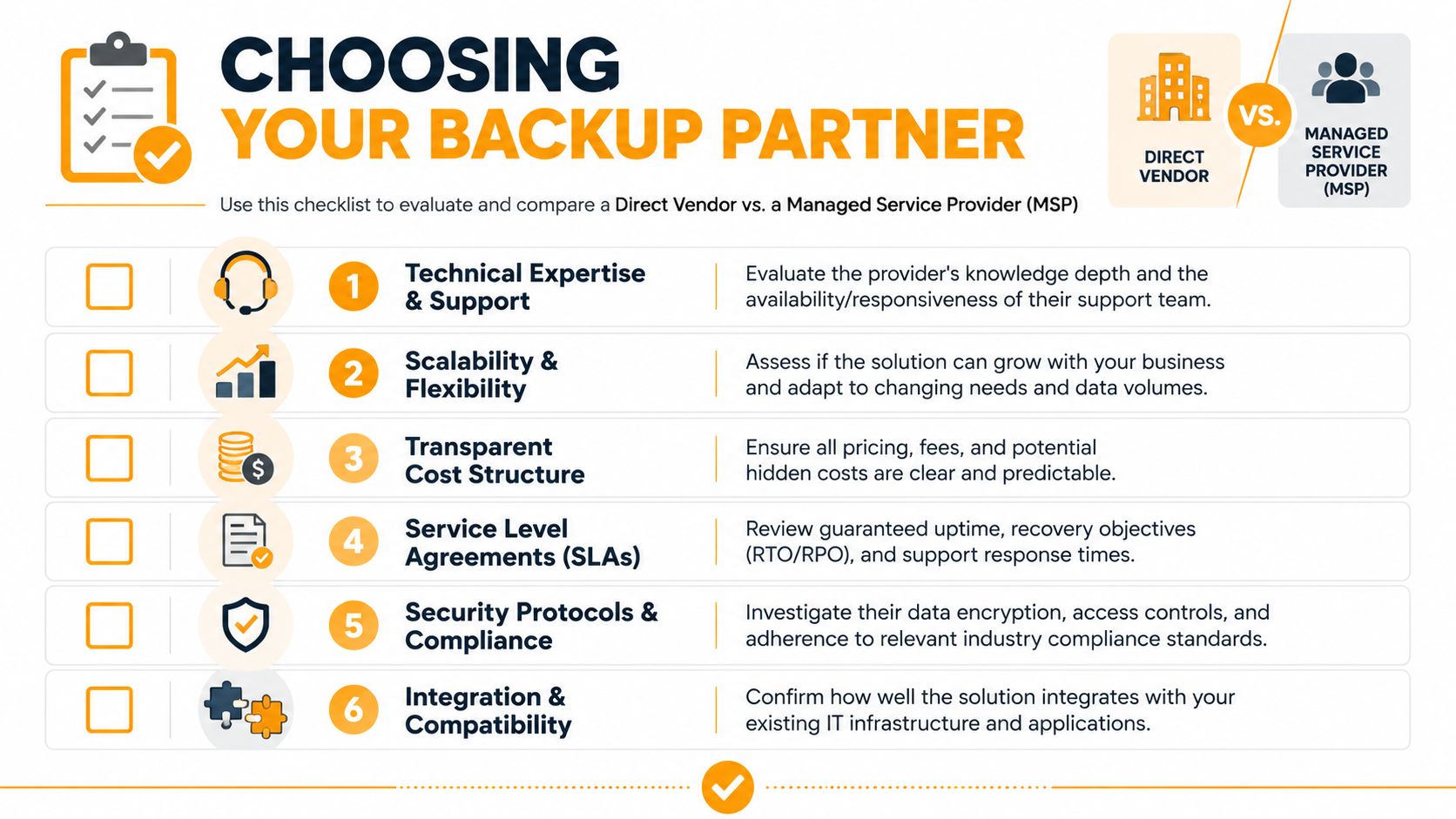
What to ask before you sign
Don't lead with price. Lead with accountability. Ask questions that reveal what happens after the sale.
- Support coverage: Who do you call when a backup fails or a restore is urgent?
- Onboarding process: Who decides what gets backed up, how often, and how long it's retained?
- Workload coverage: Does it protect servers, endpoints, and SaaS apps, or only one layer?
- Recovery help: Will someone assist with actual restores or only provide documentation?
- Monitoring: Who notices failed jobs, stale agents, or storage issues?
- Security posture: How is backup access restricted and audited?
- Scalability: Can the setup grow with new users, new locations, and new cloud apps?
A vendor may provide a strong product and still leave most of the operational work on your team. That's fine if you have experienced in-house IT. It's a problem if you don't.
When direct purchase works and when it does not
Buying direct works best when you already have someone internally who understands backup architecture, retention planning, endpoint coverage, SaaS recovery, and restore testing. That person also needs time to maintain it. In many small businesses, that person doesn't exist. Or they exist, but backup is one of fifteen responsibilities and gets attention only when something breaks.
An MSP model is usually better when:
- You don't have dedicated IT staff
- Your environment includes a mix of servers, laptops, Microsoft 365, and network storage
- You want one point of accountability
- You need regular validation, not just installation
A backup tool can be excellent and still fail your business if nobody owns the day-to-day decisions around it.
There's also a business reality owners should keep in mind. During an outage, you don't want to coordinate among the backup vendor, the internet provider, the server consultant, and your office manager who “usually handles the backups.” You want one responsible team driving recovery.
That's the practical advantage of managed service. It turns backup from a product you own into a process someone maintains.
Your Backup Is Only Half The Job Test Your Recovery
Most backup failures don't start with missing software. They start with false confidence. The dashboard says “successful,” so everyone assumes recovery will be smooth. Then a real incident hits and the business learns the backup can restore a few files, but not the server. Or the Microsoft 365 restore is slower than expected. Or no one knows the exact steps.
That's why restore testing deserves more attention than it gets. In its guidance for small businesses, CrashPlan stresses that backup should support a disaster recovery plan and that restore should be “fast and simple” in its article on cloud backup solutions for small businesses. The bigger issue is that many SMB guides stop at feature checklists instead of asking how quickly real recovery happens.
What most businesses skip
They install backup. They check that jobs run. Then they move on.
What they often don't test:
- Restoring a single critical file
- Restoring a mailbox or cloud app data set
- Restoring a full machine or server
- Measuring how long those restores take
- Documenting who does what during an outage
That gap matters more than most owners realize. A backup that exists but hasn't been tested is still a risk. It may be a smaller risk than no backup at all, but it's not certainty.
If you want a broader look at off-site protection as part of this process, this article on backing up data offsite is a useful companion.
A simple recovery testing routine
You don't need a giant enterprise exercise. You need repeatable proof.
Confirm the first full backup completed
Before trusting anything else, make sure the initial protected copy exists and is recoverable.Test a file restore
Pick something non-critical but real. Restore it. Open it. Verify it's usable.Test a larger restore path
That may be a workstation, a VM, or a Microsoft 365 data set. The goal is to validate the process, not just the storage.Write down timing and friction
Note how long it took, what permissions were required, and where staff got stuck.Repeat on a schedule
Recovery confidence decays when nobody checks it.
Don't ask whether backups are running. Ask whether recovery has been proven.
That one change in mindset separates businesses that merely store copies from businesses that can actually survive an outage.
Let IT Cloud Global Handle Your Data Protection
Small businesses don't need more backup jargon. They need a setup that protects the right systems, runs consistently, and restores cleanly when something goes wrong. That means choosing the right backup type, matching features to downtime tolerance, keeping costs predictable, and testing recovery instead of assuming it will work.
Most owners shouldn't have to become backup specialists to get there. They should be able to focus on customers, staff, and operations while experienced engineers handle the backup lifecycle correctly. That includes selecting the right platform, deploying it to fit the environment, monitoring jobs, adjusting retention, and validating restores before an emergency puts the business under pressure.
If your business depends on data, backup isn't optional. Tested recovery is part of staying operational.
If you want a partner that handles backup planning, deployment, monitoring, and recovery validation for you, talk to IT Cloud Global, LLC. Their team helps Houston-area businesses protect servers, endpoints, Microsoft 365, and cloud environments so owners can spend less time worrying about downtime and more time running the business.
- Houston IT Support: A 2026 Guide for SMBs
- Cloud Computing Solutions for Small Business: Houston 2026
- The Importance of BCP: Business Survival in 2026
- Managed IT Services for Small Businesses: Boost Efficiency
- Disaster Recovery Plan for Small Business: Your 2026 Guide
- Backup Data Offsite: An SMB’s Essential Guide