


10 Cybersecurity Best Practices for Small Businesses 2026
Your office opens at 8. By 8:15, someone clicks a fake invoice. By 9, a mailbox is compromised. By lunch, files are locked, staff are stuck, and customers are waiting for answers.
That is how small business security problems start. Fast, ordinary, and expensive.
You do not need a big in-house IT team to lower the risk. You need the right basics, set up in the right order, with clear rules for what you handle yourself and what you hand to a managed service provider like IT Cloud Global. That is the point of this guide.
If you run Microsoft 365, a few laptops, shared files, remote logins, and maybe a POS system, start here. Focus on the controls that block common attacks first. Keep the setup practical. Keep the budget in check. If you need help with securing Microsoft 365 with MFA, get that done early instead of waiting for a problem.
The sections below give you a working checklist. What to do. How to do it. And when to call for outside help.
Table of Contents
- 1. Implement Multi-Factor Authentication MFA Across All Systems
- 2. Deploy Next-Generation Endpoint Protection and EDR Solutions
- 3. Establish a Robust Data Backup and Disaster Recovery Plan
- 4. Conduct Regular Security Awareness Training and Phishing Simulations
- 5. Secure Cloud Infrastructure and Microsoft 365 Environments
- 6. Implement Network Segmentation and Zero Trust Architecture
- 7. Establish a Patch Management and Software Update Program
- 8. Implement Data Loss Prevention and Data Classification
- 9. Perform Regular Vulnerability Assessments and Penetration Testing
- 10. Establish an Incident Response Plan and Cyber Insurance Coverage
- Small Business Cybersecurity: 10 Best Practices Comparison
- Build Your Cybersecurity Foundation with a Trusted Partner
1. Implement Multi-Factor Authentication MFA Across All Systems
Passwords fail all the time. People reuse them, store them badly, or hand them over to phishing pages without realizing it. MFA fixes a huge part of that problem by making a stolen password less useful.
Microsoft reports that MFA blocks 99.9% of automated account attacks. If you only do one thing this month, do this.
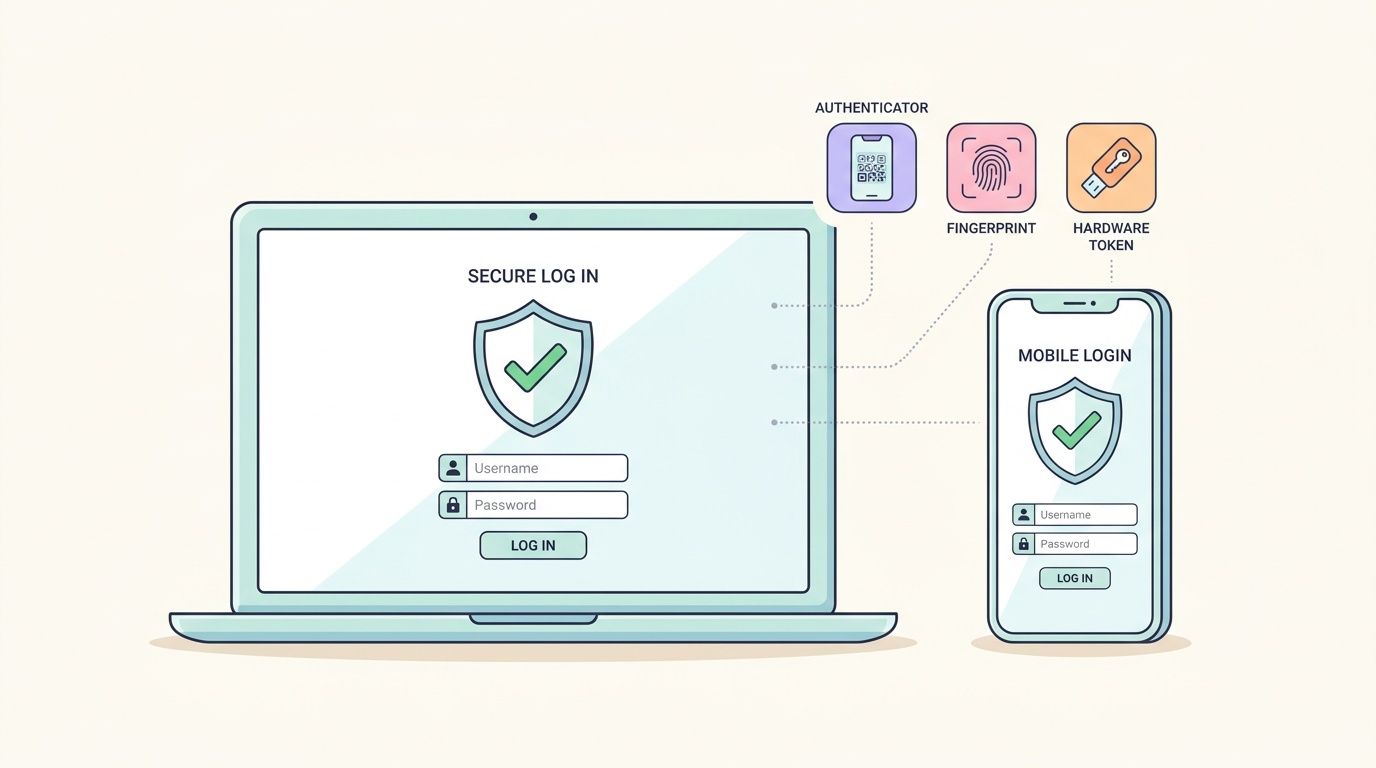
A small Houston office with Microsoft 365, remote email access, and cloud file storage should turn on MFA for every user, then enforce it first on admin accounts, email, banking, VPN, and any system tied to payroll or customer data. Retail shops should add it to POS admin access. Professional firms should require it for client file portals and document sharing.
Start with the accounts that matter most
Don't try to perfect everything in one day. Roll out MFA in a simple order.
- Protect email first: Email is the reset button for everything else. If an attacker gets inbox access, they can reset passwords across your stack.
- Secure admin accounts next: Microsoft 365 admins, Azure admins, AWS root access, firewall logins, and backup consoles need MFA before standard user accounts.
- Use app-based approval: Microsoft Authenticator is a practical fit for companies already using Windows and Microsoft 365. If you need setup help, review this guide on securing Microsoft 365 with MFA.
- Keep a backup method: Store break-glass admin access securely so you don't lock yourself out during a phone replacement or outage.
Practical rule: If a system can reach money, email, customer data, or backups, it gets MFA now. Not later.
If your team pushes back, that's normal. Keep the rollout simple. Show them the login prompt, explain why it matters, and move on.
2. Deploy Next-Generation Endpoint Protection and EDR Solutions
A staff member opens a fake invoice on a Friday afternoon. The laptop looks normal. The attacker is already inside, stealing passwords and probing shared files. Basic antivirus often misses that kind of activity.
You need endpoint protection that watches behavior, stops suspicious actions, and gives you a clear record of what happened. That is what EDR does. It helps you catch the attack on the device before it turns into a company-wide mess.
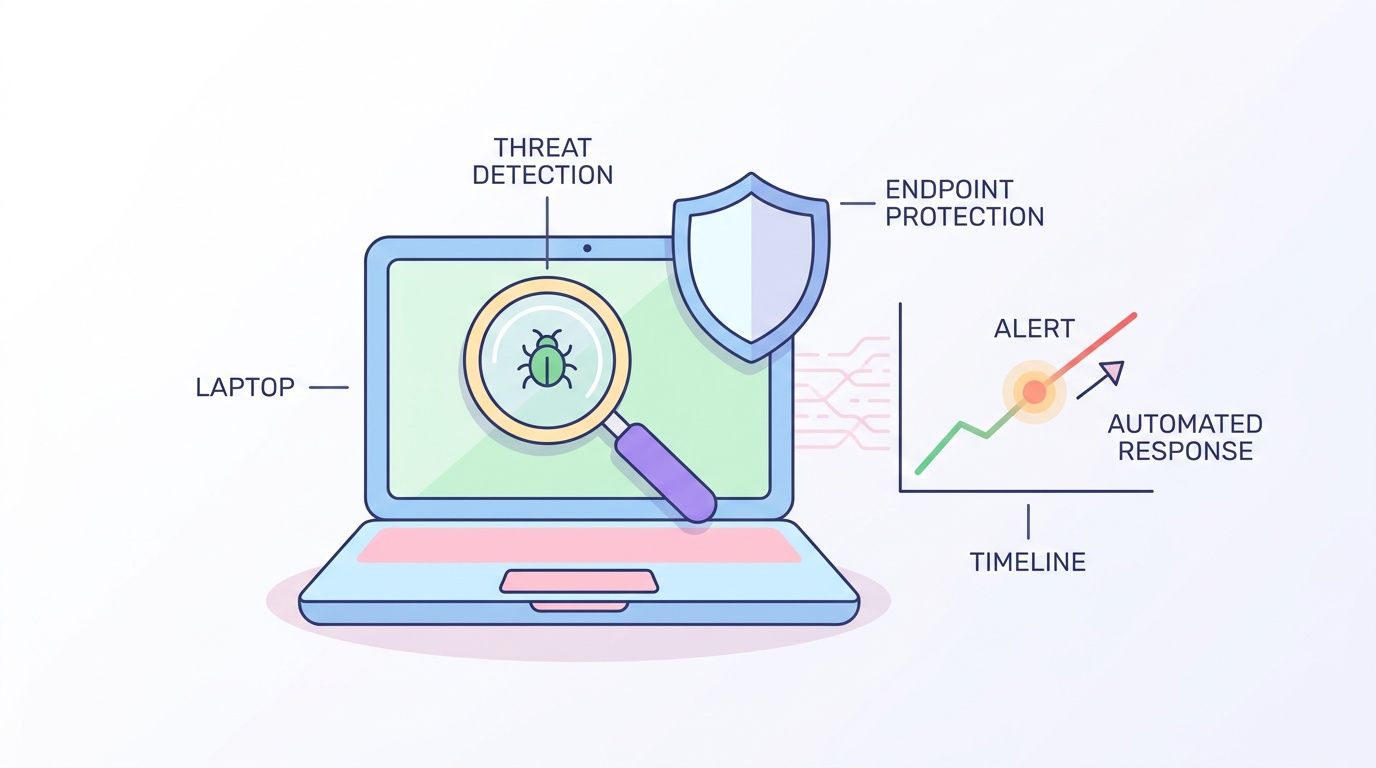
A small business does not need the biggest security stack on the market. It needs one solid, managed tool on every company device. Start with laptops, desktops, and servers. Then make sure remote staff and company-owned devices used offsite are covered too.
What to put on every business device
A law office, clinic, warehouse, or retail chain should protect every endpoint the same way. Free consumer antivirus is not a business plan.
- Pick one platform: Use one managed endpoint tool across the company. Multiple tools create gaps and make support harder.
- Require response actions: Choose a product that can isolate an infected device, stop harmful programs, and show you what triggered the alert.
- Cover remote work: Devices used from home, hotels, and client sites need the same protection as office machines.
- Assign alert ownership: Someone must review alerts and act on them. If nobody owns that job, problems sit unnoticed.
Be practical about budget. If you have fewer than 25 users, start with the devices that handle email, customer records, accounting, and file access. That gets you the most protection for the least spend.
Ask an MSP for help when any of this is true: you do not know which devices are in use, your team ignores security alerts, or you cannot confirm that every endpoint is reporting in. That is usually the line between buying a tool and being protected. A provider like IT Cloud Global can deploy, monitor, and tune EDR without dumping that work on your office manager or owner. If you're comparing options, look at this breakdown of the best endpoint protection for small business and pair it with a small business disaster recovery plan checklist.
Good endpoint protection stops the first machine from becoming your next outage.
3. Establish a Robust Data Backup and Disaster Recovery Plan
Monday starts with a ransom note on the screen. Files are locked. Staff cannot access invoices, customer records, or shared folders. If your only backup is a synced folder or an old external drive, your business is down until someone figures out what is still usable.
Backups need to be reliable, isolated, and tested. Start with the systems that keep money moving and work flowing. That usually means accounting, file shares, customer records, Microsoft 365, and any app your team uses to serve clients or process orders.
What you back up depends on the business. A retailer may need POS data and accounting files. A law firm or agency may need Microsoft 365 mailboxes, shared files, and client documents. A manufacturer may need server images, CAD files, and production documents. Pick the data you cannot afford to lose, then set a backup schedule around how often it changes.
Backups only count if you can restore
A backup job that "completed successfully" means very little if nobody has tested a restore. Run restore drills on a schedule. Recover a single file, a mailbox, and a full system. Time each one. If recovery takes too long, fix that before a real outage does it for you.
Use this checklist:
- Keep separate copies: Store backups in more than one place, including one copy that is offsite or isolated from your day-to-day network.
- Lock down backup access: Backup admin accounts should use strong passwords and MFA, and they should not be shared with regular user accounts.
- Set recovery order: Decide what comes back first. Email may matter less than accounting or your line-of-business app.
- Document the process: Write down where backups live, who can access them, how to start a restore, and who approves recovery decisions.
- Review cloud app coverage: Microsoft 365 and other cloud tools still need their own backup and recovery plan. Do not assume the provider will restore everything you need, the way you need it.
If you want a practical way to tighten this up, review these steps to protect small businesses from ransomware and phishing attacks and map them to your backup plan.
Ask an MSP for help when you cannot confirm what is backed up, how long recovery will take, or whether backups are isolated from ransomware. That is the point where DIY usually breaks down. IT Cloud Global offers guidance for building a disaster recovery plan for small business so you know what gets backed up, how often, and how to recover without guesswork.
4. Conduct Regular Security Awareness Training and Phishing Simulations
Monday starts with a fake invoice. By lunch, someone has entered their password into a fake Microsoft 365 page. By 3 p.m., the attacker is reading email and looking for money movement. That is how small business incidents start. Not with movie-level hacking. With one rushed click.
Your team does not need security theory. Your team needs habits. Pause. Check the sender. Question urgency. Report anything suspicious fast.
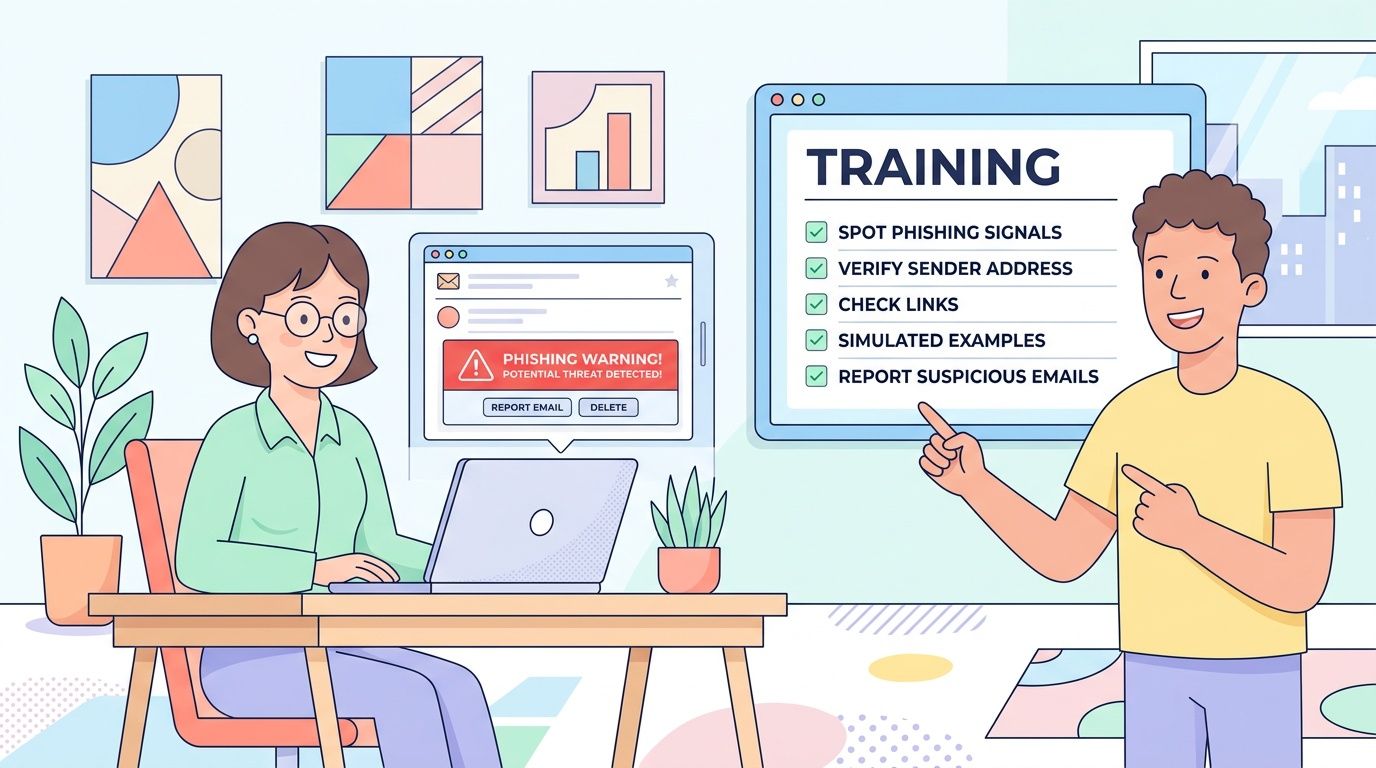
Skip the once-a-year slideshow. It does not stick. Train people on the messages they get and the decisions they make. Your receptionist sees delivery scams. Your bookkeeper sees invoice fraud. Your HR staff sees payroll and benefits scams. Build training around those real risks.
Train for daily behavior, not policy trivia
Keep it short. Keep it regular. Make it part of onboarding, then repeat it every quarter with quick refreshers in between.
- Show the common traps: Fake invoices, password reset emails, shared file requests, voicemail alerts, package notices, and bank or payroll change requests.
- Give staff one reporting method: Use a phishing report button, a shared mailbox, or a simple help desk process. Pick one and make sure everyone knows it.
- Correct fast after mistakes: If someone clicks a test phish, train them right away. Do not embarrass them in front of the team.
- Run phishing simulations: Test people with realistic messages, then use the results to coach the groups that need help.
- Set an MSP handoff point: If you do not have a way to run training, track clicks, or review reported emails, get outside help.
If you want a low-cost place to start, use this guide on protecting small businesses from ransomware and phishing attacks to line up employee training with the controls behind it.
A simple rule matters here. If an employee is not sure, they report it. Early reporting gives you a chance to reset passwords, block senders, and contain damage before it spreads.
Use short video reinforcement too, especially for teams that tune out policy documents.
Report-first culture beats silent panic every time. You want employees who raise their hand early, not employees who hope the weird email goes away.
5. Secure Cloud Infrastructure and Microsoft 365 Environments
Your team logs into Microsoft 365 on Monday morning and email works fine. By lunch, a fake invoice goes out from your real account, files are shared with the wrong people, and nobody knows who changed what. That is how cloud problems usually start. Subtly, then all at once.
Cloud apps cut hardware costs. They do not secure themselves. You still have to control who gets in, what they can touch, how data is shared, and which changes get tracked.
Lock down cloud access before problems start
Small businesses get in trouble by copying old habits into new systems. Shared admin accounts. Too many people with full control. Open sharing links that never expire. No one checking forwarding rules or sign-in alerts.
Start with the basics in Microsoft 365. Give each admin a separate admin account. Keep the number of global admins low. Review mailbox forwarding rules. Tighten SharePoint and OneDrive sharing so staff share only with the people who need access. Turn on audit logging so you can trace changes after a problem.
Do the same in Azure, AWS, and Google Cloud. Limit who can create resources, delete backups, change security settings, or spin up new services. If one person can do everything, one bad click or stolen password can do real damage fast.
Use this checklist:
- Cut admin access hard: Give full admin rights to as few people as possible. Everyone else gets the lowest level they need.
- Separate daily and admin accounts: Admins should not read email and browse the web from privileged accounts.
- Check sharing settings monthly: Look for public links, stale guest accounts, and folders shared too broadly.
- Turn on logging and alerts: You need records of sign-ins, file access, admin changes, and suspicious behavior.
- Review email rules: Attackers often set hidden forwarding rules to watch invoices, payroll, and vendor messages.
- Audit before migrations: Review permissions, data locations, and security settings before you move files and apps.
This is a good place to be practical about budget. If you have fewer than 25 users, start with Microsoft 365 security defaults, basic sharing controls, and a monthly admin review. If you store sensitive client data, handle payments, or have multiple locations, get outside help to review your tenant and cloud setup before a mistake turns into a breach.
Ask an MSP like IT Cloud Global for help when your team cannot answer basic questions fast: Who are our global admins? Are old guest accounts still active? Can anyone create a forwarding rule? Are audit logs on? If you do not know, you need a cleanup plan.
6. Implement Network Segmentation and Zero Trust Architecture
A staff laptop gets infected from a bad download. On a flat network, that problem does not stay on one laptop for long. It can spread to shared drives, printers, cameras, payment systems, and backups before anyone notices.
That is why small businesses need segmentation. Zero trust supports it by checking the user, device, and access request every time, instead of trusting anything just because it is inside the office.
Keep this practical. You do not need an expensive redesign to get results. You need to separate the systems that matter most and limit what each person and device can reach.
A retail shop should keep guest Wi-Fi away from POS and back-office systems. A medical office should keep patient record systems separate from front-desk browsing devices. A manufacturer should isolate shop-floor equipment from office computers.
Build simple barriers first
Start with the highest-risk split. Put guest Wi-Fi on its own network. Then separate core business systems from everyday devices.
- Separate guest Wi-Fi from business traffic: Customers, vendors, and personal devices should never share the same network as company systems.
- Group devices by risk: Put servers, backups, accounting systems, cameras, printers, and POS devices in separate segments where it makes sense.
- Limit access by job role: Staff should only reach the apps and systems they need to do their work.
- Require verification for remote access: Check the user and device before allowing connections to business systems.
- Monitor traffic between segments: Unusual movement inside your network is often the first warning sign.
Zero trust is not a product you buy. It is a way to set rules. Trust less. Check more. Block lateral movement before one bad device turns into a company-wide outage.
For a small office with fewer than 25 users, start with three basic zones: guest Wi-Fi, employee devices, and critical systems. That is affordable and realistic. If you have multiple sites, payment systems, medical data, production equipment, or remote staff connecting into the network, get an MSP like IT Cloud Global involved. At that point, the setup needs to be planned, tested, and documented so you do not lock out the business or leave gaps open.
7. Establish a Patch Management and Software Update Program
Your office opens at 8:00. By 8:15, one missed update on a front-desk PC can turn into a ransomware problem, a locked accounting system, and a very expensive day. Old software is one of the cheapest ways for attackers to get in.
Patch management needs a routine. It also needs an owner. If nobody is clearly responsible, updates get postponed, ignored, or skipped because someone is worried a program might break. That is how small issues turn into real outages.
Build a simple patching routine
Start with automatic updates on anything that supports them. Windows, browsers, Microsoft 365 apps, phones, tablets, firewall firmware, and security tools should not wait for someone to remember. Then create one monthly maintenance window for the rest, so staff know when reboots and short interruptions will happen.
Focus on the systems that can expose you fastest. Public-facing devices, remote access tools, laptops used off-site, and anything tied to financial or customer data go first.
- Turn on automatic updates by default: Do this for operating systems, browsers, antivirus, and common business apps.
- Review critical patches weekly: Some fixes should not wait for the monthly cycle.
- Patch third-party software too: PDF tools, printer software, browser add-ons, remote support tools, and industry-specific apps are common weak spots.
- Keep a current device and software list: If a device is missing from the list, it is usually missing from updates too.
- Remove software you no longer need: Unused apps cannot become unpatched risks.
Patch Tuesday is just a calendar date. A real program includes approvals, scheduling, reboots, checks, and proof that the update installed.
Do not patch blindly, either. Test updates on one or two lower-risk machines first if you depend on older accounting, manufacturing, medical, or point-of-sale software. That small step can prevent a bad update from stopping the whole business.
If you have fewer than 25 users and standard cloud apps, this is manageable with built-in tools and a basic checklist. If you run multiple locations, after-hours operations, legacy software, or specialized systems, bring in an MSP like IT Cloud Global. At that point, you need centralized rollout, exception handling, reporting, and someone accountable when a patch fails. That usually costs far less than one breach or one full day of downtime.
8. Implement Data Loss Prevention and Data Classification
An employee sends the wrong file to the wrong person. That is how a lot of small business data leaks start. Not with a hacker. With a rushed click, a bad share link, or a file sitting in the wrong folder.
Classify your data before you try to protect it. Use plain labels your staff can understand: Public, Internal, Confidential, Restricted. Then set rules for each one. Who can view it. Who can send it outside the company. Whether it can be downloaded, printed, copied to USB, or shared from a personal device.
Set rules around the data that can hurt you
Start with the files that would cause real damage if they got out. Payroll. Tax records. Employee files. Customer payment details. Contracts. Medical or legal records. If you use Microsoft 365, use its built-in labels and DLP policies first. For many small businesses, that is enough to cover the basics without buying another tool.
- Label your highest-risk data first: Do not try to classify every file on day one. Start with finance, HR, customer, and regulated records.
- Block the common leak paths: Stop sensitive files from being sent through personal email, public sharing links, chat apps, or unmanaged devices.
- Set approved exceptions: Your accountant, lawyer, payroll provider, or key vendor may need access. Give them a secure, approved path instead of letting staff invent their own.
- Train people on what the labels mean: A label only works if your team knows when to use it and what happens when they do.
- Review alerts monthly: If people keep hitting the same rule, fix the process or tighten the control.
Keep it practical. A law office may lock client files so only the assigned team can share them. A clinic may block patient records from leaving approved email and storage systems. A finance team may stop account data from being copied to removable media.
If your business has fewer than 50 users and standard Microsoft 365 workflows, you can usually set up a basic labeling and DLP policy in-house. If you handle regulated data, share files with outside partners every day, or keep running into exceptions, get help. An MSP like IT Cloud Global should step in when policy design, alert tuning, and user friction start slowing the business down. For a useful outside view on how testing and remediation connect to data protection, review Reclaim Security's approach to vulnerability management.
9. Perform Regular Vulnerability Assessments and Penetration Testing
A bad actor does not need many mistakes. One exposed login page, one missed patch, one weak admin account can be enough to shut down your business.
That is why you need two things. Regular vulnerability scans to catch obvious problems fast. Periodic penetration tests to prove whether those problems can turn into a real breach.
A vulnerability assessment checks for missing patches, unsafe settings, exposed services, and other common gaps. A penetration test goes further. A human tester tries to break in the way an attacker would and shows you what works.
Test on a schedule, and after big changes
Run scans after any meaningful change. That includes a firewall replacement, cloud migration, office move, new server, remote access rollout, or major Microsoft 365 change. If you only test once a year, you will miss the problems you created in between.
Start with a simple checklist:
- Scan external systems monthly: Check anything exposed to the internet, including VPN, firewall, remote desktop, websites, and cloud apps.
- Scan internal systems quarterly: Look for weak passwords, old software, open ports, and devices nobody is managing.
- Get a penetration test at least once a year: Do it sooner if you store sensitive customer data, process payments, or support remote staff.
- Retest after fixes: Do not assume the issue is gone because someone marked the ticket complete.
Focus on business risk, not just technical findings. A medium severity issue on your public email login matters more than a long list of minor findings on an isolated office printer. Prioritize what an attacker can reach, what holds sensitive data, and what would stop operations if compromised.
Keep the process practical. If you have fewer than 50 users and a simple setup, you can often handle basic scanning in-house with the right tool and a monthly review. Bring in an MSP like IT Cloud Global when you need external validation, annual pen testing, cloud security review, or help sorting findings into a fix-first plan. If your business operates in a regulated market or may need to report a breach, review Cybersecurity Incident Reporting Legal Obligations in Israel.
If you want a clear outside view of how testing and remediation should work, review Reclaim Security's approach to vulnerability management. The method is simple. Find the gaps. Rank them. Fix them. Test again.
10. Establish an Incident Response Plan and Cyber Insurance Coverage
It is 9:10 a.m. Your team cannot open files. Email is sending spam to customers. Staff are standing in your office asking what to do next. That is the wrong time to decide who shuts off systems, who calls your IT provider, and who speaks to customers.
Write the plan now. Keep it short. Keep it usable. A five page plan your team can follow beats a twenty page document nobody reads.
Start with roles and decisions. Name one person to lead the response. Name backups in case they are unavailable. List who can approve system shutdowns, who contacts your MSP, who speaks to employees, who handles customers, and who calls legal counsel and your insurer.
Include the basics your team will need under pressure:
- Severity levels: Define what counts as a minor issue, a serious incident, and a business stopping event.
- Contact list: Include internal leads, your MSP, cyber insurer, legal counsel, and any outside forensic support.
- First-hour checklist: Isolate affected devices, protect backups, change exposed passwords, and preserve logs and screenshots.
- Message templates: Prepare internal updates, customer notices, and vendor notifications before you need them.
- Tabletop tests: Run through ransomware, business email compromise, and a stolen Microsoft 365 admin account.
Keep it practical and budget-conscious. If you have a small team, you can write the first draft in-house and review it twice a year. Ask an MSP like IT Cloud Global to help when you need 24/7 response coverage, forensics coordination, or someone to lead a live incident without confusion.
Cyber insurance is a backstop, not a fix. Buy it after you confirm your controls match the policy requirements. If the insurer requires MFA, managed endpoint protection, tested backups, or a response plan, get those in place first. Otherwise, you may pay for coverage that fails you when you file a claim.
Reporting rules can create just as much damage as the attack if you miss a deadline or notify the wrong parties. If your business operates in Israel or handles data tied to that market, review Cybersecurity Incident Reporting Legal Obligations in Israel and put legal review into your response plan from day one.
Small Business Cybersecurity: 10 Best Practices Comparison
| Control | 🔄 Implementation Complexity | 💡 Resource Requirements | ⭐ Expected Outcomes | 📊 Ideal Use Cases | ⚡ Key Advantages |
|---|---|---|---|---|---|
| Implement Multi-Factor Authentication (MFA) Across All Systems | Low–Moderate, setup + user onboarding | Low, subscription features, minor helpdesk load | Very high, blocks most account compromise | Protect Microsoft 365, cloud accounts, VPNs, remote access | Rapid risk reduction, cost-effective, low disruption |
| Deploy Next-Generation Endpoint Protection and EDR Solutions | Moderate–High, deployment and ongoing tuning | Moderate–High, licenses, skilled admins or MSSP | High, real-time detection, reduced MTTD/MTTR | Organizations facing targeted attacks or compliance needs | Automated response, forensic visibility, proactive prevention |
| Establish a Robust Data Backup and Disaster Recovery Plan | Moderate, design, testing, and verification | Moderate, storage, backup software, off-site/cloud costs | High, fast recovery, ransomware resilience | Data-critical businesses, disaster recovery readiness | Business continuity, immutable backups, reduced downtime |
| Conduct Regular Security Awareness Training and Phishing Simulations | Low, program setup and recurring sessions | Low, per-user training subscriptions, time investment | Moderate–High, sizable reduction in phishing success | All organizations; high-risk user groups (finance, HR) | Cost-effective, measurable behavior change, compliance aid |
| Secure Cloud Infrastructure and Microsoft 365 Environments | Moderate, configuration and continuous monitoring | Moderate, cloud security tools, skilled administrators | High, reduces misconfigurations and data exposure | Cloud migrations, Microsoft 365 heavy users, remote teams | Protects cloud data, enables secure collaboration, compliance |
| Implement Network Segmentation and Zero Trust Architecture | High, planning, architecture changes, testing | Moderate–High, networking gear, identity controls, expertise | High, limits lateral movement and breach impact | OT/IT separation, critical systems, regulated environments | Minimizes blast radius, strong identity-based access control |
| Establish a Patch Management and Software Update Program | Low–Moderate, scheduling, testing, rollback plans | Low, WSUS/patch tools, test environment, admin time | High, closes known vulnerabilities quickly | All environments; systems with frequent external exposure | Low cost, automated vulnerability mitigation, compliance support |
| Implement Data Loss Prevention (DLP) and Data Classification | Moderate–High, cross-system policies and tuning | Moderate, DLP tools, classification effort, admin time | High, reduces accidental/intentional data exfiltration | Handling PII/PHI, finance, legal, regulated data stores | Visibility of sensitive data, automated policy enforcement |
| Perform Regular Vulnerability Assessments and Penetration Testing | Moderate, scanning + manual testing and follow-up | Moderate, tools or external consultants, remediation effort | High, identifies exploitable weaknesses proactively | New deployments, major changes, compliance audits | Prioritized remediation roadmap, validates defenses |
| Establish an Incident Response Plan and Cyber Insurance Coverage | Moderate, plan, roles, exercises; insurance procurement | Low–Moderate, planning resources; insurance premiums | Moderate–High, faster recovery, reduced financial impact | Any organization seeking preparedness and financial risk transfer | Structured response, external forensic support, financial protection |
Build Your Cybersecurity Foundation with a Trusted Partner
Small business security doesn't fail because owners don't care. It fails because the work piles up. MFA rollout gets delayed. Backup testing falls off the calendar. Patch reports go unread. Admin access keeps expanding because nobody stops to clean it up.
That's why the best cybersecurity best practices for small businesses are the ones you can realistically maintain.
Start with the controls that cut the most risk fast. Turn on MFA everywhere it matters. Put managed endpoint protection on every business device. Back up critical systems properly and test recovery. Train employees on phishing and reporting. Lock down Microsoft 365 and cloud access. Segment your network. Patch on schedule. Protect sensitive data. Scan for weaknesses. Write the incident response plan before you need it.
Then be honest about what your team can manage well.
If you've got one office manager handling vendors, a part-time tech person, or a general IT provider who reacts only when something breaks, you're probably carrying more risk than you think. Security needs routine. It needs visibility. It needs someone accountable for the details.
That's where a managed IT partner earns its keep. A firm like IT Cloud Global can help Houston businesses standardize tools, monitor endpoints, tighten Microsoft 365, manage backups, review alerts, and respond quickly when something looks wrong. Just as important, they can help you avoid half-finished security projects that look good on paper but fail in real life.
Get the foundation right first. Fancy tools don't fix basic gaps. Strong passwords without MFA aren't enough. Backups without restore testing aren't enough. Security awareness without reporting procedures isn't enough.
You don't need the biggest budget in your industry. You need the right priorities, a consistent process, and the discipline to keep going after the initial setup is done.
Do that, and your business becomes a much harder target.
If your team needs practical help putting these controls in place, IT Cloud Global, LLC can help you secure endpoints, protect Microsoft 365, improve backup and recovery, tighten your network, and build a security program that fits your budget and your day-to-day operations in Houston.
- Remote Desktop IT Support Guide 2026
- How to Choose a Texas Outsource IT Service
- Houston IT Support: A 2026 Guide for SMBs
- Computer Service Near Me: A Houston Buyer’s Guide
- 7 Best Managed IT Services Houston TX Reviews (2026)
- Best IT Services Houston TX: Your 2026 Partner
- Managed IT Services Houston TX: 2026 Guide for SMBs