


How to Recover Data from Crashed Hard Drive: Expert Steps
A hard drive crash usually starts with a small shock. The computer won’t boot. A shared folder disappears. An accounting file opens as gibberish. Sometimes there’s a click, then another, and everyone in the office goes quiet because they know something expensive just happened.
If you’re dealing with that right now, slow down. The biggest mistake is trying too many fixes too quickly. A calm sequence matters more than speed in the first few minutes. If you want the highest chance of saving your files, you need to separate logical problems from physical damage, avoid the common “repair” actions that destroy recoverable data, and choose the lowest-risk path that fits the value of the data and the cost of downtime.
Table of Contents
- Your Hard Drive Crashed Here’s What to Do Now
- First Response Triage and What Not to Do
- Safe DIY Data Recovery Software You Can Try
- Red Flags That Mean You Must Stop and Call a Pro
- What to Expect from Professional Data Recovery
- From Recovery to Resilience A Proactive Backup Strategy
Your Hard Drive Crashed Here’s What to Do Now
A business owner usually calls at the worst possible moment. Payroll is due. A proposal needs to go out. The office PC that “worked yesterday” now shows a boot error, or the external drive with years of job files suddenly vanishes from File Explorer. The instinct is to reboot, unplug, replug, run every utility in sight, and hope something sticks.
That instinct is understandable, but it’s risky.

Most recoveries go better when someone treats the first hour like incident response, not trial and error. The right question isn’t “How do I force this drive to work again?” It’s “What type of failure am I dealing with, and what action gives me the best chance of getting the data back?”
Start with the symptom, not the fix
A hard drive problem usually falls into one of two buckets:
- Logical failure means the drive is still detectable, but files are missing, the partition is damaged, or the system won’t boot properly.
- Physical failure means the hardware itself is in trouble. Common signs include clicking, grinding, a drive that won’t spin, or a device that was dropped, soaked, or overheated.
That distinction controls everything that comes next. If the issue is logical, software-based recovery may be a reasonable first move. If it’s physical, every extra power cycle can reduce your options.
A crashed drive is stressful, but panic usually causes more damage than the original fault.
If your computer has also been unstable in other ways, it helps to separate a true storage failure from a broader system problem. Problems like repeated freezes, blue screens, or sudden reboots can overlap with drive issues, and this guide on fixing computer crashes with expert IT support for small businesses is useful when you’re trying to tell the difference.
Your goal right now
Don’t focus on making the original machine usable again. Focus on preserving recoverability.
That means keeping the drive from being overwritten, identifying whether the failure is logical or physical, checking whether a recent backup already solves the problem, and only then deciding whether DIY software, a technician’s diagnosis, or a cleanroom service makes sense. When people follow that order, they usually make better decisions and spend less money chasing the wrong fix.
First Response Triage and What Not to Do
The first few actions matter more than people think. Many failed recoveries start with well-meant attempts to “repair” the drive. If you’re trying to learn how to recover data from crashed hard drive situations safely, start with what not to do.
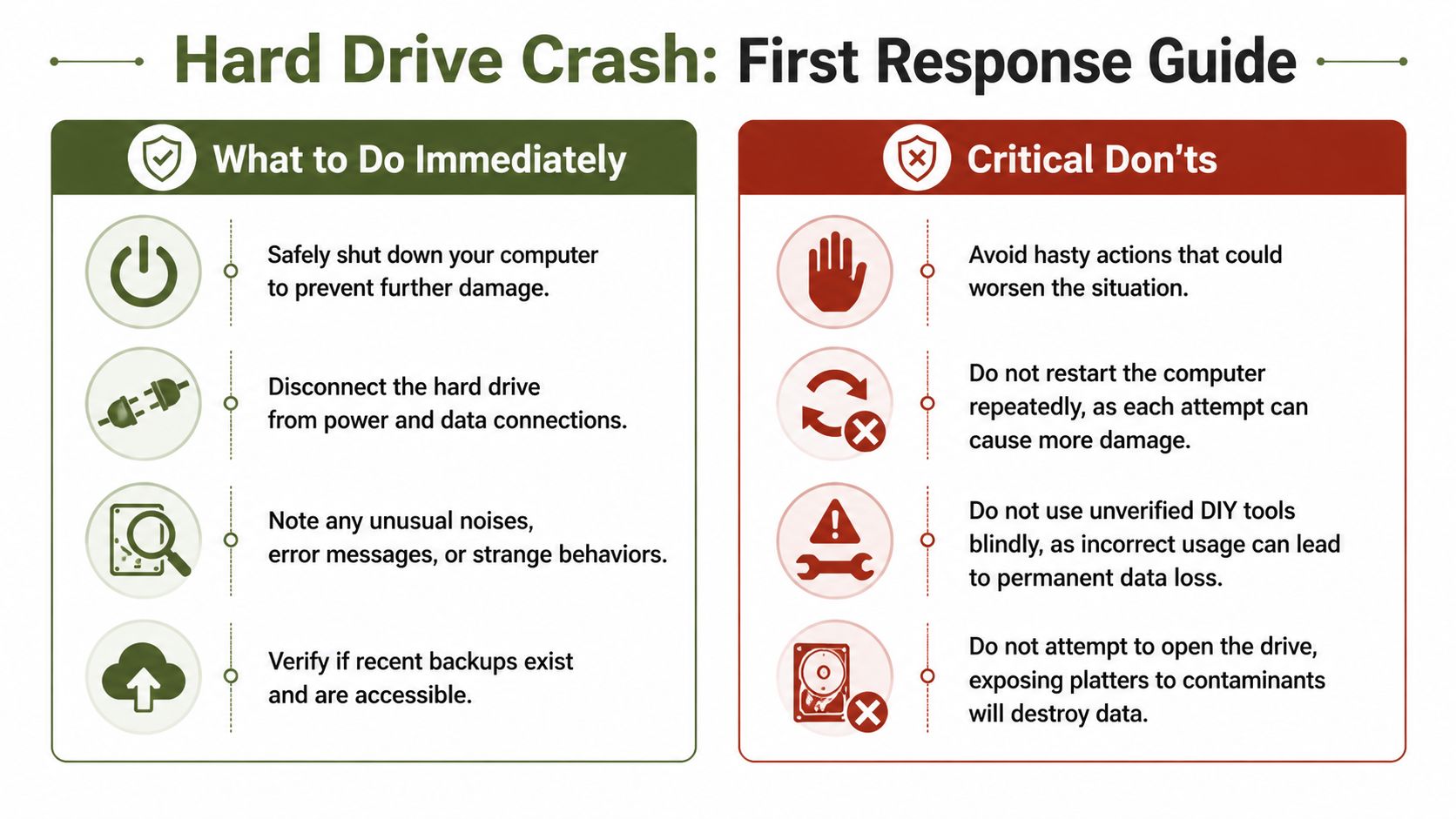
Emergency checklist
Power the affected machine down
If the drive is failing, continued use can make things worse. Post-failure writes can reduce recovery odds by 50-80% because the system may reallocate sectors and overwrite original data, as noted in this hard drive recovery methods guide.
Disconnect it from normal use
If it’s an external drive, unplug it. If it’s inside a desktop and you’re comfortable working with hardware, stop using that machine until the drive can be assessed properly.
Listen and observe
Write down exactly what happened. Did the system freeze first? Is the drive clicking? Does it spin up and disappear? Did someone drop a laptop? Those details save time later.
Check for backups before touching the drive again
Look for cloud sync, local backup software, server copies, external backup disks, or files stored in Microsoft 365, SharePoint, OneDrive, or line-of-business applications.
What you should not do
A lot of damage happens because users keep testing.
- Don’t reboot repeatedly. Each spin-up is another stress cycle.
- Don’t run CHKDSK, Disk Utility repair, or “fix disk” prompts on a drive that may have physical damage.
- Don’t install recovery software onto the affected drive. That creates writes where your lost files may still exist.
- Don’t copy random internet tricks. Freezing the drive, smacking it, or opening the casing are the kinds of stories technicians hear right before data becomes unrecoverable.
- Don’t open the hard drive. Platters need controlled clean conditions.
Practical rule: If the drive clicks, grinds, buzzes, smells burnt, or disappears intermittently, stop trying to make it behave and switch to diagnosis mode.
A quick triage table
| Symptom | Safer next move |
|---|---|
| Drive is detected, no strange sounds, files missing | Consider software recovery on another machine |
| Computer won’t boot, but drive appears in BIOS or enclosure | Treat it as a likely logical issue first |
| Clicking, grinding, buzzing, or no spin | Stop and seek professional handling |
| Drive was dropped or exposed to liquid | Don’t power it repeatedly |
| Recent backup exists | Restore from backup before attempting recovery |
Business owners often lose time by treating all crashes as equal. They aren’t. A deleted folder and a clicking drive may both look like “data loss,” but the safe response is completely different.
Safe DIY Data Recovery Software You Can Try
DIY software has a place. It just has a narrow lane. If the drive is still recognized, isn’t making bad noises, and the problem looks like deletion, formatting, or partition corruption, software recovery can be a sensible first step.
For logical failures like deleted files or formatting, DIY software can have success rates near 100%. For more complex issues such as corrupted partitions, results drop to 70-90%. That’s why software is useful, but only under the right conditions.
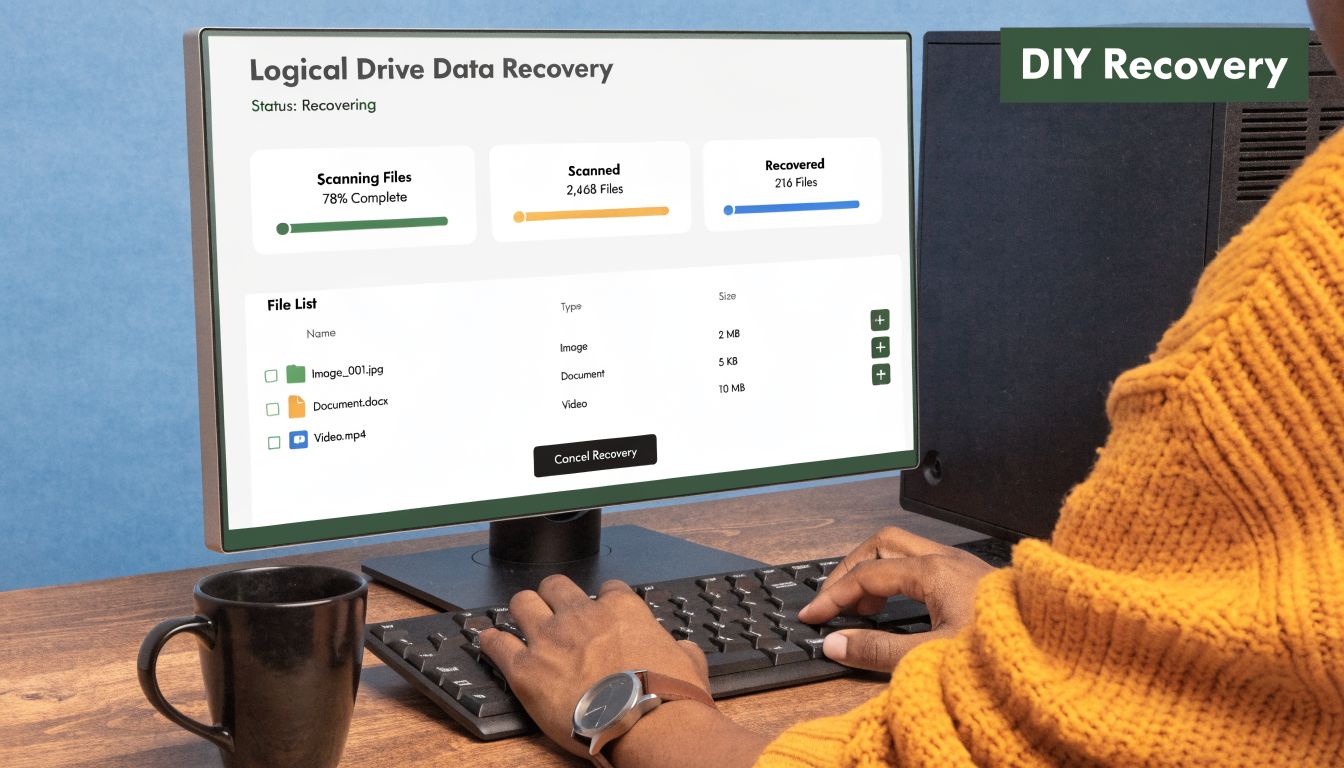
When DIY is actually appropriate
DIY recovery is usually reasonable when all of these are true:
- The drive is detected by BIOS, Disk Management, or another computer.
- There are no mechanical sounds like clicking or scraping.
- The data loss looks logical, not physical.
- The files matter, but the business can tolerate some risk while you attempt a read-only style recovery workflow.
- You have another healthy machine and another storage device to save recovered data.
Tools commonly used in these cases include EaseUS Data Recovery Wizard, R-Studio, and in some simpler cases Recuva. The exact tool matters less than the method. Good process beats random software swapping.
A safe process that limits damage
Start by removing the affected drive from service. Connect it to a healthy Windows or Mac system with a SATA-to-USB adapter or enclosure. The key rule is simple: the bad drive is the source, not the workspace.
Then follow this sequence:
- Connect read-only in spirit. Don’t browse around and open files casually.
- Install the recovery software on the healthy computer, never on the failed drive.
- Scan the affected drive with a quick scan first, then a deeper scan if needed.
- Preview files where possible so you don’t waste time restoring junk.
- Recover to a separate destination such as another external drive or network share.
A lot of people get the middle part wrong. They install the recovery utility directly onto the drive they’re trying to save. That can overwrite the exact file structures they need.
If the drive is visible and quiet, your job is to copy data off it with the fewest possible writes, not to “repair” it back into daily use.
Deep scans can take a long time, especially on larger drives. Let them finish. Interrupting and restarting over and over doesn’t help, and it adds more wear if the drive is unstable.
Here’s a short walkthrough that shows the kind of software-based process many users expect before they try it themselves:
Know when DIY has already failed
Software recovery has limits. Stop if the scan causes the drive to disconnect repeatedly, if the drive starts making new sounds, if read speeds collapse and the device keeps dropping offline, or if the files being found are obviously fragmented nonsense and the business can’t afford more experimentation.
That’s the point where trying six more utilities usually burns time, not creates results. For a small business, the cost isn’t just the software license. It’s staff downtime, delayed jobs, missed billing, and the possibility of turning a recoverable case into a lab case.
Red Flags That Mean You Must Stop and Call a Pro
Some drives tell you very clearly that software isn’t the answer. You hear it before you see it. A rhythmic click. A scrape. A weak buzz as the motor tries and fails to start. In those cases, every extra attempt to read the disk is a gamble with the actual magnetic surface that holds the data.

The symptoms that change the answer
Call a professional if you have any of these:
- Clicking or ticking sounds that repeat after power-on
- Grinding or scraping noise
- A burnt smell or obvious power damage
- The drive was dropped, especially while running
- Water, fire, or smoke exposure
- No spin at all
- Intermittent detection where the drive appears and disappears
- A drive that was opened by someone
For physically damaged drives such as dropped or water-damaged units, professional recovery success typically falls between 60-80%, according to this hard drive reliability and recovery analysis. That number tells you two important things. Recovery is still possible in many cases, and physical damage is serious enough that careless DIY attempts can reduce those odds fast.
Why pushing a damaged drive makes recovery worse
A physically failing hard drive isn’t like a buggy app. If heads are damaged or misaligned, the drive can scratch the platter during each attempted read. If the spindle struggles to start, repeated power cycles can make the drive less stable. If moisture is involved, powering on before proper handling can create additional contamination and corrosion problems.
That’s why software utilities don’t belong in this stage. They assume the drive can survive prolonged reading. A damaged drive often can’t.
The moment you hear mechanical noise, stop treating the problem like missing files and start treating it like fragile evidence.
This is also where broader machine symptoms matter. If the computer has been throwing off repair warnings, freezing during boot, or showing other signs of hardware failure, this checklist of common signs that your computer is in need of urgent repair can help you recognize when the problem is larger than a single bad file system.
The business decision is usually simpler than it feels
Owners often hesitate because they don’t want to spend money unless they have to. That’s reasonable. But if the drive contains accounting data, legal records, CAD drawings, QuickBooks files, customer folders, or years of email archives, the risk changes.
In those cases, one more DIY attempt isn’t “free.” It costs time, keeps staff waiting, and may lower the chance that a technician or lab can get the data back cleanly. When the symptoms are physical, the cheapest move is often to stop early.
What to Expect from Professional Data Recovery
Professional data recovery sounds mysterious until you break it down. In practice, it’s a structured decision: diagnose the failure, estimate recoverability, compare the recovery cost to the value of the data, and choose the least risky path.
How the decision usually gets made
For small and midsize businesses, cost matters. The price range is broad. Complex software-based jobs can run $300-$500, while professional cleanroom recovery often runs $1,500-$3,000+, as described in this overview of damaged hard drive recovery costs. That spread is exactly why an initial diagnosis matters.
A useful way to frame the choice is with three questions:
| Question | Why it matters |
|---|---|
| How valuable is the data? | Some files are inconvenient to recreate. Others are business-critical. |
| How long can the business wait? | Downtime often costs more than the tool or service itself. |
| What kind of failure is it? | Logical issues and physical damage belong on different paths. |
A professional process usually starts with intake and evaluation. The technician checks whether the issue is logical corruption, electronics trouble, firmware behavior, or mechanical damage. If parts replacement or controlled internal work is needed, that moves the case into cleanroom territory. If the issue is lighter, the job may stay at the software or bench-diagnostics level.
The middle ground most SMBs actually need
A lot of businesses think there are only two options. They either gamble on free tools or ship the drive to an expensive forensic lab. In reality, there’s often a middle ground: local diagnosis, controlled bench work, practical recovery planning, and a clear go or no-go recommendation before the case becomes more expensive.
That’s where an in-house depot can make sense for SMBs. A technician can assess the damage, confirm whether the case is a candidate for software recovery, bench recovery, or lab escalation, and help the owner decide based on the value of the data and the cost of downtime. IT Cloud Global, LLC offers that kind of in-house repair and data recovery workflow as part of its Houston support services, which is useful for businesses that want a local evaluation before committing to a full cleanroom case.
If you want another practical SMB perspective, this guide to data recovery by Finchum Fixes IT is a useful comparison because it frames recovery from the business side, not just the technical side.
A good recovery provider should help you decide whether the job is worth doing, not just tell you that recovery is possible.
What most owners want isn’t a dramatic promise. They want a sober answer: what failed, what the likely path is, what the turnaround may look like, and whether the data is important enough to justify the spend. That’s the right standard.
From Recovery to Resilience A Proactive Backup Strategy
Once the immediate crisis is over, the valuable lesson starts. A successful recovery is relief. It isn’t protection. If your business goes back to storing critical files on one workstation, one USB drive, or one office server with no tested backup, the next failure will feel exactly the same.
What a crash should change in your business
Hard drives fail even when they’re from reliable product lines and used in normal environments. Large-scale 2025 Q2 data covering over 300,000 drives showed a quarterly annualized failure rate of 1.42%, which is low but still constant enough to prove that drive failure is unavoidable, according to this data recovery statistics roundup.
That matters because many SMBs implicitly operate on assumptions like these:
- “The PC is only a year old.” Age helps, but it doesn’t guarantee anything.
- “The external drive is our backup.” One device is not a strategy.
- “Our files sync to the cloud somewhere.” Sync and backup are not the same thing.
- “We’ll deal with it if it happens.” That becomes expensive the second a line-of-business file disappears.
A backup setup that reduces business risk
A stronger setup usually includes several layers:
- Local recovery speed for fast restores of recently changed files
- Offsite protection in case of theft, fire, flooding, or ransomware
- Automation so backups don’t depend on one employee remembering to plug in a drive
- Verification so someone checks that restores work
- Coverage across endpoints and cloud apps, not just one file server
The common framework many IT teams use is the 3-2-1 approach. Keep multiple copies, use more than one storage type, and keep one copy offsite. If you want a simple business-friendly explanation of backup types and why they matter, this overview of REDCHIP IT Solutions backup advice is worth reading.
For companies that want offsite protection built into day-to-day operations, this guide on backing up data offsite is directly relevant because offsite copies are what keep a drive crash from turning into an outage.
A backup plan should also answer practical questions, not just technical ones:
| Backup question | What your business should know |
|---|---|
| Where is the primary copy? | On a workstation, server, NAS, or cloud platform |
| Where is the offsite copy? | Cloud backup, replicated storage, or another secure location |
| How fast can you restore? | Minutes, hours, or days changes the business impact |
| Who checks backups? | A named person or IT provider should own this |
| What gets tested? | Sample file restores and larger recovery drills |
Recovery is an event. Resilience is a system. The businesses that handle drive failures well aren’t lucky. They’ve already decided that one hardware failure won’t be allowed to stop payroll, invoicing, customer support, or operations.
If your business is dealing with a failed drive, missing files, or a computer that won’t boot, IT Cloud Global, LLC can help assess the problem, determine whether it’s safe for DIY recovery or needs professional handling, and support a backup strategy that reduces the chance of a repeat crisis.
- How to Choose a Texas Outsource IT Service
- Houston IT Support: A 2026 Guide for SMBs
- Computer Service Near Me: A Houston Buyer’s Guide
- 7 Best Managed IT Services Houston TX Reviews (2026)
- Best IT Services Houston TX: Your 2026 Partner
- Managed IT Services Houston TX: 2026 Guide for SMBs
- IT Managed Services Houston TX: 2026 Guide