


Wifi Extender Installation: A Complete Guide for 2026
You're standing in the middle of a small office, and the complaints are always the same. The front desk is fine, the conference room is fine, then one corner drops calls, card readers lag, or a warehouse scanner keeps stuttering just far enough away from the router to be annoying. That's usually when someone says, “Can't we just plug in an extender?”
Sometimes yes. Sometimes that quick fix becomes a quiet failure that leaves the business thinking it solved the problem while devices are still clinging to weak signal. Wi-Fi extender installation works best when it's treated like a site decision, not a convenience purchase. The difference comes down to signal quality, placement, security, and whether the extender is even the right topology for the space.
Table of Contents
- Why WiFi Extender Installation Is a Planning Job, Not a Plug-In Job
- Run a Quick Site Survey Before You Buy Anything
- Choose the Right Topology for Your Site
- Physical and Software Setup From Box to Working
- Security, SSIDs, and Channel Choices That Actually Matter
- Test, Tune, and Validate the Install
- Troubleshooting and When an Extender Is the Wrong Tool
Why WiFi Extender Installation Is a Planning Job, Not a Plug-In Job
A dead zone in a live business doesn't care that the extender was cheap and easy to box up. If the device lands in the wrong spot, it can extend weak signal instead of usable signal, which is why a quick install often looks successful while performance stays disappointing. In office work, the difference shows up in dropped video calls, slow logins, and devices that never quite roam where you expect them to.
The core rule is simple, the extender has to hear the router clearly before it can repeat anything useful. That's why placement matters as much as the hardware itself, especially in spaces with walls, appliances, racks, or structural obstructions that eat signal before it reaches the target area. Consumer guidance and vendor setup flows both point to the same principle, the extender belongs where it still receives a strong upstream connection, then retransmits from there, not from the edge of a dead zone (Parks Associates extender adoption and installation guidance).
Practical rule: if the extender can't get a solid signal from the router, it can't create a solid signal for your users. It just moves the problem.
A good install has a clear outcome. The business should get better coverage without making network management messy for staff, guests, or devices that bounce between access points. That means the job starts with deciding whether the site needs an extender at all, or whether it needs a different topology that won't fail later.
Run a Quick Site Survey Before You Buy Anything
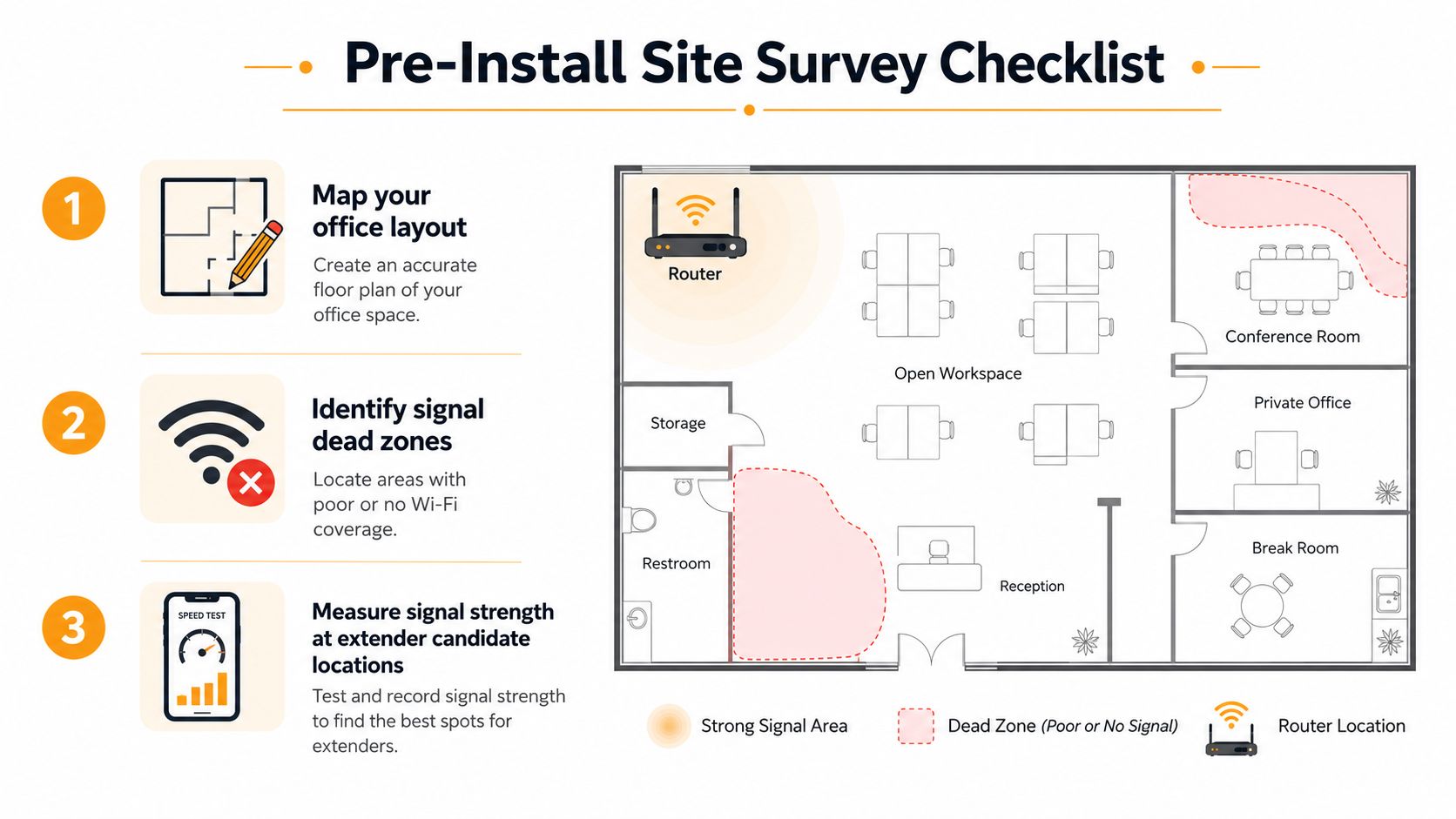
A 20-minute survey saves more time than a return trip, because it tells you where coverage falls apart. Start with the floor plan, not the box. Mark the router, the dead zones, and the places where users complain most, then note the physical blockers that don't show up in marketing photos, like elevator shafts, concrete walls, metal shelving, file rooms, refrigeration, or equipment closets.
Find the signal boundary before you mount anything
Use a phone or laptop with a signal-reading utility and walk toward the weak area. The goal isn't perfection, it's finding a spot where the router signal is still usable enough for the extender to listen cleanly. In practice, you're looking for candidate locations where the signal is clearly better than the dead zone and not buried under structure or machinery.
If the location is hidden low to the floor or tucked behind metal, move it. Extenders want open air and some elevation.
That first walk also shows you whether the problem is local or structural. A narrow dead zone near one office wall is one thing. A long corridor, a warehouse row, or a floor separated by concrete and metal is another. If the strongest candidate spots are still clearly marginal, that's a warning that an extender may help a little, but not enough for the job.
Build a short list of acceptable mounting points
Write down two or three places where the extender could sit midway between the router and the dead zone. Use the middle of the route, not the target room itself, because the device needs a stable upstream link first. Setup guides commonly recommend a midpoint placement and a signal-tested location around the weak-signal boundary rather than the edge of coverage (practical setup workflow and live signal testing).
If you're thinking beyond a simple plug-in install, it helps to compare the site with a broader network plan, and this business network setup guide is a useful reference for the bigger picture. The survey should leave you with one answer: can an extender solve this, or do you need a topology change before you spend money?
Choose the Right Topology for Your Site
The wrong topology is the most expensive “cheap” decision in Wi-Fi. A wireless extender is fine when the source signal is still strong enough and the dead zone is limited. A mesh system makes more sense when roaming matters and the site is larger or more complex. An access point with wired backhaul wins when performance, stability, and layout control matter more than convenience.
| Topology | Best For | Backhaul | Typical Cost | Main Weakness |
|---|---|---|---|---|
| Wireless extender | Small dead zones, light office use, quick fixes | Wireless | About $50 to $80 for a consumer-grade unit | It depends on a strong upstream signal |
| Mesh system | Multi-room roaming, mixed devices, broader coverage | Wireless, sometimes wired | Higher than a single extender | More expensive and more involved to manage |
| Access point with wired backhaul | Multi-floor sites, retail, warehouse, hard-to-cover spaces | Ethernet | Varies by cabling and hardware | Requires cable path and install work |
Extender placement guidance is useful, but it's conditional. TP-Link says external-antenna models should sit about 25 to 40 feet from the router, and internal-antenna models about 20 to 35 feet, only when the router signal is still strong at that location (TP-Link extender placement guidance). That's a signal-quality rule, not a distance rule. If the only usable spot is already weak, you're better off using AP mode with Ethernet than forcing a wireless repeater setup.
For sites with open offices and a single trouble area, an extender can be enough. For multi-floor layouts, warehouses with metal racking, or retail spaces with thick back-of-house walls, wired backhaul or mesh usually reduces headaches. When the site needs more control than a plug-in device can offer, it's smarter to install the topology that matches the space, not the one that's easiest to unbox.
Physical and Software Setup From Box to Working
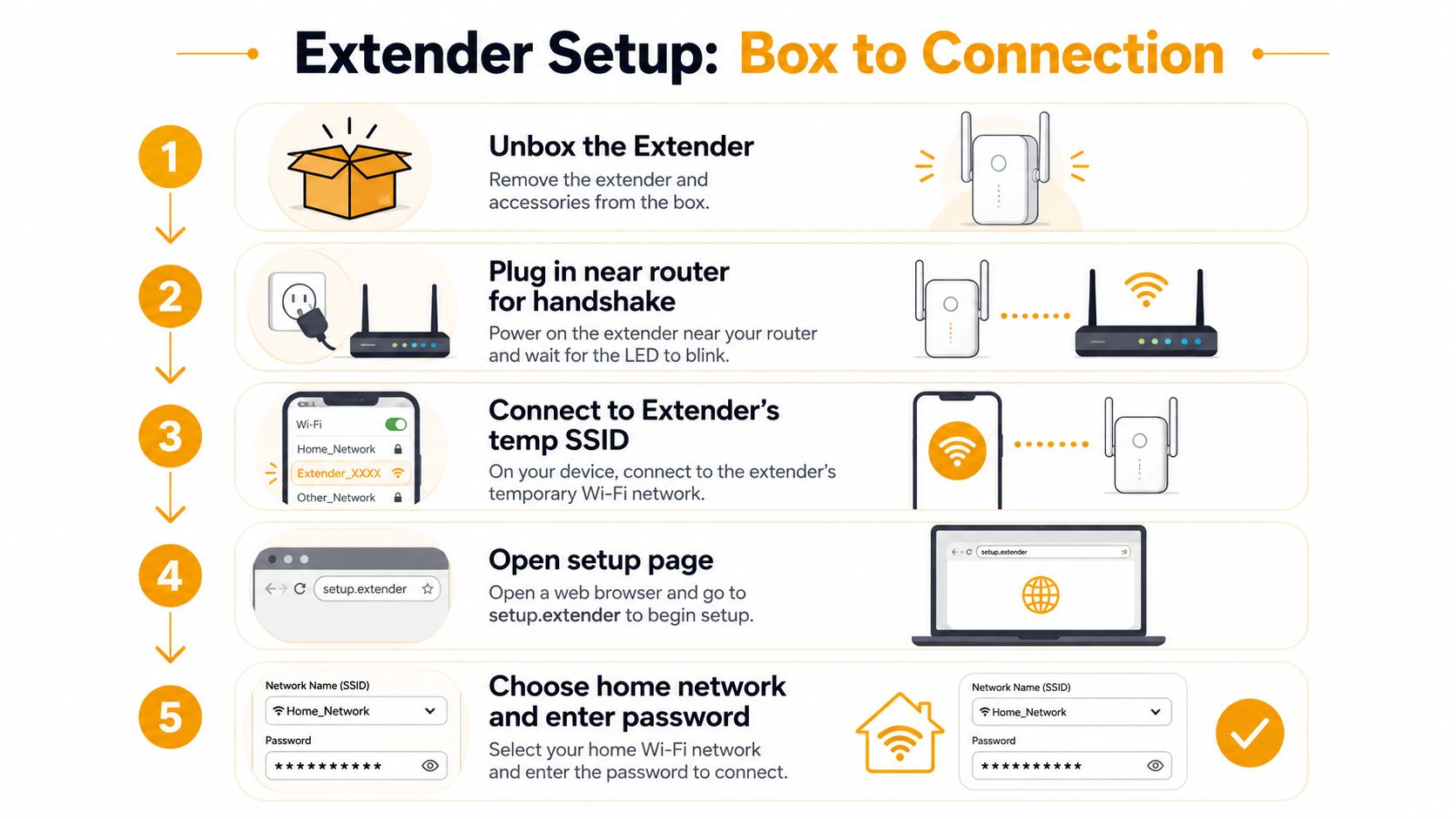
The cleanest install starts close to the router, not in the dead zone. Plug the extender in near the router first so it can complete its first handshake with a strong signal. That short-range setup lets you pair the unit, update it if needed, and avoid chasing a bad connection while you're still configuring it.
Pair the device before you worry about final placement
Most units will connect through a temporary setup network or WPS. Open the setup page in a browser, choose the upstream SSID, enter the router password, and let the wizard finish its initial reboot. NETGEAR's setup flow follows that same pattern, including connecting to the extender's default network, opening the setup page, and selecting the existing 2.4 GHz and 5 GHz bands when available (NETGEAR quick setup guide).
This is also the point where printed instructions can disagree with the interface. If the wizard offers a slightly different order, follow the device's current prompts, not the sheet in the box. Firmware updates belong here too, before final placement, because no one wants to remount a device later just to patch it.
Move it after the handshake, not before
After the setup completes, move the extender to the midpoint location you identified during the survey. That's where the upstream link is tested in real conditions, not just on a bench. The link indicator matters, too. A green or solid usable link usually means the extender is receiving a workable upstream signal, while amber or red means it needs to move closer to the router or out of a blocked spot (setup best practices and link-light guidance).
Match the band to the site
Dual-band units are often more flexible than single-band gear, but the best band depends on distance and obstacles. Higher-frequency links can be faster in clean sightlines, while lower-frequency links tend to travel better through walls and around obstructions. If the extender is set in a congested corner or behind heavy construction, don't be surprised if the nicer spec sheet doesn't survive the building.
If you're working a building where the cabling path is already available, this is also the moment to think about structured cabling contractors. A wired feed to an access point may take more effort up front, but it often removes the uncertainty that comes with a wireless repeater.
Security, SSIDs, and Channel Choices That Actually Matter
A business extender shouldn't create a new security problem just to solve a coverage problem. Match the extender's WPA2 or WPA3 settings to the router so staff and guests don't get inconsistent prompts or weaker protection. Change the admin password from the default, and keep guest traffic separated if the site uses visitor access or a public-facing front desk.
Roaming tradeoff: the same SSID makes life easier for most users, but it can confuse devices when router and extender signals overlap. A different SSID can be clearer to troubleshoot, even if roaming feels less seamless.
That SSID choice is a practical one, not a universal rule. In smaller offices, cloning the network name can make movement between areas feel smoother. In spaces where devices stubbornly cling to the stronger-looking but poorer-performing signal, a separate SSID can make behavior easier to control. The right answer depends on how many mobile devices you have, how close the router and extender sit to each other, and how often staff move between zones.
Channel choice matters more than many install guides admit. On a busy office floor, auto settings can pick something that looks convenient but behaves poorly once the channel gets busy. Manual channel selection is usually the safer call when you already know the environment is crowded, because you're making a deliberate choice instead of hoping the radio guesses right.
For a straightforward external reference on improving the source side of the link, optimize your router placement before you blame the extender. If the router itself is tucked in a cabinet or jammed against a wall, the extender is starting from a weak source no matter how carefully you configure it.
Test, Tune, and Validate the Install
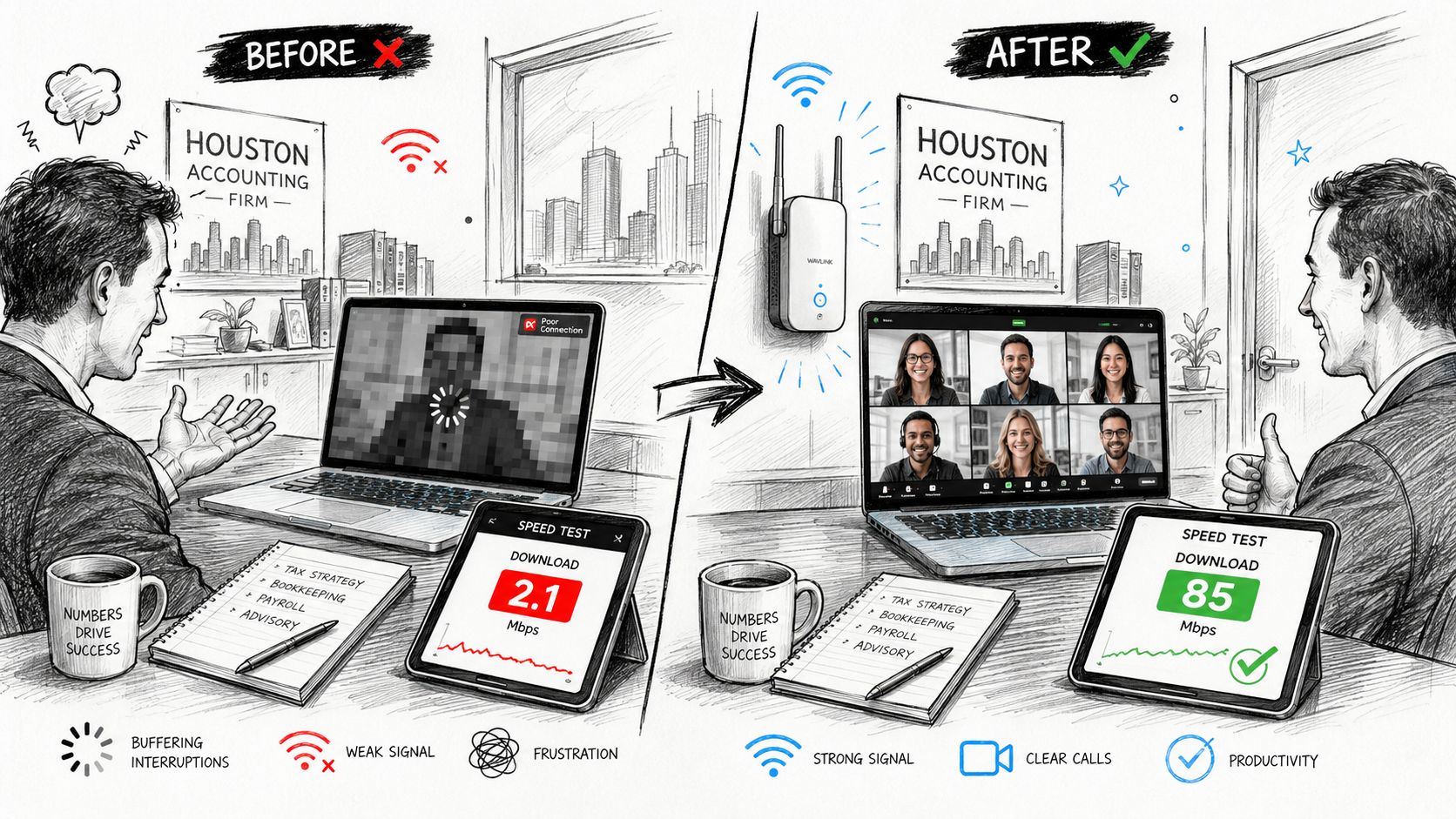
A Houston accounting firm once had a corner office that looked fine on paper and failed every Zoom call in practice. The fix wasn't dramatic. The extender went in, the LED showed a usable link, and the floor was walked again with a laptop to see where the signal held up. The install was only done when the bad room stayed usable and the neighboring offices didn't get worse.
Validate with before-and-after checks
Run speed tests before and after the install from the same spots. Then check the extender's link LED and walk the area where users work. If the extender looks healthy but performance still feels poor, the problem may be placement, interference, or a device that's still hopping back to the router signal instead of staying on the extender.
Make small adjustments, then stop
A few feet can matter more than another hour of guessing. Raising the unit off the floor, moving it a short distance to clear a wall, or swapping bands can all change how stable the link feels. If a user device keeps latching onto the router instead of the extender, disconnect and reconnect it near the intended coverage zone so it learns the better path.
For broader support when symptoms don't make sense, this slow network issues guide is a useful next stop. If the pattern looks electrical rather than network-related, a resource like electrical troubleshooting can help you rule out power or outlet problems before you chase phantom Wi-Fi faults.
The install is done when the target area is stable, the LED is healthy, and users stop complaining without needing a workaround. If the extender only looks good on the shelf, it isn't finished.
Troubleshooting and When an Extender Is the Wrong Tool
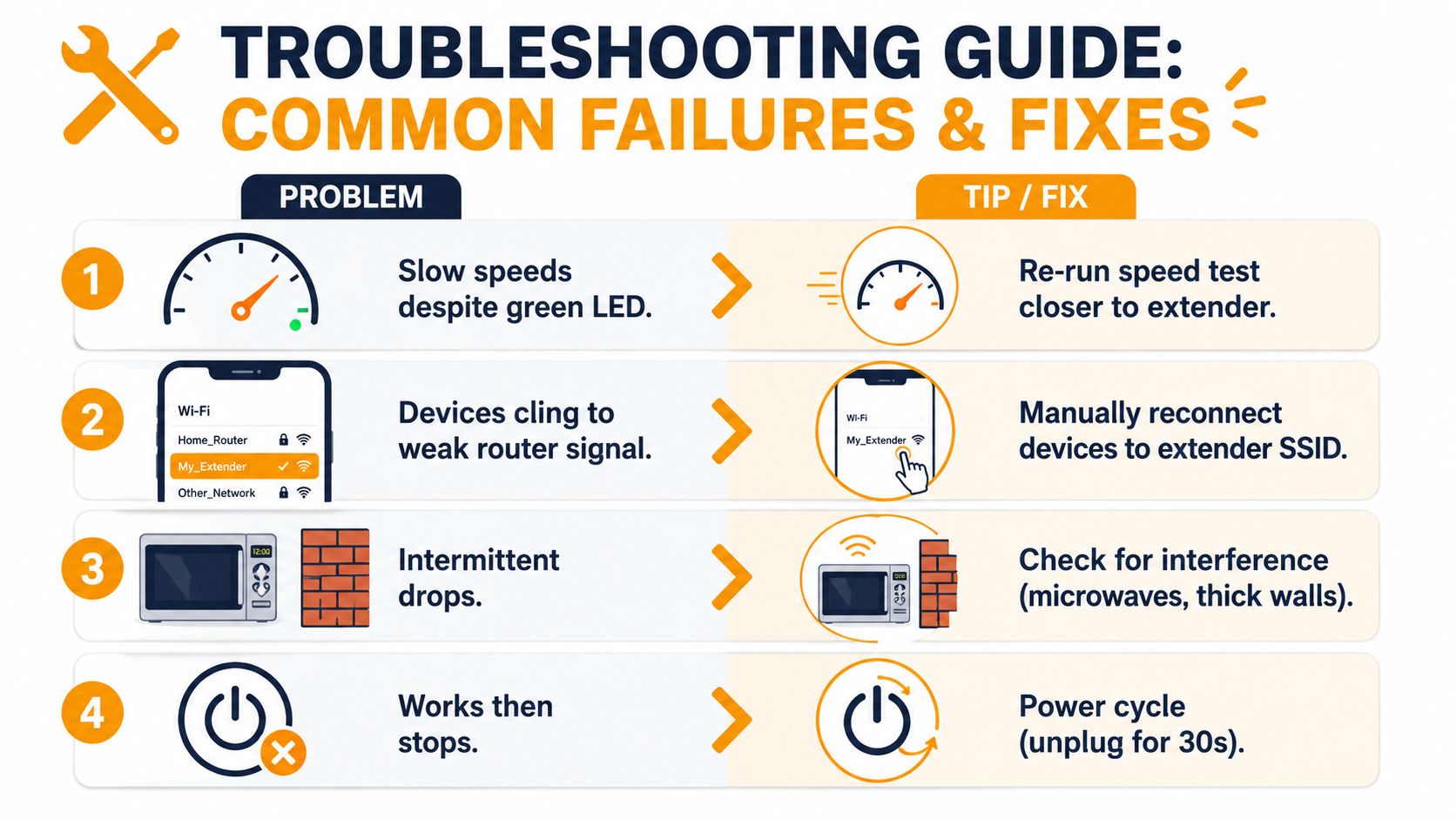
The most common failure is the quiet one, the extender shows a green link but speeds are still bad. That usually means the upstream signal was only barely acceptable, so the extender is repeating mediocrity instead of fixing it. Another common issue is devices clinging to the weaker router signal, which makes the extender seem broken when the problem is roaming behavior.
Know the failures that point to a different design
If the extender works for a week and then drops out, check for interference, power-cycle it, and confirm the upstream link still exists. If the trouble sits at the building edge, on another floor, or behind metal racks, the issue may not be configuration at all. It may be the wrong topology for the site.
Outdoor and semi-outdoor coverage deserve their own decision. A window-side plug-in extender can be a workaround, but it's rarely the clean answer for patios, yards, storefront edges, or garage-adjacent spaces. In those cases, outdoor-rated hardware, an outdoor access point, or structured cabling with proper placement usually fits the environment better (outdoor Wi-Fi coverage guidance).
Move on when the survey keeps failing
If the survey never finds a strong midpoint, stop treating the extender as the hero. That's the moment for mesh, AP mode, wired backhaul, or a professional install that can deal with cabling, mounting height, and the building's actual layout. For businesses that depend on Wi-Fi for daily operations, a managed IT partner can save time by choosing the right path instead of chasing another round of plug-and-pray.
When the site is too complex for a simple repeater, that's not a failure. It's a signal that the network needs a different design, not another extender.
If your office keeps fighting dead zones, dropped calls, or a setup that never quite feels stable, IT Cloud Global, LLC can help you assess the layout, choose the right topology, and install the network path that fits the building instead of forcing a plug-in fix where it doesn't belong.